
Creation of Presentation (प्रेजेंटेशन का निर्माण)
Before creating a Presentation you have to know how to open PowerPoint 2013.
प्रेजेंटेशन बनाने से पहले आपको यह जानना होगा कि पॉवर पॉइंट 2013 कैसे खोलें।
To open Microsoft Office PowerPoint 2013:
Method 1: Open Microsoft PowerPoint by clicking on the icon on your desktop. Or
Method 2: Click on Start button -> All programs -> Microsoft office -> Select Microsoft office PowerPoint 2013.
PowerPoint 2013 will open, and you’ll see the Start Screen. आप अपने डेस्कटॉप पर आइकन पर क्लिक करके या Start -> All programs -> Microsoft office -> Microsoft office Powerpoint 2013 पर क्लिक करके Microsoft PowerPoint को खोलें और आपको स्टार्ट स्क्रीन दिखाई देगी।
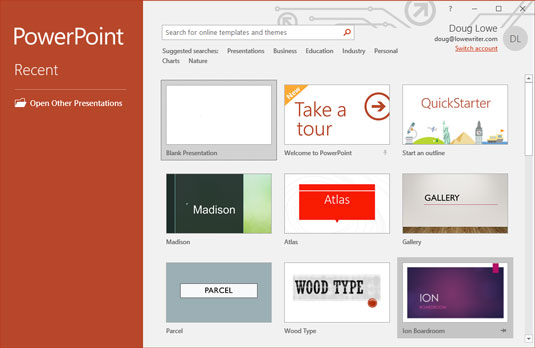
Ways to Create a Presentation
In Powerpoint 2013, there are two ways to create a presentation:
पावरपॉइंट 2013 में, प्रेजेंटेशन बनाने के दो तरीके हैं:
a) By using Template
(टेम्पलेट का उपयोग करके)
b) By using Blank Presentation
(ब्लैंक प्रेजेंटेशन का उपयोग करके)
Creating a Presentation Using a Template
(एक टेम्पलेट से एक नया प्रेजेंटेशन बनाना)
Step 1: Click on the File tab to access Backstage view and then Select New.
Step 2: Click on suggested search to find templates or search for online templates and themes.
Step 3: A preview of the template will appear, along with additional information on how the template can be used.
Step 4: Click Create to use these selected template. You can also do Double-click Blank Presentation to create a new presentation.
स्टेप 1: फाइल टैब पर क्लिक करें और फिर New ऑप्शन चुनें।
स्टेप 2: टेम्पलेट खोजने के लिए दिए गए सुझाव पर क्लिक करें या ऑनलाइन टेम्पलेट थीम भी खोज सकते हैं।
स्टेप 3: टेम्पलेट का एक प्रीव्यू दिखाई देगा, किसी भी टेम्पलेट को सेलेक्ट करें।
स्टेप 4: सिलेक्टेड टेम्पलेट का उपयोग करने के लिए क्रिएट पर क्लिक करें। नई प्रेजेंटेशन बनाने के लिए आप ब्लैंक प्रेजेंटेशन पर भी डबल-क्लिक भी कर सकते हैं।
Creating a Blank Presentation
(एक ब्लैंक प्रेजेंटेशन को बनाना)
Step 1: Click the File tab to go to Backstage view.
Step 2: Select New on the left side of the window, then click Blank Presentation. A blank presentation will appear.
स्टेप 1: बैकस्टेज व्यू पर जाने के लिए फाइल टैब पर क्लिक करें।
स्टेप 2: विन्डो के लेफ्ट साइड से न्यू को सेलेक्ट करें फिर ब्लैंक प्रेजेंटेशन पर क्लिक करें। ब्लैंक प्रेजेंटेशन दिखाई देगा।
Note: When you click on File tab then Backstage view will appear with various options for saving, opening, printing, and sharing your presentations.
(नोट: जब आप फाइल टैब पर क्लिक करते हैं तो बैकस्टेज व्यू आपके प्रेजेंटेशन को सेव करने, ओपन करने, प्रिंट करने और साझा करने के लिए विभिन्न विकल्पों के साथ दिखाई देगा।)
Insertion & Editing Text on Slides
(स्लाईड में टेक्स्ट इंसर्ट करना तथा एडिट करना)
Step 1: When you create a new presentation, the first slide to appear is a Title Slide.
Step 2: It contains two placeholders: a title placeholder and a sub title placeholder.
Step 3: To add text, click within the placeholder and type.
Step 4: After entering the text if you want to alter anything, place the cursor and alter your text.
Step 5: Finish and Run your slide show or press F5.
हिंदी अनुवाद:
स्टेप 1: जब आप एक नई प्रेजेंटेशन बनाते हैं, तो सबसे पहले दिखाई देने वाली स्लाइड Title Slide होती है।
स्टेप 2: इसमें दो प्लेसहोल्डर्स होते हैं: एक टाइटल प्लेसहोल्डर और एक सब-टाइटल प्लेसहोल्डर।
स्टेप 3: टेक्स्ट जोड़ने के लिए, प्लेसहोल्डर के भीतर क्लिक करें और टाइप करें।
स्टेप 4: टेक्स्ट दर्ज करने के बाद यदि आप कुछ भी बदलना चाहते हैं, तो कर्सर रखें और अपना टेक्स्ट बदलें।
स्टेप 5: स्लाइड शो समाप्त करें और चलाएं या F5 दबाएं।
Inserting, Deleting, Duplicating Slides in a Presentation
(प्रेजेंटेशन में स्लाईड को इंसर्ट, डिलीट और डुप्लीकेट करना)
To insert a new slide in the presentation, do the following:
(प्रेजेंटेशन में नई स्लाइड इंसर्ट करने के लिए निम्न कार्य करें—)
Step 1: Click on the Home tab.
Step 2: Click on New Slide in the Slides group.
Step 3: Choose the desired slide layout from the menu that appears.
Step 4: The new slide will appear. Click any placeholder and begin typing to add text.
स्टेप 1: होम टैब पर क्लिक करें।
स्टेप 2: स्लाइड्स समूह में न्यू स्लाइड पर क्लिक करें।
स्टेप 3: दिखाई देने वाले मेनू से वांछित स्लाइड लेआउट चुनें।
स्टेप 4: नई स्लाइड दिखाई देगी। टेक्स्ट जोड़ने के लिए किसी भी प्लेसहोल्डर पर क्लिक करें और टाइप करना शुरू करें।
Transcription of MS PowerPoint Materials
Managing Slides (स्लाइड्स का प्रबंधन)
Insert a New Slide: Press Ctrl+M from the keyboard to insert a new slide.
Change Layout: To change the layout of an existing slide, click the Layout command, then choose the desired layout.
Deleting a Slide (स्लाइड को हटाना)
You can delete a particular slide from the presentation by the following step…
Go to the ‘slides and outline tab’ appear at the left side.
Select the slide which you want to remove and Right Click on the slide.
Select ‘Delete Slide’ from the menu. You can also press the “delete” key from your keyboard.
बाईं ओर ‘स्लाइड्स और आउटलाइन टैब’ पर जाएं -> उस स्लाइड का चयन करें जिसे आप हटाना चाहते हैं और स्लाइड पर राइट क्लिक करें। और मेनू से ‘Delete Slide’ चुनें। आप अपने कीबोर्ड से “डिलीट” की भी दबा सकते हैं।
Note: If you decide that you want the deleted slide back to restore, press Ctrl+Z (Windows) to undo the delete. (नोट: यदि आप डिलीट करने के बाद स्लाइड वापस चाहते हैं, तो उसके लिए Ctrl+Z दबाएं।)
Duplicating Slides (प्रेजेंटेशन में डुप्लीकेट स्लाइड करना)
If you want to copy and paste a slide quickly, you can duplicate it. To duplicate slides, select the slide you want to duplicate, right-click the mouse, and choose Duplicate Slide from the menu that appears. You can also duplicate multiple slides at once by selecting them first.
यदि आप किसी स्लाइड को जल्दी से कॉपी और पेस्ट करना चाहते हैं, तो आप उसे डुप्लीकेट कर सकते हैं। स्लाइड को डुप्लीकेट करने के लिए, उस स्लाइड का चयन करें जिसे आप डुप्लीकेट करना चाहते हैं, माउस पर राइट-क्लिक करें, और दिखाई देने वाले मेनू से डुप्लीकेट स्लाइड चुनें। आप कई स्लाइड्स को पहले चुनकर एक साथ डुप्लीकेट भी कर सकते हैं।
Saving a Presentation (प्रेजेंटेशन सेव करना)
To save a presentation, do the following steps given below:
Click the Save command on the Quick Access toolbar.
क्विक एक्सेस टूलबार पर सेव कमांड पर क्लिक करें।
If you’re saving the file for the first time, the Save As pane will appear in Backstage view.
यदि आप पहली बार फाइल सेव करने जा रहे हैं, तो सेव एस पेन बैकस्टेज व्यू में दिखाई देगा।
You’ll then need to choose where to save the file and give it a file name. To save the presentation to your computer, select Computer, then click Browse. Alternatively, you can click OneDrive to save the file to your OneDrive.
फिर आपको यह चुनना होगा कि फ़ाइल को कहाँ सेव करना है और उसे एक फ़ाइल नाम देना है। प्रेजेंटेशन को अपने कंप्यूटर पर सेव करने के लिए, कंप्यूटर चुनें, फिर ब्राउज़ करें पर क्लिक करें। वैकल्पिक रूप से, आप अपनी फ़ाइल को अपने OneDrive में सेव करने के लिए OneDrive पर क्लिक कर सकते हैं।
The Save As dialog box will appear. Select the location where you want to save the presentation.
सेव एस डायलॉग बॉक्स दिखाई देगा। उस स्थान का चयन करें जहाँ आप प्रेजेंटेशन सेव करना चाहते हैं।
Enter a file name for the presentation, then click Save. The presentation will be saved. You can click the Save command again to save your changes as you modify the presentation.
फ़ाइल नाम दर्ज करें, फिर सेव पर क्लिक करें। प्रेजेंटेशन सेव हो जाएगा।
Comprehensive Guide to MS PowerPoint 2013 Management
MS PowerPoint 2013 प्रबंधन के लिए विस्तृत मार्गदर्शिका
Advanced Slide Manipulation (उन्नत स्लाइड हेरफेर)
While the basics of inserting and deleting slides are essential, professional presentations often require more complex organization. In PowerPoint 2013, the Slide Sorter View is an invaluable tool. It allows you to see all your slides as thumbnails on a single screen. This view makes it incredibly easy to drag and drop slides to reorganize the flow of your presentation.
Another powerful feature is the use of Sections. If you have a long presentation (e.g., 50+ slides), you can group related slides into sections such as “Introduction,” “Market Analysis,” and “Conclusion.” To do this, right-click between slides in the slide pane and select Add Section. This helps in navigating the presentation during both the editing and the delivery phases.
जबकि स्लाइड डालने और हटाने की मूल बातें आवश्यक हैं, पेशेवर प्रेजेंटेशन के लिए अक्सर अधिक जटिल संगठन की आवश्यकता होती है। PowerPoint 2013 में, स्लाइड सॉर्टर व्यू (Slide Sorter View) एक अमूल्य उपकरण है। यह आपको अपनी सभी स्लाइड्स को एक ही स्क्रीन पर थंबनेल के रूप में देखने की अनुमति देता है। यह व्यू आपकी प्रस्तुति के प्रवाह को पुनर्गठित करने के लिए स्लाइड्स को ‘ड्रैग एंड ड्रॉप’ करना अविश्वसनीय रूप से आसान बनाता है।
एक अन्य शक्तिशाली विशेषता अनुभागों (Sections) का उपयोग है। यदि आपके पास एक लंबी प्रस्तुति है (उदाहरण के लिए, 50+ स्लाइड्स), तो आप संबंधित स्लाइड्स को “Introduction,” “Market Analysis,” और “Conclusion” जैसे अनुभागों में समूहित कर सकते हैं। ऐसा करने के लिए, स्लाइड पेन में स्लाइड्स के बीच राइट-क्लिक करें और ‘Add Section’ चुनें। यह एडिटिंग और डिलीवरी दोनों चरणों के दौरान प्रेजेंटेशन को नेविगेट करने में मदद करता है।
Working with Master Slides (मास्टर स्लाइड्स के साथ कार्य करना)
For consistency across a tutorial series or business deck, understanding the Slide Master is crucial. Instead of manually changing the font or logo on every single slide, you can make a change once in the Slide Master view (View Tab > Slide Master). Any modification made here—such as adding a website URL in the footer or changing the primary heading color—is automatically applied to every slide that uses that layout. This ensures a professional, unified look without repetitive manual labor.
ट्यूटोरियल श्रृंखला या व्यावसायिक डेक में निरंतरता के लिए, स्लाइड मास्टर (Slide Master) को समझना महत्वपूर्ण है। हर एक स्लाइड पर मैन्युअल रूप से फ़ॉन्ट या लोगो बदलने के बजाय, आप स्लाइड मास्टर व्यू (View Tab > Slide Master) में एक बार बदलाव कर सकते हैं। यहाँ किया गया कोई भी संशोधन—जैसे फुटर में वेबसाइट का URL जोड़ना या प्राथमिक हेडिंग का रंग बदलना—उस लेआउट का उपयोग करने वाली प्रत्येक स्लाइड पर स्वचालित रूप से लागू हो जाता है। यह बिना किसी दोहराव वाले मैन्युअल श्रम के एक पेशेवर और एकीकृत रूप सुनिश्चित करता है।
Enhancing Visual Content with SmartArt and Charts
(स्मार्टआर्ट और चार्ट के साथ विजुअल कंटेंट को बढ़ाना)
Modern presentations rely heavily on visual storytelling rather than dense text. PowerPoint 2013 introduced enhanced SmartArt Graphics, which allow you to convert plain bulleted lists into professional diagrams (like process flows, hierarchies, or cycles) with just two clicks.
For data-driven slides, inserting Charts linked to Excel is the gold standard. When you insert a chart in PowerPoint, a small Excel window opens, allowing you to input your data. The beauty of this integration is that if you update the numbers in your source file, the PowerPoint chart can be refreshed to reflect those changes instantly, ensuring your educational materials are always up-to-date.
आधुनिक प्रेजेंटेशन सघन टेक्स्ट के बजाय विजुअल स्टोरीटेलिंग (दृश्य कहानी) पर अधिक निर्भर करती हैं। PowerPoint 2013 ने उन्नत स्मार्टआर्ट ग्राफिक्स (SmartArt Graphics) पेश किए हैं, जो आपको साधारण बुलेटेड सूचियों को केवल दो क्लिक के साथ पेशेवर आरेखों (जैसे प्रोसेस फ्लो, पदानुक्रम या चक्र) में बदलने की अनुमति देते हैं।
डेटा-संचालित स्लाइड्स के लिए, एक्सेल (Excel) से जुड़े चार्ट (Charts) डालना सबसे अच्छा माना जाता है। जब आप PowerPoint में एक चार्ट डालते हैं, तो एक छोटी एक्सेल विंडो खुलती है, जिससे आप अपना डेटा इनपुट कर सकते हैं। इस एकीकरण की खूबी यह है कि यदि आप अपनी सोर्स फाइल में नंबर अपडेट करते हैं, तो उन बदलावों को तुरंत दर्शाने के लिए PowerPoint चार्ट को रिफ्रेश किया जा सकता है, जिससे यह सुनिश्चित होता है कि आपकी शैक्षिक सामग्री हमेशा अपडेट रहे।
Security and Distribution
(सुरक्षा और वितरण)
Once a presentation is created, protecting your intellectual property is a priority. PowerPoint offers several ways to secure your files:
प्रेजेंटेशन बनने के बाद, अपनी बौद्धिक संपदा की रक्षा करना एक प्राथमिकता है। PowerPoint आपकी फाइलों को सुरक्षित करने के कई तरीके प्रदान करता है:
Mark as Final: This notifies readers that the document is complete and discourages further editing.
मार्क एज़ फाइनल: यह पाठकों को सूचित करता है कि दस्तावेज़ पूरा हो गया है और आगे संपादन (editing) को हतोत्साहित करता है।
Encrypt with Password: Found in the Backstage View (File > Info > Protect Presentation), this requires a password to even open the file.
पासवर्ड के साथ एन्क्रिप्ट करें: यह बैकस्टेज व्यू (File > Info > Protect Presentation) में पाया जाता है, इसके लिए फाइल खोलने के लिए भी पासवर्ड की आवश्यकता होती है।
PDF Export: For sharing materials with students where you don’t want them to edit the content, exporting the presentation as a PDF is the best practice. It preserves your formatting across all devices.
PDF एक्सपोर्ट: छात्रों के साथ सामग्री साझा करने के लिए जहाँ आप नहीं चाहते कि वे सामग्री को संपादित करें, प्रेजेंटेशन को PDF के रूप में एक्सपोर्ट करना सबसे अच्छा अभ्यास है। यह सभी डिवाइस पर आपके फ़ॉर्मेटिंग को सुरक्षित रखता है।
Collaboration and Cloud Integration (सहयोग और क्लाउड एकीकरण)
The integration with OneDrive mentioned in the text is a game-changer for modern educators. By saving to the cloud, you can access your MS Word 2013 or PowerPoint tutorials from any device with an internet connection. Furthermore, it enables real-time collaboration. Multiple users can work on the same presentation simultaneously, with their changes appearing instantly to others. This is particularly useful for group projects or when getting feedback from a co-editor.
By mastering these tools—from basic saving to advanced slide masters and cloud sharing—you can create high-quality, SEO-friendly educational content that stands out on digital platforms.
OneDrive के साथ एकीकरण आधुनिक शिक्षकों के लिए गेम-चेंजर है। क्लाउड में सेव करके, आप इंटरनेट कनेक्शन वाले किसी भी डिवाइस से अपने MS Word 2013 या PowerPoint ट्यूटोरियल तक पहुँच सकते हैं। इसके अलावा, यह रीयल-टाइम सहयोग को सक्षम बनाता है। कई उपयोगकर्ता एक ही प्रेजेंटेशन पर एक साथ काम कर सकते हैं, और उनके बदलाव दूसरों को तुरंत दिखाई देते हैं। यह समूह परियोजनाओं के लिए या सह-संपादक से फीडबैक प्राप्त करते समय विशेष रूप से उपयोगी है।
बेसिक सेविंग से लेकर एडवांस स्लाइड मास्टर और क्लाउड शेयरिंग तक के इन उपकरणों में महारत हासिल करके, आप उच्च गुणवत्ता वाली, SEO-अनुकूल शैक्षिक सामग्री बना सकते हैं जो डिजिटल प्लेटफॉर्म पर अलग दिखती है।


