
- Get Started: Introduction
- 1.3 Navigating Filmora9
- 1.4 Project Setup
- 1.5 Importing Media
- 1.6 Keyboard shortcuts list (windows)
- 2 Basic Editing
- 2.1.6 Trim Video Clips
- 2.1.9 Cropping Video Clips
- 2.1.14 Creating Freeze Frames
- 2.1.18 Playback Quality
- 2.2 Editing Audio
- 2.2.9 Customize Timeline Track Controls
- 2.3 Editing Image
- 2.4 Text and Titles
- 3 Add Effects
- 4 Advanced Editing
- 4.6 Advanced Color Tuning
- 4.7 PIP (Picture in Picture)
- 4.8 Green Screen
- 4.10 Scene Detection
- 5 Action Cam Editing
- 5.2 Edit Action Cam Videos
- 6 Export and Share
- 7 Access to Filmstocks Effects Store
- 8 Remove Watermark
2.2.9.1 Adding New Tracks
To add a new video or audio track, click the Plus icon in the left upper corner of the timeline and then select Add Video Track or Add Audio Track. The track will be added.
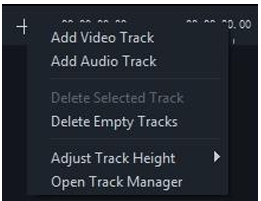
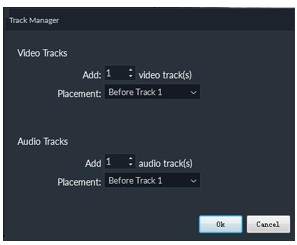
To add multiple tracks at a time, select Open Track Manager and then enter the number of tracks that you want to add. In the Track Manager panel, you can also customize the placement of the new tracks (i.e. whether they should be before or after an existing track).
2.2.9.2 Deleting Empty Tracks
To delete empty video and audio tracks, click the Plus icon in the upper left corner of the timeline panel and then select Delete Empty Tracks. All empty video and audio tracks will be deleted.
2.2.9.3 Adjusting Track Height
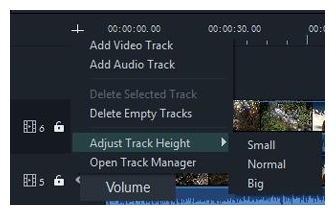
Click the Plus icon in the left upper corner of the timeline panel and then select Small, Normal, or Big under Adjust Track Height.
2.2.10 Adjust audio volume
There are several ways to adjust the volume of your audio in Filmora9:
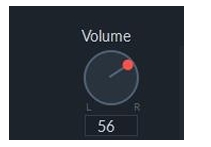
- To adjust the volume in the Audio panel: after you drag and drop the audio file into the timeline, double click on it to open the Audio panel. In the volume section, drag the slider up or down to adjust the volume.
- To adjust the volume in the timeline: Move your mouse over the volume band in the audio clip and the pointer will change to a hand icon. Drag the handle up to increase the volume and drag it down to decrease the volume.
If you want to adjust the left/right balance, enter a numerical value or drag the knob in the Balance circle. A numerical value of 0 means the audio is balanced, -100 is all the way to the left and 100 is all the way to the right.
If you need to have the volume increase and decrease as the clip plays, use audio key frames.
To add an audio key frame, go to the timeline and move the playhead to the location where you want the change in volume to start. Double click the audio clip to open the Audio control panel and click the key frame button.
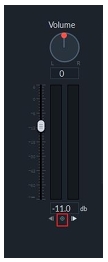
Next, move the playhead to where you want the volume adjustment to end and click the Keyframe button again. Now you’ll be able to drag the volume envelope (the line between your two keyframe dots) to adjust the volume of that section of your audio clip.

2.2.11 Fade Audio In or Out
After adding your audio to the timeline, double click on it to open the Audio adjustment panel.
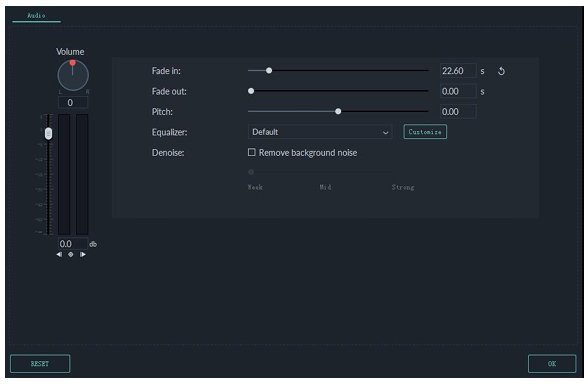
Set fade in and fade out effects by dragging the sliders or by entering how many seconds a fade effect should last.
You can also use the fade icons at the left and right edges of the audio waveform areas to quick fade in and out.
At the beginning of the audio clip, drag the fade in maker to the right to apply a fade in effect.
To apply a fade out effect, go to the end of the audio clip and drag the fade out maker to the left.
The further you drag, the longer the fade effect will last.
2.2.12 Adjust Audio Speed
Adjusting the speed of your audio works the same as adjusting video speed:
- Right click on the audio file and select Speed and Duration.
- You could also select the audio clip in the timeline and click the Speed icon in the toolbar.
2.2.13 Audio De-noise
To remove unwanted background noise from your recorded audio, follow the steps below:
- Double click on an audio clip in the timeline panel to open the Audio adjustment window.
- Check the box next to Remove background noise.
- Drag the slider to the level (Weak, Mid, or Strong) of noise reduction that you need.
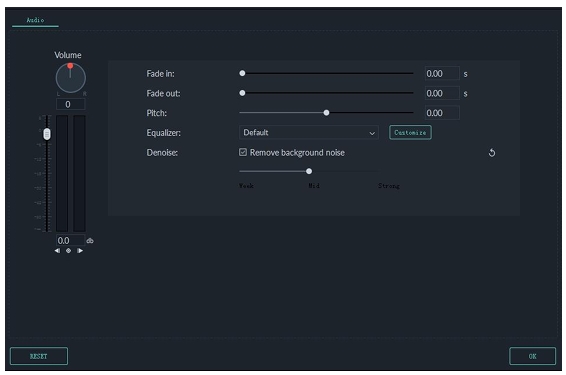
To remove background noise from a video clip, double click on the video clip in the timeline to open the video adjustment panel. Go to the Audio tab and then follow the above steps.
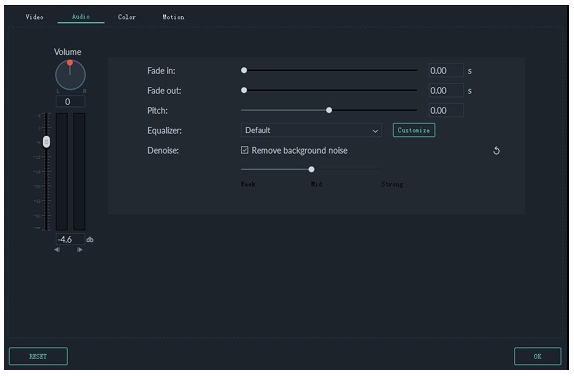
Note: The types of noise you can remove using the denoise tool include wind noise, computer hums, and other consistent sounds.
2.2.14 How to Use the Audio Equalizer (EQ)
The Audio Equalizer (EQ) enables you to raise and lower the loudness of an audio frequency (i.e. bass or treble). Here’s how it works:
- Double click the video or audio file in the timeline and then go to the Audio tab.
- You can select presets in the Equalizer dropdown list, including Default, Classic, Low Bass, Sparkle, Pop, Rock’ n’ Roll, Soft, Techno, Hard Rock, Ska, Country, Acoustic, Folk, Blues, and Custom.
- Or, you can click the Customize button and access the Custom Equalizer window to adjust the gain by dragging the sliders up or down.
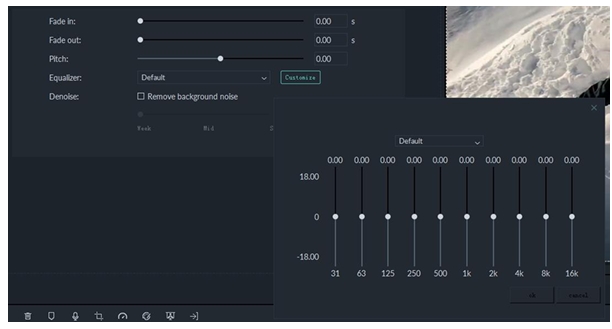
- Click OK button to save your adjustments.
2.2.15 How to Use the Audio Mixer
You can use the Audio Mixer to fine-tune the audio of your projects. To use the Audio Mixer, please follow these instructions:
- Select the audio mixer icon in the toolbar to open the Audio Mixer panel.
- You can switch the sound between left and right by dragging the knob in the Pan/Balance control. You can see your changes clearly in the channel control panel to the right.
- There are two modes: Stereo and Surround. In Surround mode, you can pan from left to right as well as front to back, which gives you full control of the audio position in Surround sound mode.
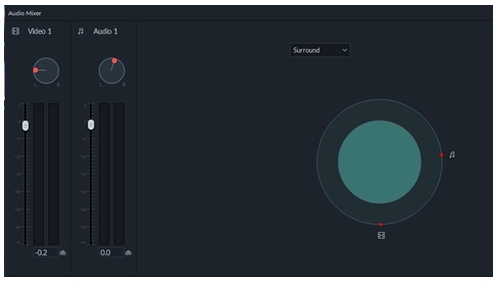
While in Stereo mode, you can only pan left or right.
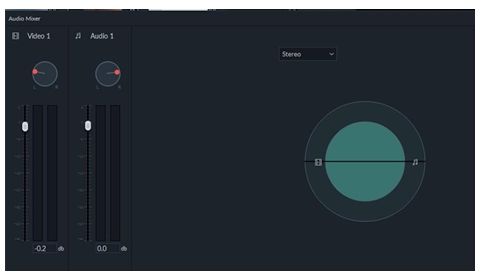
You can also go to the master section and drag the Master volume slider upward or downward to adjust the master volume higher or lower. After you’ve made adjustments, click the Play button to hear the results.
Select OK to save the settings.


