
- Get Started: Introduction
- 1.3 Navigating Filmora9
- 1.4 Project Setup
- 1.5 Importing Media
- 1.6 Keyboard shortcuts list (windows)
- 2 Basic Editing
- 2.1.6 Trim Video Clips
- 2.1.9 Cropping Video Clips
- 2.1.14 Creating Freeze Frames
- 2.1.18 Playback Quality
- 2.2 Editing Audio
- 2.2.9 Customize Timeline Track Controls
- 2.3 Editing Image
- 2.4 Text and Titles
- 3 Add Effects
- 4 Advanced Editing
- 4.6 Advanced Color Tuning
- 4.7 PIP (Picture in Picture)
- 4.8 Green Screen
- 4.10 Scene Detection
- 5 Action Cam Editing
- 5.2 Edit Action Cam Videos
- 6 Export and Share
- 7 Access to Filmstocks Effects Store
- 8 Remove Watermark
Scene Detection is an advanced editing feature offered in Filmora9, which can be used to automatically split a film into basic temporal segments by detecting the transitions between shots in a video. It will greatly facilitate your job if you don’t want to edit your video frame by frame but would rather quickly edit some short clips in a large piece of video.
The steps below will show you how to do auto scene detection with Filmora9.
- Import media files to Filmora9. You can either click the import button to bring up a pop up window so as to choose files stored in your local computer, or you can just drag and drop the files to the interface.
- Once the video clip is imported, move your cursor over it and then right click on it, hit the Scene detection option in the drop down menu.
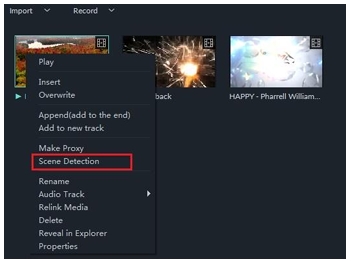
- In the pop up window, click Detect, the original file will be separated into smaller segments in seconds.
- Click ADD TO TIMELINE, all segments will then be moved to the video track on the timeline.
- On the video track, you can choose to remove an unwanted part, or edit any clips as needed.
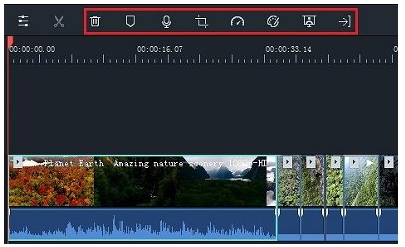
This is the transcribed text from the provided manual pages for Filmora9, focusing on the Power Tool features, including Tilt-shift and Mosaic effects.
4.11 Power Tool
Apart from all kinds of basic editing features, Filmora9 also provides you with some more advanced editing tools such as Tilt-shift, Mosaic, Faceoff, Freeze Frame etc. In this guide you will learn:
To enter these advanced editing features, first you will need to import media files to the media library of Filmora9, and then drag it to the video track on the timeline. Click Effects at the top, go find Filter in left and click UTILITY. Then video Power Tool will be opened.
4.11.1 Create a Tilt-shift effect
If you can’t afford to buy expensive tilt-shift lens to record one, you are still able to make a tilt-shift effect with Filmora9 easily. Tilt-shift effect is often used to blur some part of your video clip, bringing an illusion of miniaturization to your video. Here is how to do it with Filmora9.
- There are two options you can choose: Tilt-Shift-Circle and Tilt-Shift-Linear. Let’s say you would like to apply Tilt-Shift-Circle to timeline.
- There appears an adjust tool in the preview window. Just drag, resize, rotate the adjust tool to get the best result.
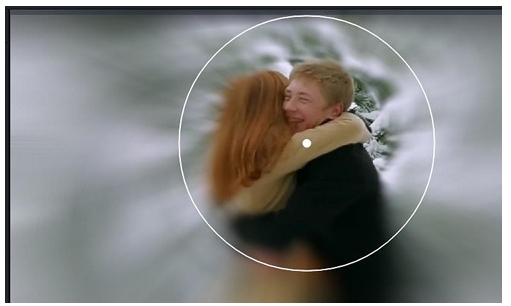
You can also double click on the Tilt-Shift-Circle effect in the timeline. Then you will see a Control Panel at the top left corner. Here, you can drag slider to adjust Tilt-Shift-Circle size and intensity easily.

4.11.2 Apply a Mosaic effect to your video clip
- In Effects, right click Mosaic effect and apply it to timeline.
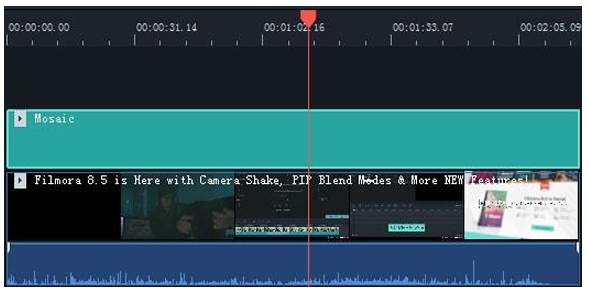
- In the preview window, a mosaic area will appear by dragging to reposition the mosaic area, or resize it to get the results you want.
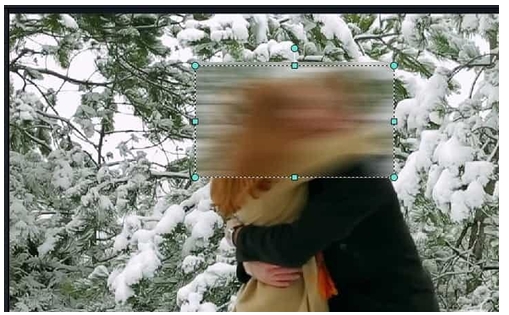
- You can also double click on the Mosaic effect in the timeline. Then you will see a Control Panel at the top left corner. Here, you can drag slider to adjust blur amount and blur type.
4.11.3 Add Funny Face Off Effect to Your Video
The difference between Mosaic effect and Face off effect is that, with Mosaic you will be able to blur any area in the video clip and the area won’t move around while your video plays, whereas with Face off, you will be able to cover moving faces. Here is how:
- Choose Face off option, check Apply Face off to the clip.
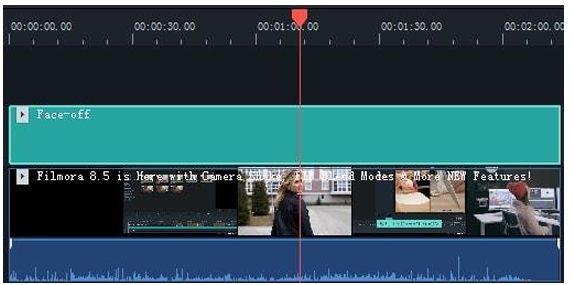
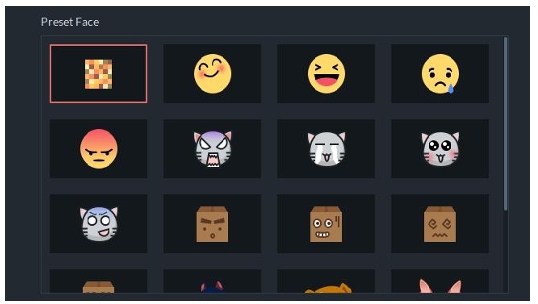
- In the Faceoff effects library, choose an effect that you like.
- Click OK to save and export.
4.11.4 Freeze Frame
With this technique, directors can show the tiny details, such as the expressions on the main character’s face, or some intricate activity within their hands, therefore to distinguish or focus on the major characters or scenes. With Filmora9, you don’t need any professional shooting lens to get this effect. Here is a detailed guide on how to create Freeze Frame in Filmora9:
- Import your video file to the media library.
- Drag the video clip to the video track on the timeline.
- Select the video and click the Freeze Frame above the timeline. By doing this a freeze frame will be added at the position where your play head locates.
- Just drag this segment to any part of the video as you want. And you can adjust the duration by a double click.


