
- Get Started: Introduction
- 1.3 Navigating Filmora9
- 1.4 Project Setup
- 1.5 Importing Media
- 1.6 Keyboard shortcuts list (windows)
- 2 Basic Editing
- 2.1.6 Trim Video Clips
- 2.1.9 Cropping Video Clips
- 2.1.14 Creating Freeze Frames
- 2.1.18 Playback Quality
- 2.2 Editing Audio
- 2.2.9 Customize Timeline Track Controls
- 2.3 Editing Image
- 2.4 Text and Titles
- 3 Add Effects
- 4 Advanced Editing
- 4.6 Advanced Color Tuning
- 4.7 PIP (Picture in Picture)
- 4.8 Green Screen
- 4.10 Scene Detection
- 5 Action Cam Editing
- 5.2 Edit Action Cam Videos
- 6 Export and Share
- 7 Access to Filmstocks Effects Store
- 8 Remove Watermark
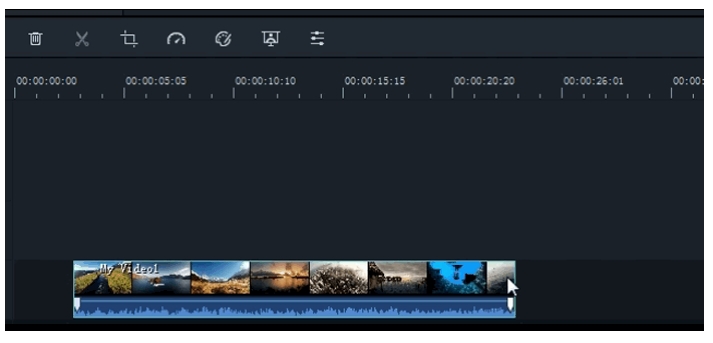
If you need to trim from the beginning or end of a video clip (or other piece of media), hover your mouse over the left or right edge of the clip in your timeline until the trim tool [double-sided arrow icon] shows. Then, click and drag the edge of your clip forwards or backwards to trim off the unwanted portion.
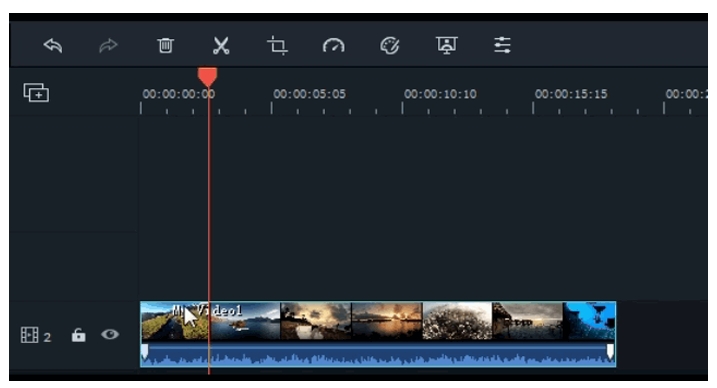
If you need to cut out a section in the middle of a video clip, drag the playhead to the start point of the unwanted section and press the scissors icon to split the clip, then drag the playhead to the end of the unwanted section and press the scissors again. Now that the unwanted section is on its own you can select it and press the delete icon to remove it.
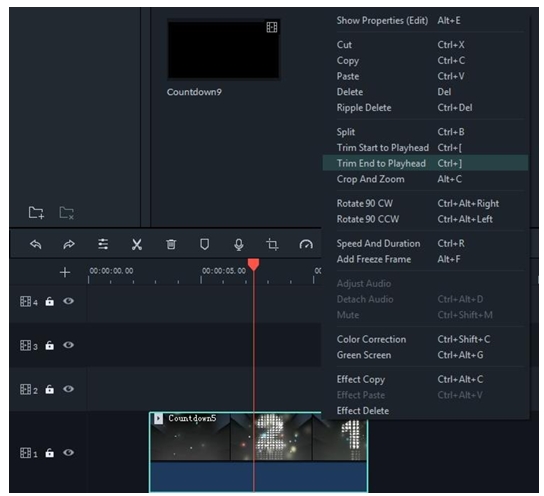
Filmora9 also has an option for you to ‘quick trim’ from the start or end of a clip. In the timeline, place the playhead on the frame you want to trim to, right-click on the clip, and select Trim Start to Playhead or Trim End to Playhead depending on whether you want to delete what’s behind the playhead or in front of it.
2.1.7 Splitting Video Clips
To split a clip manually on the timeline: place the playhead at the position where you want to split the clip, right-click, and choose Split.
To split a clip using the Scene Detection feature:
Right-click on the clip in the Media Library panel and select the Scene Detection option. In the popup window, click the DETECT button. Scene detection may take a few moments. After the detection process is finished, select the unwanted scene and press delete to remove it.
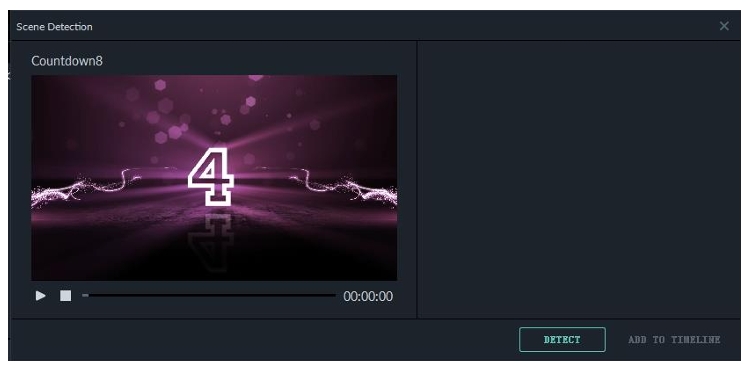
detection process is finished, select the unwanted scene and press delete to remove it.
2.1.8 Rotating or Flipping a Video Clip
To rotate or flip a clip:
- Double click the clip in the Timeline.
- In the popup Video panel, choose the Transform effect
- To rotate the clip, drag the rotate slider to the right or enter a numerical value in the rotate section.
- In the Flip section, click the Flip Horizontal icon to reverse the clip from left to right, or click the Flip Vertical icon to turn the clip upside down.
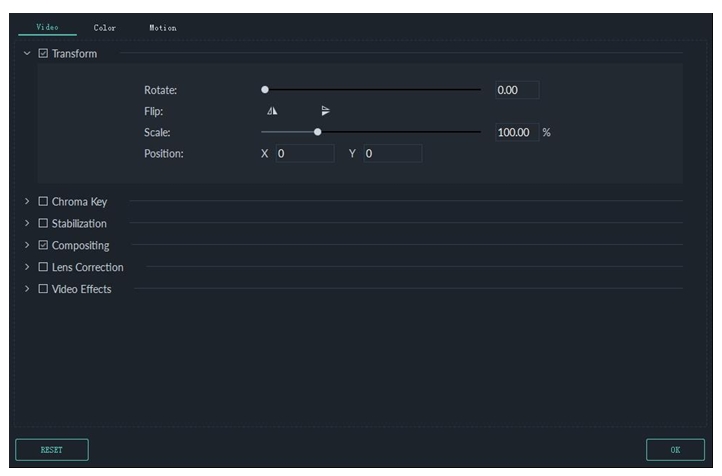
Click Reset to undo your changes or OK to apply the effect to your video. You can also right click on the clip in the timeline and select Rotate 90 CW or Rotate 90 CCW.


