
- Get Started: Introduction
- 1.3 Navigating Filmora9
- 1.4 Project Setup
- 1.5 Importing Media
- 1.6 Keyboard shortcuts list (windows)
- 2 Basic Editing
- 2.1.6 Trim Video Clips
- 2.1.9 Cropping Video Clips
- 2.1.14 Creating Freeze Frames
- 2.1.18 Playback Quality
- 2.2 Editing Audio
- 2.2.9 Customize Timeline Track Controls
- 2.3 Editing Image
- 2.4 Text and Titles
- 3 Add Effects
- 4 Advanced Editing
- 4.6 Advanced Color Tuning
- 4.7 PIP (Picture in Picture)
- 4.8 Green Screen
- 4.10 Scene Detection
- 5 Action Cam Editing
- 5.2 Edit Action Cam Videos
- 6 Export and Share
- 7 Access to Filmstocks Effects Store
- 8 Remove Watermark
3.1 Filters and Overlays
With filters and overlays, your creative possibilities are endless. You can dramatically change the look and feel of your video in just a couple clicks.
3.1.1 Add Filters/Overlays
Wondershare Filmora9 lets you add as many filters and overlays as you want. There are three ways to add filters and overlays to a video.
- In the Media Library, click Effects, and then select the filters or oaverlays that you want to add to your project.
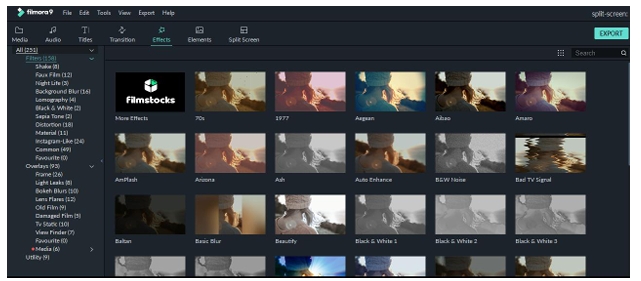
- Hover your mouse over the thumbnail of the effect you want to use. When you see a plus icon in the middle, click it. Then effect will be added to the timeline.
- Drag the filter/overlay and drop it directly onto the video clip in your timeline that you want to add it to. Effects will be applied to the whole video clip this way.
Note: If you are editing a ‘portrait’ (9:16) clip in a 16:9 video, you can add background blur filters to replace the black bars.
3.1.1.1 Remove Filters/Overlays
There are two ways to remove filters or overlays from your project.
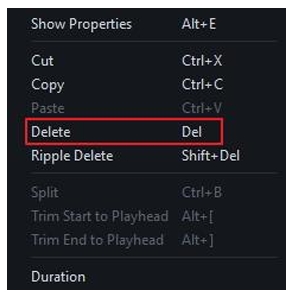
- Select the filter/overlay in the timeline and hit Delete on your keyboard.
- Right click on the filter/overlay in the timeline and select Delete from the menu.
3.1.1.2 Find Filters/Overlays
All filters and overlays are sorted into themed categories (i.e. Faux Film or Bokeh Blurs) to make them easy to find. Go to the Effects menu and look to the left of the screen to see the categories and start browsing.
3.1.1.3 Customize Filters
Wondershare Filmora9 lets you change the duration or opacity of filter effects.
To change the duration
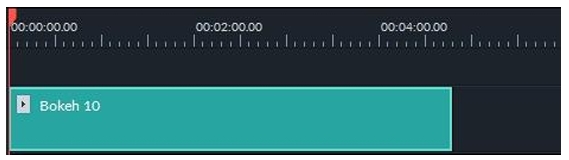
The default length is five seconds, but you can drag the edge of the effect in your timeline to change its duration.
To Change the Alpha Opacity of a Filter/Overlay
The alpha opacity (transparency) property can have a value of 0-100. A lower value makes the filter more transparent. Double click on the filter in the timeline to customize its opacity. Then, you preview how your clip looks with the filter applied to it in the Preview Window.

3.1.1.4 Favorite Filters/Overlays
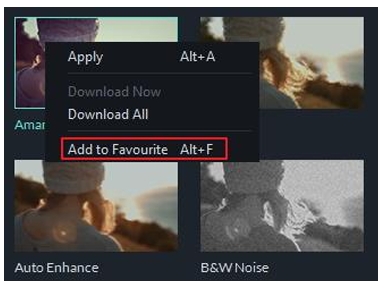
Right click on a filter effect in the Effects menu and select Add to Favorite. Then, go to the Favorite category to find it again quickly.
3.2 Elements & Transitions & Sound Effects
Elements are motion graphics you can use to decorate your videos.
Transitions can be added between your video clips to improve the flow of your video or to add interest.
Sound effects have many fun and practical uses, and Filmora9 includes 20+ free sounds.
In this tutorial, you will learn how to use these three types of effect in Filmora9.
3.2.1 How to Apply, Remove, or Favorite Elements
To add an element to your project:
- Go to Elements and select the element that you want to add to your project.
- Drag the element into the timeline.
To remove an element from your project
There are two ways to remove an element from your video.
- Select the element that you want to remove and hit Delete on your keyboard.
- Right click on the element in the timeline and select DELETE from the menu.
To favorite an element:
Right click on the element in the Elements menu and choose Add To Favorites.
3.2.2 How to Apply, Remove, or Favorite Transitions
To add a transition between videos or images in your project
Go to Transitions, find a transition you like, and drag it into the timeline between your two clips.
Note: In versions of Filmora 9 there is only one video track which you can use transitions on. In Filmora9 and above you can apply transitions to any video track.
To apply a transition to a single video clip or image
- Drag and drop the video clip or image into the timeline.
- Go to Transitions.
- Select a transition and drag it to the beginning or end of a video clip or image in the timeline.
To change the duration of a transition, double click on it in the timeline and then enter a new duration. You can also click and drag the start or end point of the transition forwards or backwards within the video clip or image. The default duration is 2 seconds.
Prefix Transition
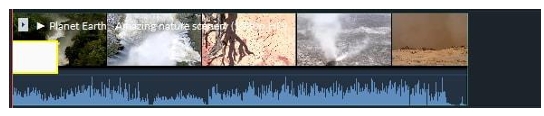
Postfix Transition
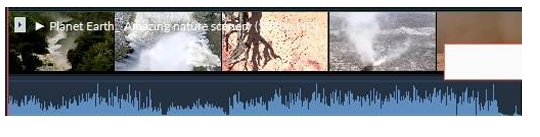
In addition to applying a transition to a single clip or image, you can also apply a transition in between two video clips or images.
- Drag and drop the video clip or image into the timeline.
- Go to Transitions, select a transition, and drag it in between two clips or images.
To change the duration of a transition, double click on it in the timeline and then enter a new duration. You can also click and drag the start or end point of the transition forwards or backwards within the video clip or image. The default duration is 2 seconds.

Note: When a piece of media is not long enough to accommodate a transition, trimmed frames will be used to make the transition work.
To apply the same transition through your entire project
Right click on the transition you want to use and select APPLY TO ALL. This transition will be applied between every two clips which are next to each other.
To remove a transition from your project
Select the transition that you want to remove in the timeline and hit Delete on your keyboard.
Or right click on the transition in the timeline and select DELETE from the menu.
To favorite a transition
Right click on the transition in the Transitions menu and choose Add to Favorites.
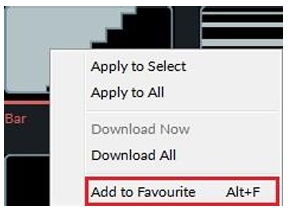
3.2.3 How to Add, Remove, or Favorite Sound Effects
Note: the music and sound effects found within Filmora9 are for personal and non-commercial use only. Click here to learn more.
To add a sound effect to your project
Go to Audio and click into the Sound Effect category. Select the sound effect that you want to add to your project and drag it into an audio track in the timeline.
To adjust a sound effect
- Fade in or out a sound effect: Double click on the sound effect in the timeline to bring up the Audio menu. Adjust the sliders to add a fade effect to the sound and set its duration.
- Adjust the volume of a sound effect: Double click on the sound effect in the timeline to bring up the Audio menu. Drag the slider under the Volume heading up or down to make the sound effect louder or quieter.
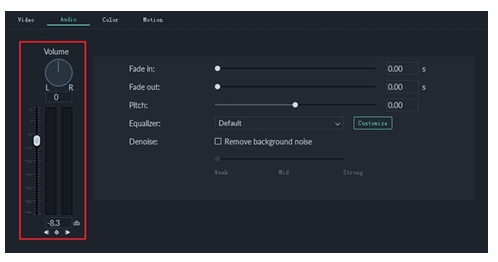
To remove a sound effect from your project
Select the sound effect that you want to remove in the timeline and hit on your keyboard to remove it from your project. You can also right click on the sound effect in the timeline and select DELETE.
To favorite a sound effect
Right click on the sound effect in the Audio menu and choose Add to Favorite.


