
- Get Started: Introduction
- 1.3 Navigating Filmora9
- 1.4 Project Setup
- 1.5 Importing Media
- 1.6 Keyboard shortcuts list (windows)
- 2 Basic Editing
- 2.1.6 Trim Video Clips
- 2.1.9 Cropping Video Clips
- 2.1.14 Creating Freeze Frames
- 2.1.18 Playback Quality
- 2.2 Editing Audio
- 2.2.9 Customize Timeline Track Controls
- 2.3 Editing Image
- 2.4 Text and Titles
- 3 Add Effects
- 4 Advanced Editing
- 4.6 Advanced Color Tuning
- 4.7 PIP (Picture in Picture)
- 4.8 Green Screen
- 4.10 Scene Detection
- 5 Action Cam Editing
- 5.2 Edit Action Cam Videos
- 6 Export and Share
- 7 Access to Filmstocks Effects Store
- 8 Remove Watermark
4.1 Pan & Zoom
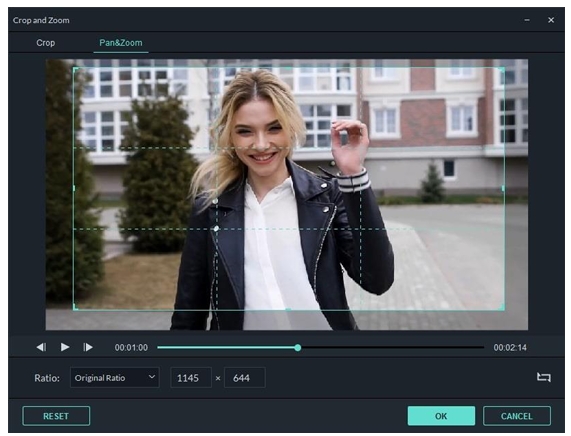
Pan and Zoom effect, also known as Ken Burns Effect, which is used to apply to the video or image and make it slowly zoom in on the subjects of interest and pan from one subject to another. Please follow below instructions to apply it.
- Drag and drop the video to the video track (first line of the timeline).
- Select the video, right click and choose Crop and Zoom.
- Select Pan and Zoom, you will find two frames marked Start and End appear over the video clip in the viewer.
- Select the Start frame, drag and resize it until the beginning of the clip is framed the way you need.
- Select the End frame by following step 4. You can press play button to preview the instant result. If it does not meet your need, you can select Reset to do it again.
- Press OK button to save the settings.
Note: The swap button at the right corner enables you to swap the start and end area instantly. Plus you can apply Pan and Zoom to the photos in the same way.
4.2 Stabilize Video
If you have a shaky video and want to smooth and stabilize it, then this guide is tailored for you.
- Launch the program and select Create New Project to start a project.
- Press IMPORT button or drag the video manually to Media library.
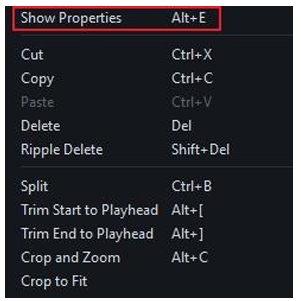
- Double click the video clip in the timeline, or right click to select Show Properties. Then you will see Stabilization in the video editing panel.
- You can analyze it first or not, and drag the slider to adjust the smooth level. Technically, the bigger the number is, the smoother the video will be. However, you will get the maximum stabilization effect for shaky videos.

- Once you are satisfied with the result, click OK.
After stabilization, the new video will be automatically dropped in the media library. You can drag and drop it to the timeline for further editing.
4.3 Play Videos in reverse
To play the video in reverse, please follow the steps below.
- Launch the program and select Create New Project to start a project.
- Press IMPORT button or drag the video manually to Media library.
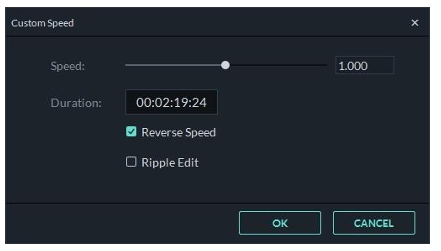
- Drag and drop the video into video track. You can right click to choose Speed and Duration. Then tick the option of Reverse Speed at Custom Speed panel. Or you can also directly click Speed icon in the toolbar, and click Reverse.
4.4 Video Snapshot
Here’s how to take a snapshot from a video clip and save it as a still image.
Import your video clip into the Media Library, and then drag it into the timeline.
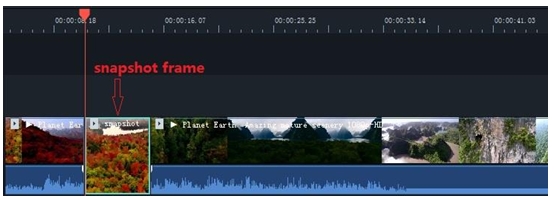
Click the play icon in the preview window and then pause when you get to the frame you want to take a snapshot of. Click the camera button under the preview window to take a snapshot. You can also click the camera without pausing first.
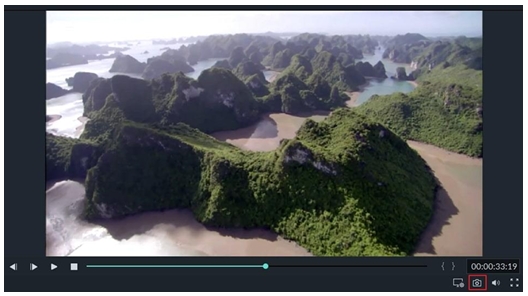
Your snapshot will be added as a still image in your Media Library. To find where the image is saved on your computer, right click on the snapshot in the Media Library and choose Reveal in Explorer.
How to Create a Freeze Frame
Here is a guide to create Freeze Frames in Filmora9:
- Import your video clip to the Media Library.
- Drag the video clip into the timeline.
- Move the play head to the frame of the clip that you want to freeze. Then right click on your video clip and choose Add Freeze Frame.
Your freeze frame will last 5 seconds by default. To adjust the duration, click on the freeze frame inside your video clip on the timeline and then click on the Duration button that appears. This will open the Duration window, where you’ll be able to enter a new length for the freeze frame.
4.5 Record PC Screen
Please follow below steps to record PC screen.
Launch the program and select Create New Project to start a project.
Select Record PC Screen under Record.
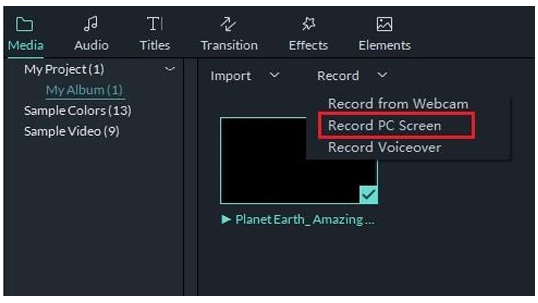
There are three kinds of screen recording for selection, including Full Screen, Custom and Target Window. Next, if you need to record from microphone or record computer system audio. Please click the icons to turn them on or off accordingly. Lastly please press Settings to check if there is anything you need to adjust before recording.
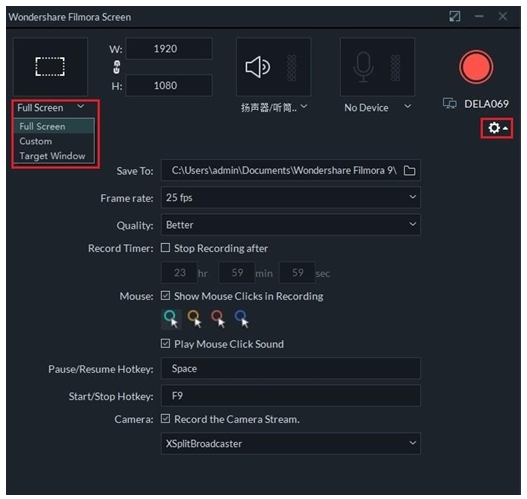
When everything is set please press REC button, the program will not start recording until finish counting from 3,2,1. After counting, please press F9 or you can customize your own Start/Stop Hotkey in Settings to stop recording. Finally the recorded video will be dropped in the media library automatically.


