
- Get Started: Introduction
- 1.3 Navigating Filmora9
- 1.4 Project Setup
- 1.5 Importing Media
- 1.6 Keyboard shortcuts list (windows)
- 2 Basic Editing
- 2.1.6 Trim Video Clips
- 2.1.9 Cropping Video Clips
- 2.1.14 Creating Freeze Frames
- 2.1.18 Playback Quality
- 2.2 Editing Audio
- 2.2.9 Customize Timeline Track Controls
- 2.3 Editing Image
- 2.4 Text and Titles
- 3 Add Effects
- 4 Advanced Editing
- 4.6 Advanced Color Tuning
- 4.7 PIP (Picture in Picture)
- 4.8 Green Screen
- 4.10 Scene Detection
- 5 Action Cam Editing
- 5.2 Edit Action Cam Videos
- 6 Export and Share
- 7 Access to Filmstocks Effects Store
- 8 Remove Watermark
There is only one difference between the free trial of Filmora9 and the paid version: videos exported from the free version will have a Filmora9 watermark. If you have been using the free version and now want to export a video without the watermark, here’s what to do:
8.1.1 Save the project
Make sure to save your project file and keep all the source files intact (i.e. do not delete a video clip from your computer that you have used in your Filmora9 project).
Note: The project file is not a video format, it is the exclusive file format for Filmora9 video projects which ends in .wsve. If you delete some of the original files, or move them, the project file will be damaged.
8.1.2 Upgrade to a paid version of Filmora9
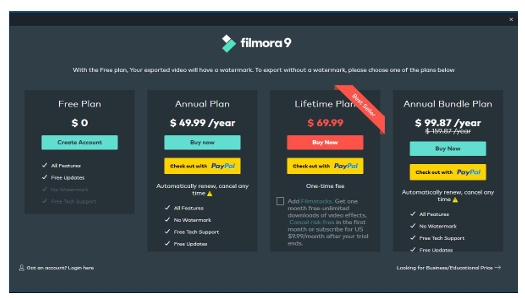
There are two individual paid plans to choose from: a lifetime plan and an annual subscription. Click here to buy, or just click on BUY NOW in Filmora9 to proceed purchasing.
8.1.3 Reopen the project and register
Re-open your project and click the account icon in the top right corner to input your Wondershare ID. A popup window will show you that you have been successfully registered. Click OK to close the window.
8.1.4 Export with the watermark gone
Click export and select a format to export your video to. After exporting, open the video and you will see that there is no watermark.


