1.1 Introduction
- Get Started: Introduction
- 1.3 Navigating Filmora9
- 1.4 Project Setup
- 1.5 Importing Media
- 1.6 Keyboard shortcuts list (windows)
- 2 Basic Editing
- 2.1.6 Trim Video Clips
- 2.1.9 Cropping Video Clips
- 2.1.14 Creating Freeze Frames
- 2.1.18 Playback Quality
- 2.2 Editing Audio
- 2.2.9 Customize Timeline Track Controls
- 2.3 Editing Image
- 2.4 Text and Titles
- 3 Add Effects
- 4 Advanced Editing
- 4.6 Advanced Color Tuning
- 4.7 PIP (Picture in Picture)
- 4.8 Green Screen
- 4.10 Scene Detection
- 5 Action Cam Editing
- 5.2 Edit Action Cam Videos
- 6 Export and Share
- 7 Access to Filmstocks Effects Store
- 8 Remove Watermark
Thank you for your interest in Wondershare Filmora9 – the easy-to-use and trendy video editing software that lets you empower your story and be amazed with results, regardless of your skill level. Filmora9 gives you a helping hand to get started with any new movie project by importing and editing your video, adding special effects and transitions and sharing your final production on social media, mobile device or DVD.
In this guide you will learn how to:
- Import video, audio and images in various formats
- Edit and arrange these elements in a magnetic timeline
- Add effects, filters, titles, music etc.
- Export your edited video in common video formats or share to social media
- Remove video watermark
Get Started: Download & Install
1.2 Download/Register/Uninstall
1.2.1 Download & Install
Please go to our official website https://filmora.wondershare.com/video-editor/ to download the program, choose Mac or Windows Version depending on your OS. And then follow the instruction to finish the installing process.
1.2.2 Log in to your Wondershare ID / Create a Wondershare ID
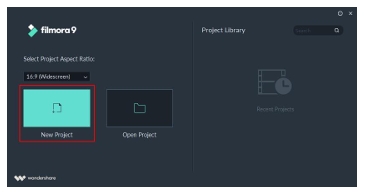
After installation, open the program and choose New Project.
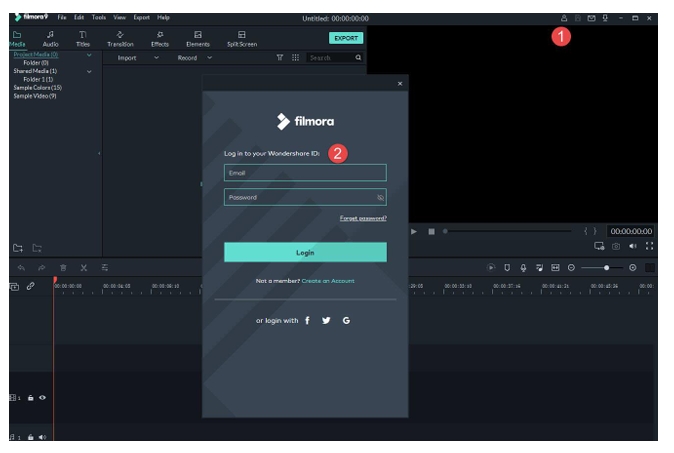
Click the Account icon in the upper right corner of the interface and then log in to your Wondershare ID with your email and password. You can also log in with Facebook, Google+, or Twitter. With Wondershare ID, you can get access to Filmora’s resources, keep track of your product’s activation status, and manage your purchases.
If you don’t have a Wondershare ID yet, read this guide to learn how to create a Wondershare ID.
Note: You can use Filmora9 without logging in, but unless you are logged into a Wondershare ID that has a paid license associated with it, there will be a watermark in your exported videos.Get Started: Download & Install
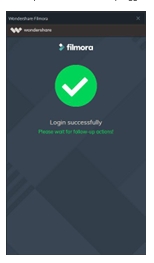
When you have successfully logged in you will see the following message.
1.2.3 Updating Filmora9
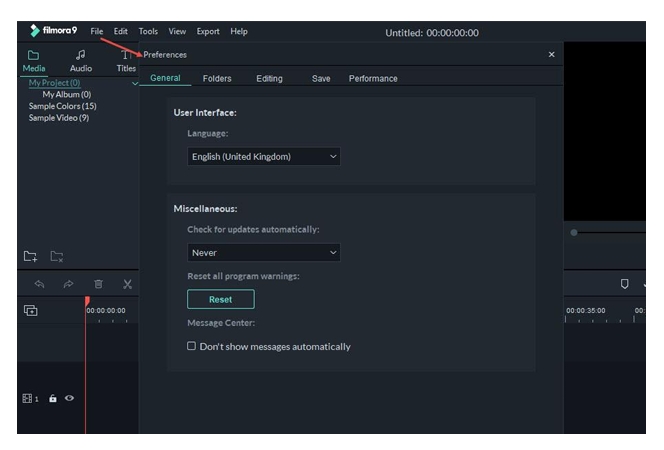
There are two ways to keep Wondershare Filmora9 up to date: checking for updates automatically and checking for updates manually. Follow the steps below to automatically check for updates:
- Choose Preferences under File in the top menu.
- Change Check for updates automatically to Never, Every day, Every week, or Every month depending on your preferences.
Get Started: Download & Install
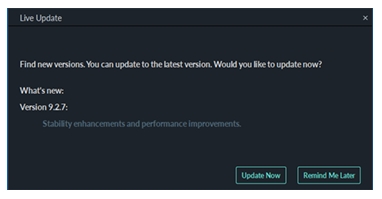
If there is an update, it will pop up a Live Update window. Select Update Now to download the new version of Filmora9.
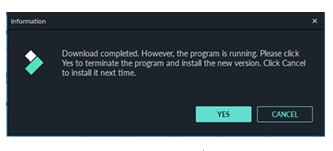
After downloading the update, click YES to close the program and install the new version. You can also click Cancel to install it next time.
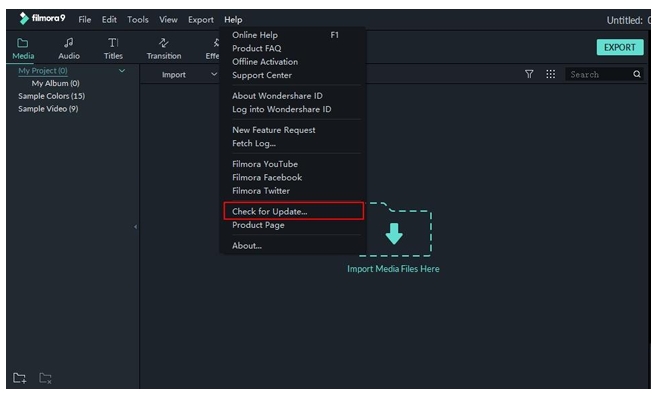
If you would prefer not to be prompted to update, set Check for updates automatically to Never. When you want to update, select Check for update under Help to manually check if there is a new version of Filmora available.
Tips: Please save your project manually before updating Filmora9 to ensure you never lose your work.
1.2.4 Uninstalling Filmora
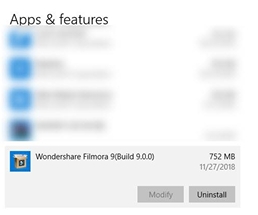
Go to Control Panel > Programs > Programs and Features > Uninstall and then right-click the icon of Wondershare Filmora9 and select Uninstall. Click Yes when asked “Are you sure you want to uninstall Wondershare Filmora?”