- Get Started: Introduction
- 1.3 Navigating Filmora9
- 1.4 Project Setup
- 1.5 Importing Media
- 1.6 Keyboard shortcuts list (windows)
- 2 Basic Editing
- 2.1.6 Trim Video Clips
- 2.1.9 Cropping Video Clips
- 2.1.14 Creating Freeze Frames
- 2.1.18 Playback Quality
- 2.2 Editing Audio
- 2.2.9 Customize Timeline Track Controls
- 2.3 Editing Image
- 2.4 Text and Titles
- 3 Add Effects
- 4 Advanced Editing
- 4.6 Advanced Color Tuning
- 4.7 PIP (Picture in Picture)
- 4.8 Green Screen
- 4.10 Scene Detection
- 5 Action Cam Editing
- 5.2 Edit Action Cam Videos
- 6 Export and Share
- 7 Access to Filmstocks Effects Store
- 8 Remove Watermark
2.1 Editing Video
After your media files (videos, images, etc.) have been imported to Filmora9 (latest Filmora version 9), it’s time to start editing. This tutorial will go over arranging clips in your timeline, cleaning up your footage, editing out unwanted parts, and more.
2.1.1 Selecting Clips in the Media Library
- To select a single media file: click on its thumbnail.
- To select multiple media files: press and hold [Ctrl], and then click the thumbnails of the media you want to select.
- To select a sequence of media files: click the first thumbnail in the sequence, press and hold [Shift], and then click the last thumbnail in the sequence.
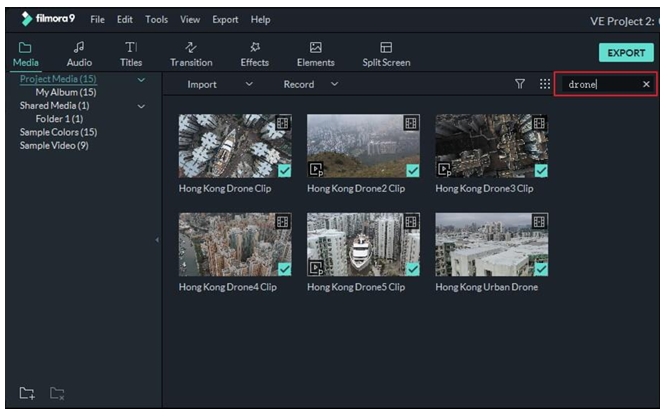
Note: You can locate specific media files using the Search bar.
2.1.2 Deleting Media from the Media Library
In the Media Library, right-click on the clip you want to remove and select DELETE.
Note: When you delete a video clip or other piece of media from the Media Library you are only removing it from Filmora9 and not deleting it from your computer or storage device.
2.1.3 Adding Videos and Other Media to the Timeline
Here are two ways to add media to the timeline:
Method 1: Click on the thumbnail of the video clip, or other media, in the Media Library. Then, drag and drop it into your timeline.
Method 2: Right click on the thumbnail of the media you want and choose one of these options:
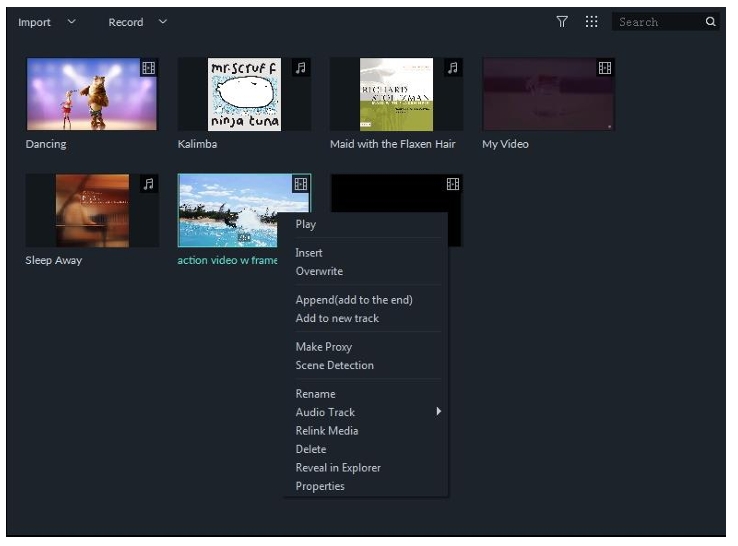
- Insert: add your media to the selected track at the playhead. Any media that is already in the track on the right side of the inserted media will move to the right by the length of the inserted clip.
- Overwrite: add your media to the selected track at the playhead, and replace any media already occupying the space your added media takes up.
- Append (add to the end): add your media as the last piece of media in the selected track.
- Add to new track: add your media to a newly created track which has no other media.
Note: You cannot add media to tracks with Track Lock enabled.
2.1.4 Accessing Sample Colors and Sample Intro Video
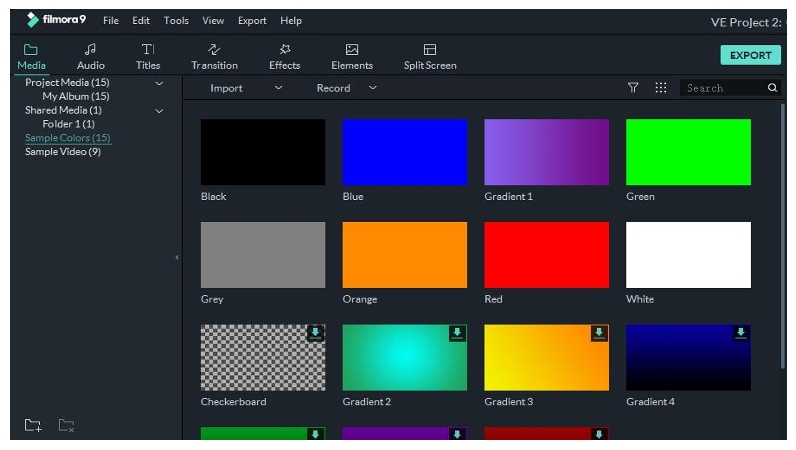
Filmora9 includes several sample colors (still images of color) and countdown intro videos. To access these resources, click Media and choose Sample Colors or Sample Video.
2.1.5 Deleting Clips from Timeline
To delete a single video clip or other piece of media from your timeline, right click on the media in your timeline and select Delete, select the clip and hit the Delete icon [trash can icon] in the toolbar, or select the clip and press the Delete key on your keyboard.
To remove multiple video clips or other pieces of media, press and hold CTRL, then select the target files. When you are done selecting, let go of CTRL and delete the items using the delete icon, the delete key on your keyboard, or by right-clicking and selecting delete.
Ripple Delete
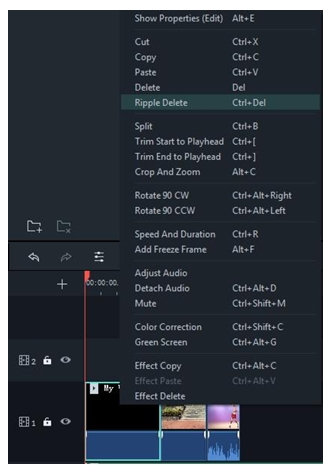
Removing media using the methods above will leave a big gap in the timeline. If you want to both remove media and close this gap, use the Ripple Delete feature.
Right click on the clip you need to remove (or hold down CTRL and select multiple pieces of media, then right click) and then select Ripple Delete to remove that clip and have the remaining media in the track move over to fill the empty space.