- Get Started: Introduction
- 1.3 Navigating Filmora9
- 1.4 Project Setup
- 1.5 Importing Media
- 1.6 Keyboard shortcuts list (windows)
- 2 Basic Editing
- 2.1.6 Trim Video Clips
- 2.1.9 Cropping Video Clips
- 2.1.14 Creating Freeze Frames
- 2.1.18 Playback Quality
- 2.2 Editing Audio
- 2.2.9 Customize Timeline Track Controls
- 2.3 Editing Image
- 2.4 Text and Titles
- 3 Add Effects
- 4 Advanced Editing
- 4.6 Advanced Color Tuning
- 4.7 PIP (Picture in Picture)
- 4.8 Green Screen
- 4.10 Scene Detection
- 5 Action Cam Editing
- 5.2 Edit Action Cam Videos
- 6 Export and Share
- 7 Access to Filmstocks Effects Store
- 8 Remove Watermark
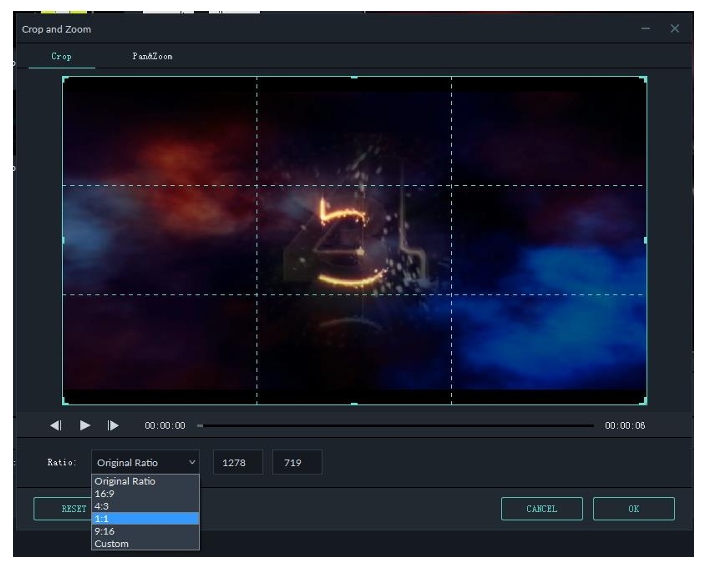
Follow the steps below to crop out and zoom into parts of your video clips:
- Right click on the clip in the timeline
- Select the Crop and Zoom option from the menu or click the Crop icon to open the Crop and Zoom panel.
- In the popup window, move and adjust the rectangle to surround the area you want to crop. You can also choose the preset from the following preset dimensions: 16:9, 4:3, 1:1 or 9:16.
2.1.10 Joining Videos
The join feature is for when you have several video clips in a sequence and want to combine them into one clip. To join video clips, place them in the Timeline in the order you want them sequential order and export them as one video.
2.1.11 Copying & Pasting Video Clips
When you copy and paste clips in Filmora’s timeline the spacing of the clips is kept. You can paste copies of clip at the end of your video or insert them at the location of the playhead.
Step 1: Select one or more clips in the sequence, right-click, and choose Copy
Step 2: In the timeline, position the playhead at the point where you want to paste a copy of the clips.Based on the image provided, here is the converted text:
Step 3: Right click and choose ‘paste’.
Note: If there are clips in the track before you paste, they might be overwritten by the pasted clips.
2.1.12 Enhancing Video Clips
Enhance your video clips by adjusting the white balance, tone, color, light, and HSL and by adding vignettes.
Double click the target clip in the timeline to enter the Edit panel, and select Color menu, the window will show as below:
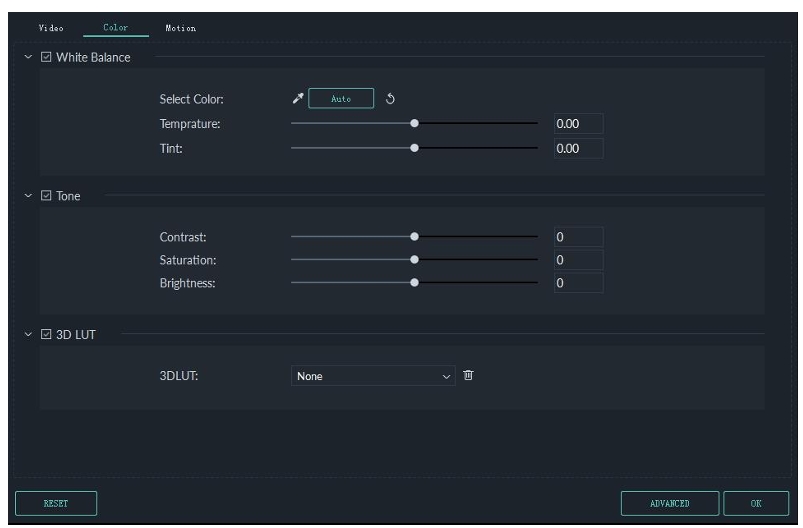
Drag the sliders respectively to adjust your color temperature, tint, contrast, saturation and brightness. You can also enter a numerical value if you know the exact adjustment you want to make. There are also 3D LUT effects available if you want to change the entire look of your video at once. Watch the Preview Window to see how the new settings affect the look of your video.
Click Advanced to enter the Advanced Color Tuning panel where you’ll find presets as well as options to customize your colors, lighting, hues, saturation, luminance, vignettes, etc.
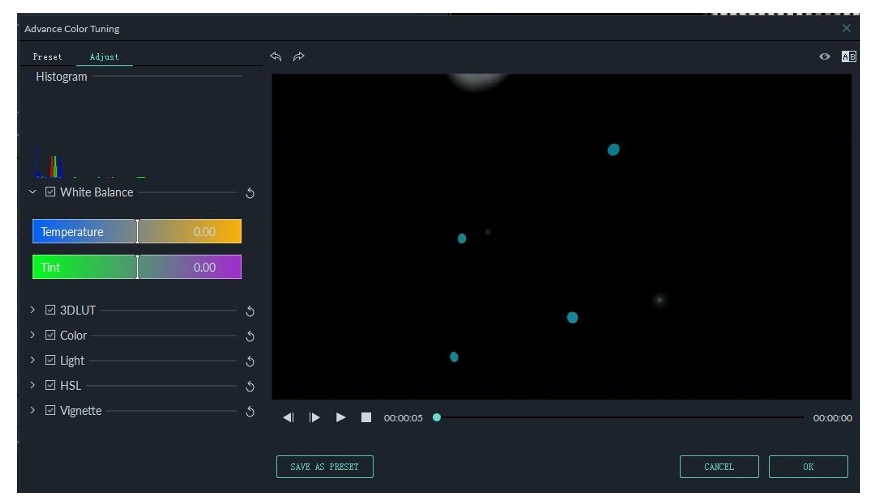
You can also enter the Advanced Color Tuning window by right clicking a clip and then selecting Color Correction or clicking on the Color icon in the toolbar.
2.1.13 Changing Video Playback Speed
Right click on your clip in the timeline and select Speed and Duration to open the Custom Speed window. Drag the speed slider to adjust the speed of the video clip. You can also enter the precise speed you want in the speed field, or change your speed by changing the video duration. You can make your video up to 100x faster or 0.01x slower.
[Custom Speed Interface Image]
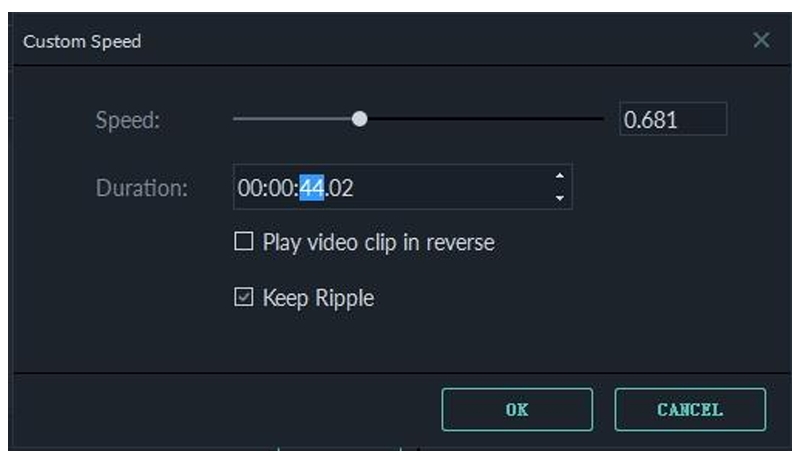
In the custom speed panel, you can tick the Play video clip in reverse option to play your clip backwards.
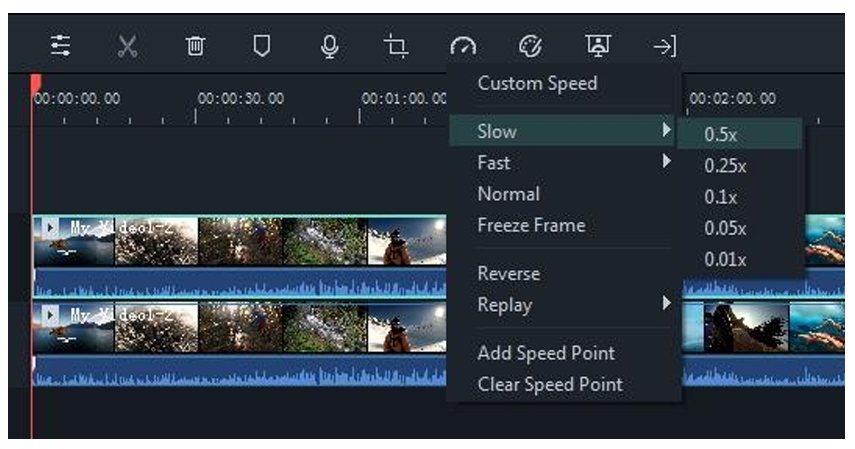
You can also click the Speed icon (odometer icon) in the toolbar to see options for adjusting your video’s speed.
Filmora9 offers speed control presets so you can quickly slow your clip to 0.5x, 0.25x, 0.1x, 0.05x