- Get Started: Introduction
- 1.3 Navigating Filmora9
- 1.4 Project Setup
- 1.5 Importing Media
- 1.6 Keyboard shortcuts list (windows)
- 2 Basic Editing
- 2.1.6 Trim Video Clips
- 2.1.9 Cropping Video Clips
- 2.1.14 Creating Freeze Frames
- 2.1.18 Playback Quality
- 2.2 Editing Audio
- 2.2.9 Customize Timeline Track Controls
- 2.3 Editing Image
- 2.4 Text and Titles
- 3 Add Effects
- 4 Advanced Editing
- 4.6 Advanced Color Tuning
- 4.7 PIP (Picture in Picture)
- 4.8 Green Screen
- 4.10 Scene Detection
- 5 Action Cam Editing
- 5.2 Edit Action Cam Videos
- 6 Export and Share
- 7 Access to Filmstocks Effects Store
- 8 Remove Watermark
A freeze frame is a still image representing a single frame of your video clip. Usually, freeze frames are used to make it seem like time has stopped at a specific moment in your video. Here’s how to create a freeze frame in Filmora9 (Latest Filmora version 9):
- In the timeline, move the playhead to the frame you want to freeze.
- Click the speed icon in the toolbar and select Freeze Frame.
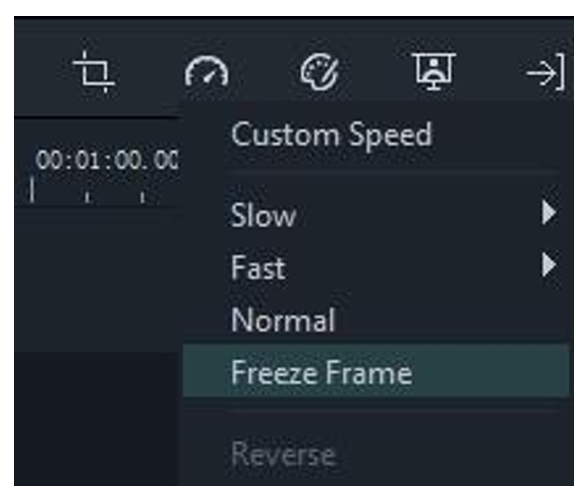
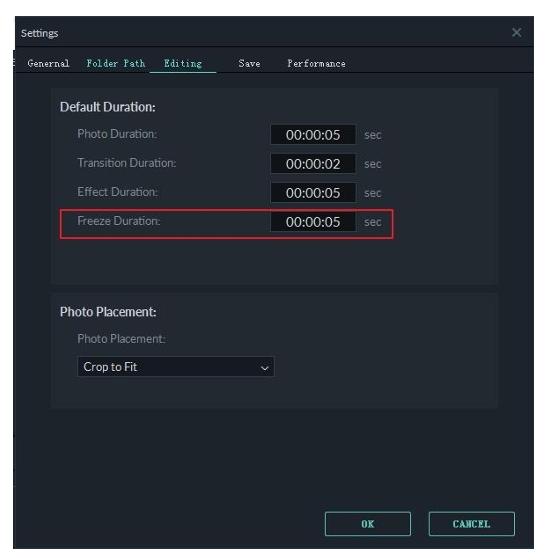
Set the duration of the freeze frame by dragging its edge. You can also change the default duration freeze frames by going to File -> Settings -> Editing.
2.1.15 Zooming in and out Timeline
To zoom in or out and see more or less (in more detail) of your timeline, use one of these methods:
- Find the Zoom in/out slider in the top right corner of the timeline. Drag it forwards to zoom in on the timeline and drag it backwards to zoom out.
- Click [+] to zoom in the Timeline or [-] to zoom out.
- Click [↔] to automatically adjust the zoom to fit your entire timeline.
- Use the shortcut Ctrl + plus sign [+] to zoom in and Ctrl + minus sign [-] to zoom out.
2.1.16 Resizing video clips
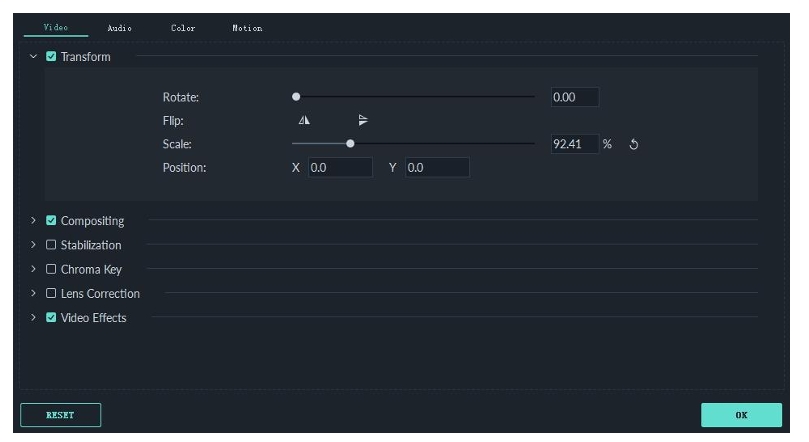
If you need to resize a video clip, drag and drop it into the timeline to cut out part of the video. Or, you can change the resolution, frame rate, and bit rate in the export window to lower the file size. If you need to change the display size of a video, use the Scale slider.
To access the Scale slider, right click on the video clip you need to resize in the timeline choose Show Properties (Edit), and click into the Video tab in the popup window. Go to Transform and drag the Scale slider to the right or the left to resize the video clip. You can also enter an exact value if you know the exact percentage you want to scale to.
2.1.17 Adding watermark/logo to the video
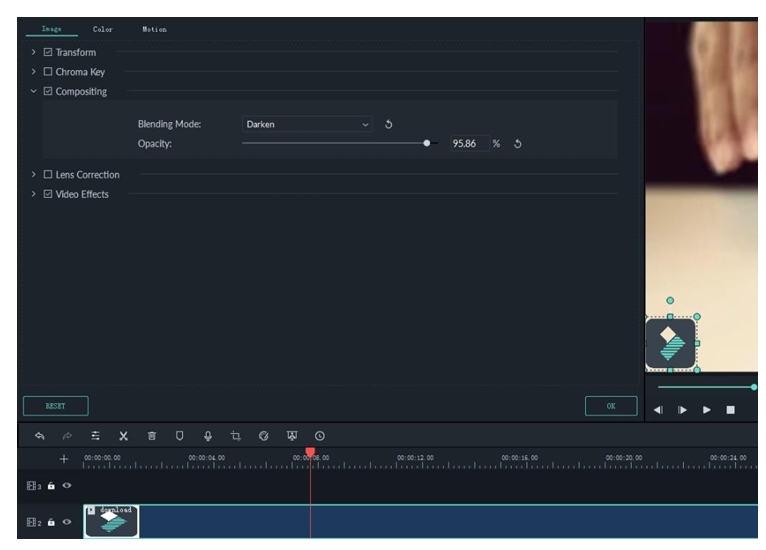
After importing a video clip and watermark/logo image to the Media Library, drag and drop the video clip to a video track (i.e. Track 1) and the watermark/logo to a track above it.
You can drag the watermark/logo image in the Preview Window to move it to where you want it. To adjust size of the watermark or logo, drag the small circles and squares at its edges in the Preview window.
To adjust the opacity or blending mode of your watermark or logo (i.e. make it transparent), double click the logo image in the timeline to open the Image panel and go to Composition. From there you can choose a composition mode (i.e. darken) and use the Opacity slider to adjust your transparency.