
- Get Started: Introduction
- 1.3 Navigating Filmora9
- 1.4 Project Setup
- 1.5 Importing Media
- 1.6 Keyboard shortcuts list (windows)
- 2 Basic Editing
- 2.1.6 Trim Video Clips
- 2.1.9 Cropping Video Clips
- 2.1.14 Creating Freeze Frames
- 2.1.18 Playback Quality
- 2.2 Editing Audio
- 2.2.9 Customize Timeline Track Controls
- 2.3 Editing Image
- 2.4 Text and Titles
- 3 Add Effects
- 4 Advanced Editing
- 4.6 Advanced Color Tuning
- 4.7 PIP (Picture in Picture)
- 4.8 Green Screen
- 4.10 Scene Detection
- 5 Action Cam Editing
- 5.2 Edit Action Cam Videos
- 6 Export and Share
- 7 Access to Filmstocks Effects Store
- 8 Remove Watermark
You can adjust the playback quality of the Preview window for a smoother editing experience. For example, you can improve the performance of your preview by playing your video at a lower resolution than you want for your finished project or by creating proxy media files to edit with.
Proxy files are more manageable versions of your clips that are easier to edit with because they are smaller in terms of data (i.e. they are at a lower resolution). You can edit with a proxy file in Filmora9, then export with your full-sized original clip.
Setting Playback Quality
Reducing your playback quality can eliminate lags and save you time. Click the Display icon in the lower-right corner of the preview window, then click Playback Quality and choose from these options:
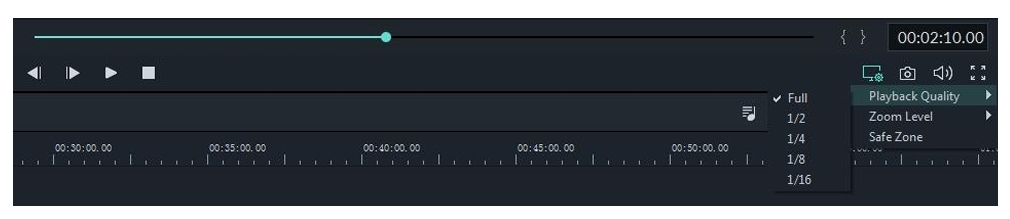
- Full: preview your video without changing the original resolution
- 1/2: preview your video at 1/2 the original resolution
- 1/4: preview your video at 1/4 the original resolution
- 1/8: preview your video at 1/8 the original resolution
- 1/16: preview your video at 1/16 the original resolution
Note: the reduced playback resolution only applies to the video preview and will not affect the export settings.
2.1.19 Preview Render
Preview rendering reduces the preview lag which can occur when editing complex or high resolution projects. This results in smoother playback. Filmora9 offers 2 ways to render your timeline preview:
2.1.19.1 Manual Render (The Render Button)
Click the Render Button to begin rendering your timeline whenever this red line appears (as when you add media or make other changes to your timeline).
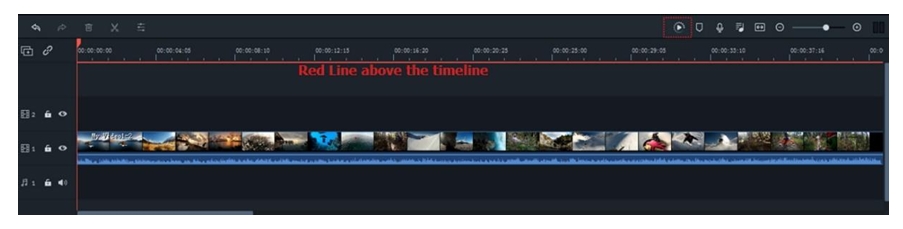
The render preview window will pop up, showing the render progress and the estimated remaining time.
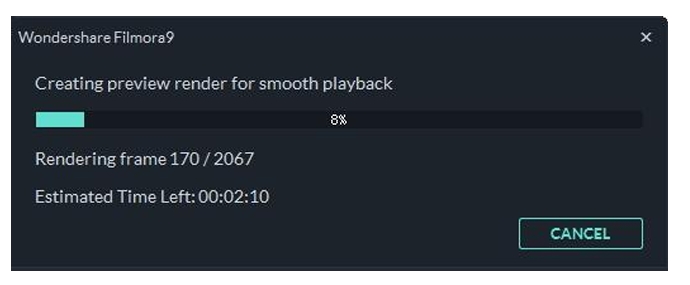
Once the rendering is complete, the red line will turn green.
Note: you will need to wait until the rendering process is finished to continue editing.
2.1.19.2 Auto-Render
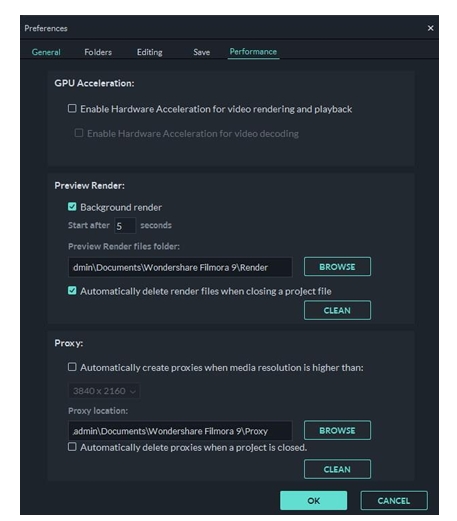
Besides manually clicking the Render Button, you can also use a feature called Background Render. Background rendering starts automatically when there are new things to render on your timeline and does not affect your editing process. To enable this feature, go to ‘File’ and choose the ‘Preferences’ option. In the window that opens, go to the ‘Performance’ tab. Under the Preview Render option, check Background render and set a starting time. By default, the render process will be performed after 5 seconds of inactivity on the timeline.Click OK to save your settings. Note: The rendered parts of your timeline will be indicated by a green line. The line will be red for the un-rendered parts. Once you change, modify, or add effects to the rendered section you’ll notice the line turning red to indicate you need to render again.
2.1.20 Ripple Edit
Click the Auto Ripple button to turn on ripple editing. This will allow you to trim, add, and delete clips without leaving a gap in your timeline. If you add new media in the middle of your timeline all of your clips and effects will be shifted to the right to accommodate the new addition.
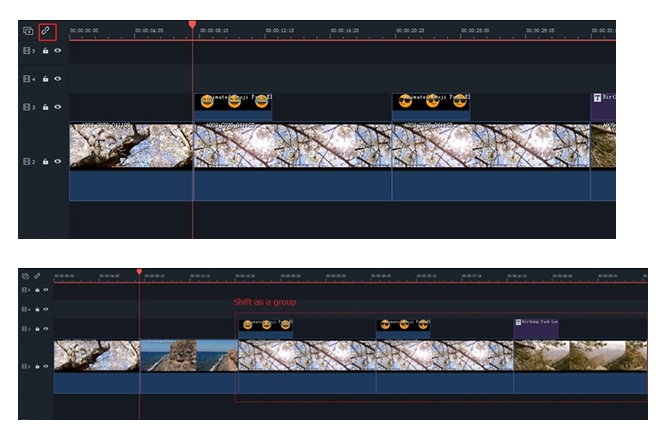
Add clip in Auto Ripple On mode
When auto-ripple is on you can automatically delete all of the effects applied to a clip when you delete the clip itself. Turn on auto ripple, select the video clip, right click, and choose Delete.


