
- Get Started: Introduction
- 1.3 Navigating Filmora9
- 1.4 Project Setup
- 1.5 Importing Media
- 1.6 Keyboard shortcuts list (windows)
- 2 Basic Editing
- 2.1.6 Trim Video Clips
- 2.1.9 Cropping Video Clips
- 2.1.14 Creating Freeze Frames
- 2.1.18 Playback Quality
- 2.2 Editing Audio
- 2.2.9 Customize Timeline Track Controls
- 2.3 Editing Image
- 2.4 Text and Titles
- 3 Add Effects
- 4 Advanced Editing
- 4.6 Advanced Color Tuning
- 4.7 PIP (Picture in Picture)
- 4.8 Green Screen
- 4.10 Scene Detection
- 5 Action Cam Editing
- 5.2 Edit Action Cam Videos
- 6 Export and Share
- 7 Access to Filmstocks Effects Store
- 8 Remove Watermark
2.2.1 Add Background Music
Adding background music can drastically change the tone of your video. Filmora9 provides a royalty-free music library you can access within the program, or you can import your own music.
Here are a few ways to add background music to your videos.
Note: the music and sound effects found within Filmora9 are for personal, non-commercial, use only.Click here to learn more >>
Import Music from Your Computer: Select an audio file that’s stored on your PC and bring it into Filmora9.
Click the IMPORT button above the Media Library panel to browse for audio files in your computer. When you find the song or other audio file you want, select it and import it into the Media Library. You can also drag and drop audio files into the Media Library. From there, you can drag and drop your audio into an Audio Track in the timeline.
Using Music from Filmora9: choose a song from Filmora9’s royalty-free audio library and use it for free. The audio library has 50 songs divided into five categories: YOUNG & BRIGHT, TENDER & SENTIMENTAL, ROCK, FOLK, and ELECTRONIC. There are also sound effects available under SOUND EFFECT.
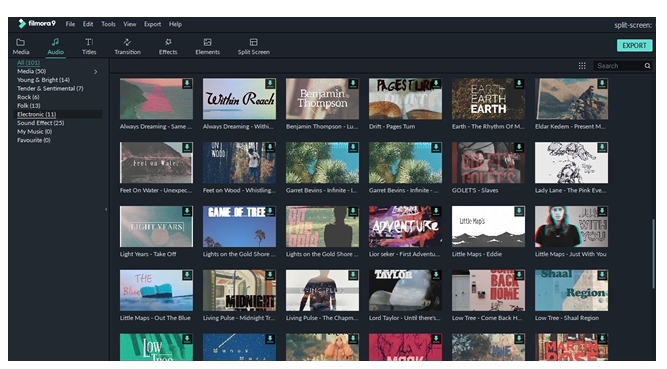
Here are two ways you can add music from the audio library to your video:
- Select a song, right-click, and choose Apply
- Drag and drop the song into the Timeline
Basic Editing: Editing Audio
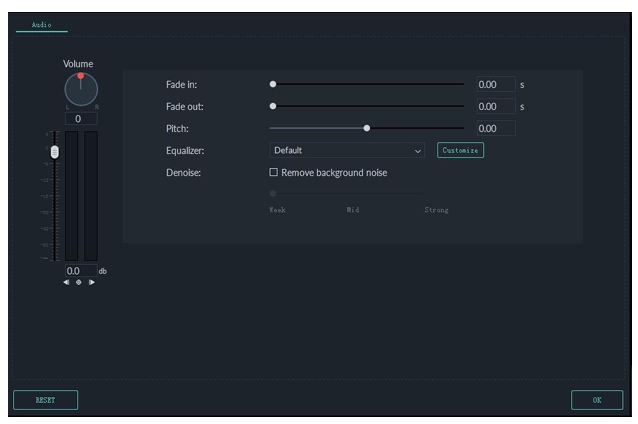
Once you’ve added your music, double click on the music in the timeline to bring up the Audio window. In this window you can adjust the volume and pitch of the music. You can also apply fade-in or fade-out effects and use their sliders to determine how long they will last.
Note: you can add up to 100 audio tracks.
2.2.2 Split Audio
In the timeline, move the playhead to the point in your audio clip where you want to split it. Then, right click on the clip and select “Split” or click the Split button in the toolbar above the timeline.
2.2.3 Adjust Audio
To make adjustments to your audio, double click on the audio clip you want to work on in the timeline to open a panel with adjustment sliders for volume and pitch. You can also apply Fade in/out effects and adjust their lengths here.
Another tool you’ll find in this panel is Denoise, which is a feature that can remove background noise from your audio clips.
For a more advanced audio editing experience, you can also access the Audio Equalizer from this panel. You can choose from presets or make manual adjustments by clicking ‘Customize’.
Give it a listen when you are done and, if you’re not happy with the results, click Reset to start over.
2.2.4 Mute Video Clip
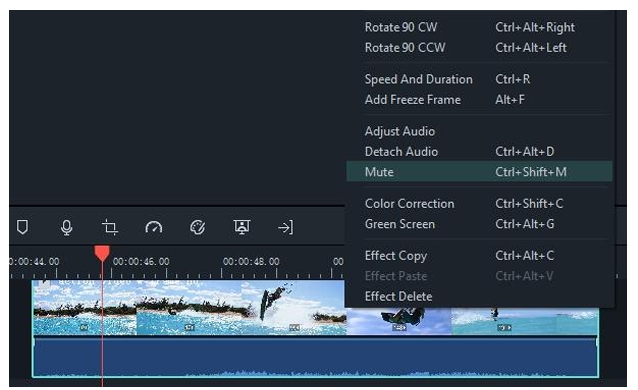
To mute the audio in a video clip, right click on the clip in the timeline and choose Mute.Based on the images provided, here is the converted text from the Filmora9 user guide:
2.2.5 Detach Audio from Video
You can detach the audio from a video clip without changing the original clip. To detach audio from video, right-click on the clip and select Detach Audio. The audio will be detached from the video and automatically placed in an audio track.
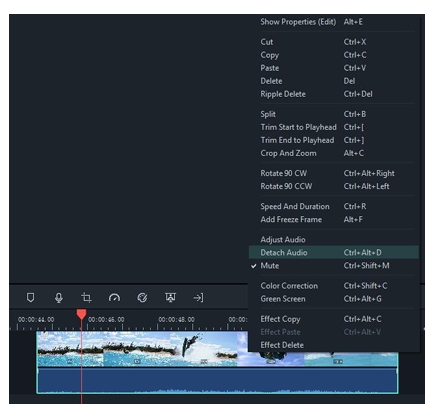
The detached audio clip will be automatically placed in the audio track; you can either choose to delete it or edit it for using.
2.2.6 Replace the original audio of the video
To remove the original audio and add a new audio clip to a video, please follow the instructions below:
- After adding the video clip to the timeline, right-click on it and select Audio Detach. The audio will be detached from the video clip and placed in an audio track.
- Import the audio file you want to use from your computer or add music from the Audio library to an audio track.
- If you are using a higher quality version of the audio which you detached, drag it to an audio track underneath the separated audio and make sure the wave forms line up to sync it.
- Then, select the detached audio clip and delete it.
2.2.7 Add Voiceovers
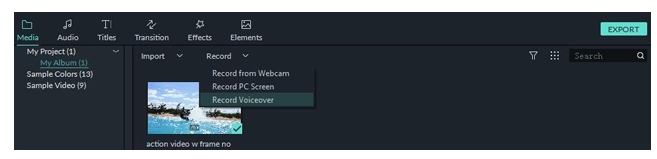
To add a voiceover, go to the media panel and select Record Voiceover under Record to bring up the Record Audio window.
- Click on the Record icon and you will have 3 seconds before the recording starts.
- Once you are finished recording, click the Stop icon to stop. The voiceover clip will automatically appear in the Timeline.
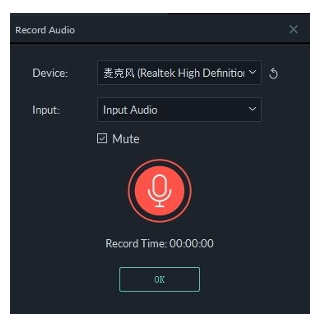
If you want to record another voiceover, keep the Record Audio window open. In the timeline, move the playhead to a new position and click on the Record icon again to record.
Tip: To remove a recorded voiceover, right click on the voiceover clip in the timeline and choose Delete.
2.2.8 Trim audio clips
Trimming audio clips works exactly the same as trimming video clips. Click here to learn how.


