
- Introduction Of MS Excel – 2016
- 4.2 Elements of Spread Sheet (स्प्रेडशीट के तत्व)
- 4.3 Creating of Spread Sheet (स्प्रेडशीट तैयार करना)
- 4.4 Opening an Existing Workbook (मौजूदा वर्कबुक को खोलना)
- 4.6 Page Setup (पेज सेटअप)
- 4.7 Printing a Worksheet (वर्कशीट को प्रिन्ट करना)
- 4.9 Entering, Editing, and Formatting Data (इन्टरिंग, एडिटिंग और फॉर्मेटिंग डाटा)
- 4.9.2 Editing Data (एडिटिंग डाटा)
- 4.9.3 Formatting Data in an Excel spreadsheet (एक्सेल स्प्रेडशीट मे डाटा फॉर्मेट करना)
- 4.9.3.2 Changing Font, Size and Style (फ़ॉन्ट, साइज एवं स्टाईल में बदलाव)
- 4.9.3.3 Changing the Alignment of the data in the cell (सेल में डेटा का अलाइनमेंट बदलना)
- 4.9.3.5 Wrap text in a cell (सेल में टेक्स्ट रैप करें)
- 4.10 Modifying columns, Rows and cell (रो, कॉलम या सेल को बदलना)
- 4.11 Inserting, Deleting, Moving and Hiding Rows, Column(इंसर्टिंग, डिलीटिंग, मूविंग और हाइडिंग रो, कॉलम)
- 4.11.2 Moving rows and columns (रो एवं कॉलम को मूव करना)
- 4.11.3 Hiding/ UnHiding Rows and Column
- 4.12 AutoFill (ऑटोफिल)
- 4.13 Sorting & Filtering (शॉर्टिंग एवं फिल्टरिंग)
- 4.13.2 Filtering Data (फ़िल्टरिंग डेटा)
- 4.14 Pivot Tables and Pivot Chart (पॉयोट टेबिल्स और पॉयोट चार्ट)
- 4.15 Cell Reference (सेल रेफरेंस)
- 4.16.2 Absolute cell Reference (एब्सॉल्यूट सेल रेफरेंस)
- 4.17 Formulas, Functions and Charts (फॉर्मूला, फंक्शन एवं चार्ट्स)
- 4.17.2 Charts (चार्ट)
- 4.18 Data Validation (डेटा वैलिडेशन)
- 4.19 Freezing panes (फ़्रीज़िंग पेन्स)
- 4.20 Macros (मैक्रो)
- 4.21 Shortcut keys
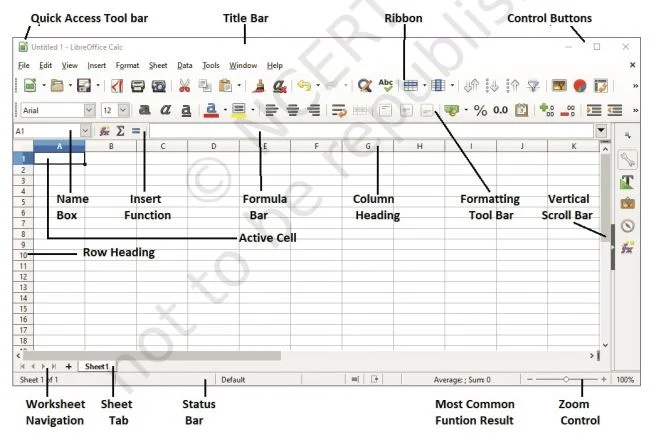
- Ribbon: The Ribbon contains multiple tabs, each with several groups of commands. You will use these tabs to perform the most common tasks in Excel.
- Ribbon (रिबन): रिबन में कई टैब होते हैं, जिनमें से प्रत्येक में कमांड के कई ग्रुप होते हैं। एक्सेल में सबसे सामान्य कार्य करने के लिए आप इन टैब का उपयोग करेंगे। प्रत्येक टैब में एक या अधिक ग्रुप होंगे।
- Worksheet (वर्कशीट): A Worksheet is the place where the user works and performs arithmetical and functional calculations. By default it is named as Sheet1, Sheet2, Sheet3 etc., a sheet can be renamed too.
- वर्कशीट (Worksheet): वर्कशीट वह स्थान है जहाँ यूजर वर्क करता है और अंकगणितीय और कार्यात्मक गणना करता है। डिफॉल्ट रूप से इसे शीट 1, शीट 2, शीट 3 आदि के रूप में नामित किया जाता है, शीट का नाम भी बदला जा सकता है।
- Workbook (वर्कबुक): A Workbook is the collection of worksheets where the user works.
- वर्कबुक (Workbook): एक वर्कबुक कई वर्कशीट्स का कलेक्शन होती है जहाँ यूजर वर्क करता है।
- Cell (सेल): A Cell is the intersection of Row and Column. For example, Cell A1 is the intersection of column A and Row 1. A cell in which mouse pointer is available that cell is known as Active cell; cells may contain text, numbers and formulas.
- सेल (Cell): सेल किसी रो और कॉलम का इंटरसेक्शन होता है। उदाहरण के लिए, सेल A1 कॉलम A और रो 1 का इंटरसेक्शन होगा। एक सेल जिसमें माउस पॉइंटर उपलब्ध होता है उस सेल को एक्टिव सेल के नाम से जाना जाता है।
- Cell Range (सेल रेंज): It contains One or more adjacent cells. A range is identified by its first and last cell address, separated by a colon.
- सेल रेंज (Cell Range): इसमें एक या अधिक एडजेसेंट सेल शामिल होती हैं। एक रेंज को उसके पहले और अंतिम सेल के पते से पहचाना जाता है, जिसे एक कोलन द्वारा अलग किया जाता है।
- Formula Bar (फॉर्मूला बार): This bar appears at the right side of the Name box. It displays formula as well as value entered into the active cell. It is also used to edit formulas and content in it.
- फॉर्मूला बार (Formula Bar): यह बार नेम बॉक्स के दाईं ओर दिखाई देता है। यह फॉर्मूला के साथ-साथ एक्टिव सेल में दर्ज कॉन्स्टेंट वैल्यू को प्रदर्शित करता है। इसका प्रयोग फॉर्मूला और कंटेंट को एडिट करने में भी होता है।
- Name Box (नेम बॉक्स): This box appears at the left of the formula bar and displays the address of active cell.
- नेम बॉक्स (Name Box): यह बॉक्स फॉर्मूला बार के बाईं ओर दिखाई देता है और सक्रिय सेल का पता प्रदर्शित करता है।
- Sheet Tab (शीट टैब): This tab appears at the bottom of the Excel workbook. By using Sheet tab we can open any worksheet. Each worksheet is identified by label given as Sheet1, Sheet2, Sheet 3…etc. You can rename the sheet name according to your requirement. You move from one worksheet to another worksheet by using navigation button.
- शीट टैब (Sheet Tab): यह टैब एक्सेल वर्कबुक के निचले हिस्से में दिखाई देता है। शीट टैब का उपयोग करके हम किसी वर्कशीट को ओपन कर सकते हैं। प्रत्येक वर्कशीट को शीट 1, शीट 2, शीट 3… आदि के रूप में दिए गए लेबल द्वारा पहचाना जाता है। आप अपनी आवश्यकता के अनुसार शीट का नाम बदल सकते हैं। नेवीगेशन बटन का प्रयोग कर आप एक शीट से दूसरे शीट पर जा सकते हैं।
Mouse Pointer Styles (माउस प्वाइंटर स्टाइल्स)
The Excel mouse pointer takes on many different appearances as you move around the spreadsheet. The following table summarizes the most common mouse pointer appearances:
जब आप स्प्रेडशीट के चारों ओर घूमते हैं तो एक्सेल माउस पॉइंटर कई अलग-अलग रूपों में दिखाई देता है। जो नीचे टेबल में दिखाए गए हैं:
| Pointer | Example | Description |
| ✚ | [Image] | The white plus sign will select a single cell to enter data, retype data or delete text from the selected cell. This pointer is also useful for selecting a range of cells. |
| ⇖ | [Image] | The white arrow will drag the contents of the selected cell to a new location (drag and drop). |
| + | [Image] | The black plus sign activates the fill handle of the selected cell and will fill the adjoining cells with some type of series, depending on the type of data (e.g., a formula or date) is in the beginning cell. |
Spreadsheet Navigation (स्प्रेडशीट नेविगेशन)
The following table provides various methods to navigation around a spreadsheet.
| Method | Description |
| mouse pointer | Use the mouse pointer ✚ to select a cell. |
| scroll bars | Use the horizontal and vertical scroll bars to move around the spreadsheet to view columns and rows not currently visible. Click the mouse pointer once the desired cell is visible. |
| arrow keys | Use the left ←, right →, up ↑, and down ↓ arrows to move accordingly among cells. |
| Enter | Press the Enter key to move down one cell at a time. |
| Tab | Press the Tab key to move one cell to the right. |
| Ctrl + Home | Moves the cursor to cell A1. |
| Ctrl + End | Moves the cursor to the last cell of used space on the worksheet. |


