
- Introduction Of MS Excel – 2016
- 4.2 Elements of Spread Sheet (स्प्रेडशीट के तत्व)
- 4.3 Creating of Spread Sheet (स्प्रेडशीट तैयार करना)
- 4.4 Opening an Existing Workbook (मौजूदा वर्कबुक को खोलना)
- 4.6 Page Setup (पेज सेटअप)
- 4.7 Printing a Worksheet (वर्कशीट को प्रिन्ट करना)
- 4.9 Entering, Editing, and Formatting Data (इन्टरिंग, एडिटिंग और फॉर्मेटिंग डाटा)
- 4.9.2 Editing Data (एडिटिंग डाटा)
- 4.9.3 Formatting Data in an Excel spreadsheet (एक्सेल स्प्रेडशीट मे डाटा फॉर्मेट करना)
- 4.9.3.2 Changing Font, Size and Style (फ़ॉन्ट, साइज एवं स्टाईल में बदलाव)
- 4.9.3.3 Changing the Alignment of the data in the cell (सेल में डेटा का अलाइनमेंट बदलना)
- 4.9.3.5 Wrap text in a cell (सेल में टेक्स्ट रैप करें)
- 4.10 Modifying columns, Rows and cell (रो, कॉलम या सेल को बदलना)
- 4.11 Inserting, Deleting, Moving and Hiding Rows, Column(इंसर्टिंग, डिलीटिंग, मूविंग और हाइडिंग रो, कॉलम)
- 4.11.2 Moving rows and columns (रो एवं कॉलम को मूव करना)
- 4.11.3 Hiding/ UnHiding Rows and Column
- 4.12 AutoFill (ऑटोफिल)
- 4.13 Sorting & Filtering (शॉर्टिंग एवं फिल्टरिंग)
- 4.13.2 Filtering Data (फ़िल्टरिंग डेटा)
- 4.14 Pivot Tables and Pivot Chart (पॉयोट टेबिल्स और पॉयोट चार्ट)
- 4.15 Cell Reference (सेल रेफरेंस)
- 4.16.2 Absolute cell Reference (एब्सॉल्यूट सेल रेफरेंस)
- 4.17 Formulas, Functions and Charts (फॉर्मूला, फंक्शन एवं चार्ट्स)
- 4.17.2 Charts (चार्ट)
- 4.18 Data Validation (डेटा वैलिडेशन)
- 4.19 Freezing panes (फ़्रीज़िंग पेन्स)
- 4.20 Macros (मैक्रो)
- 4.21 Shortcut keys
You can edit the data in the sheet given in the cell. Data that has been entered in a cell can be changed by double clicking the cell location or Press F2 key or using the Formula Bar. You may have noticed that as you were typing data into a cell location, the data you typed appeared in the Formula Bar. The Formula Bar can be used for entering data into cells as well as for editing data that already exists in a cell.
आप वर्कशीट के डेटा को सेल में एडिट कर सकते हैं। सेल में दर्ज किए गए डेटा को सेल स्थान पर डबल क्लिक या F2 करके या फॉर्मूला बार का उपयोग करके बदला जा सकता है। आपने देखा होगा कि जब आप किसी सेल लोकेशन पर टाइप करते हैं, तो आपके द्वारा टाइप किया गया डेटा फॉर्मूला बार में दिखाई देने लगता है। फॉर्मूला बार का उपयोग डेटा दर्ज करने के साथ-साथ सेल में पहले से मौजूद डेटा को एडिट करने के लिए भी किया जा सकता है।
4.9.2.1 Cut, Copy & Paste (कट, कॉपी, एवं पेस्ट)
To copy and paste cell content (सेल कंटेंट को कॉपी और पेस्ट करना)
In Excel, by default when you copy and paste the range of cells, it will copy the data as well as formatting such as font, number format, borders, background color, etc. To copy a range, select the first cell in your range. In this example, we’ve selected cell B1.
डिफ़ॉल्ट रूप से जब आप सेलों की रेंज को कॉपी और पेस्ट करते हैं, तो यह डेटा को कॉपी करने के साथ-साथ फॉन्ट, नंबर फॉर्मेट, बॉर्डर्स, बैकग्राउंड का रंग इत्यादि जैसे फॉर्मेट को भी कॉपी कर लेता है। एक रेंज को कॉपी करने के लिए, अपनी रेंज की पहली सेल का चयन करें। इस उदाहरण में, हमने सेल B1 का चयन किया है।
Now to copy the cells, press CTRL + C. You will see a dotted border appear around the range of cells indicating that the cells are in the clipboard and ready to be pasted to another location in your spreadsheet.
अब सेल्स को कॉपी करने के लिए, CTRL + C दबाएं। आपको सेल की रेंज के चारों ओर एक डॉयटेड बॉर्डर दिखाई देगा जो दर्शाता है कि सेल क्लिपबोर्ड में हैं और आपकी स्प्रेडशीट में किसी अन्य स्थान पर पेस्ट करने के लिए तैयार हैं।
To paste the range of cells, press CTRL + V. Now you will see the pasted range in the new location in your worksheet.
कॉपी की गयी सेल की रेंज को पेस्ट करने के लिए, CTRL + V प्रेस करें। अब आपको अपनी वर्क शीट में नई जगह पर पेस्ट की गई सेलों की रेंज दिखाई देने लगेगी।
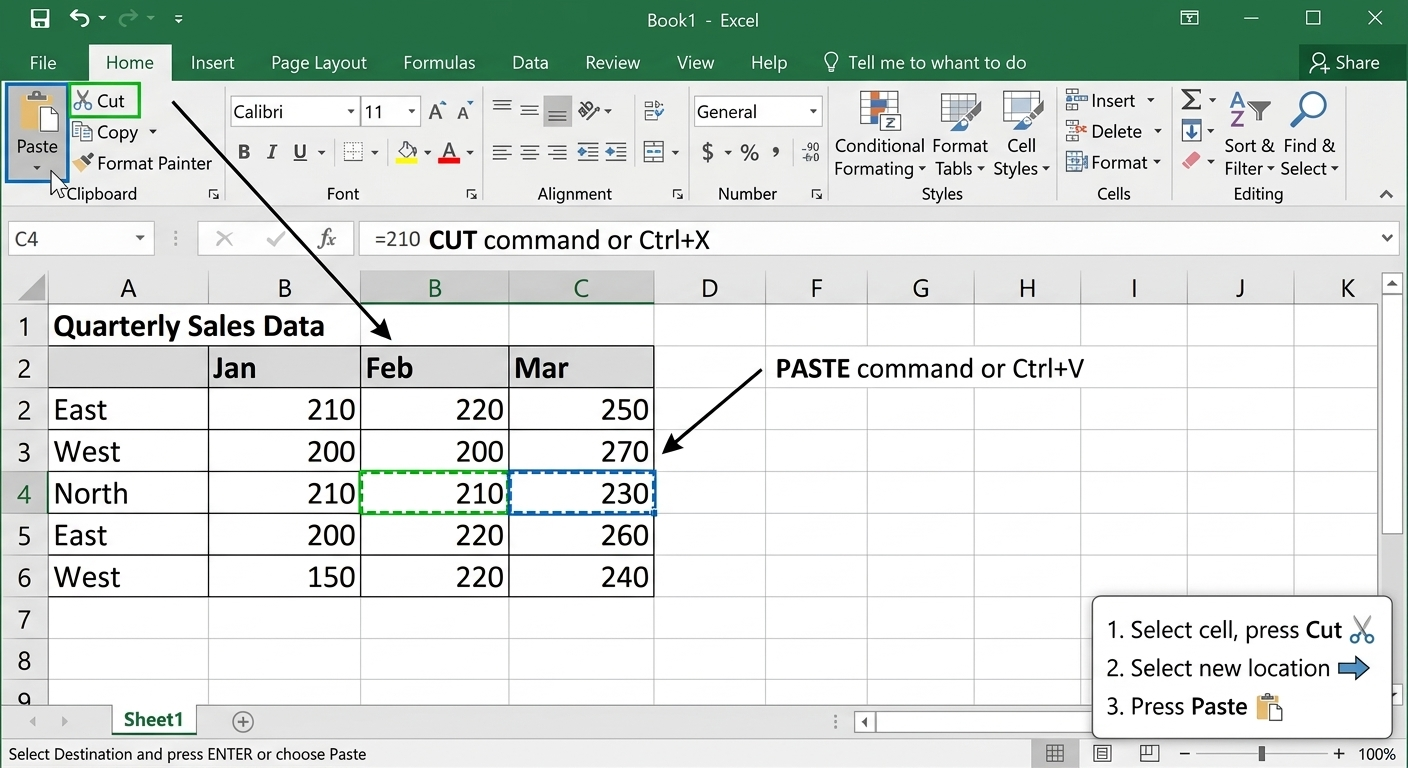
To cut and paste cell content: Unlike copying and pasting, which duplicates content, cutting allows you to move content between cells.
1. Cut and Paste Operations
- Select the cell(s) you want to cut. Click the Cut command on the Home tab, or press Ctrl+X on your keyboard. The cut cells will now have a dashed box around them.
- Select the cells where you want to paste the content. Click the Paste command on the Home tab, or press Ctrl+V on your keyboard.
- The cut content will be removed from the original cells and pasted into the selected cells.
4.9.2.2 Delete cell content (सेल कंटेंट को डिलीट करने के लिए)
- Select the cell with content you want to delete.
- Press the Delete or Backspace key on your keyboard. The cell’s contents will be deleted.
Note: You can use the Delete key on your keyboard to delete content from multiple cells at once. The Backspace key will only delete one cell at a time.
आप एक बार में एकाधिक सेल से कंटेंट को हटाने के लिए अपने कीबोर्ड पर डिलीट की का प्रयोग कर सकते हैं। बैकस्पेस की केवल एक बार में एक सेल को डिलीट करेगी।


