
- Introduction Of MS Excel – 2016
- 4.2 Elements of Spread Sheet (स्प्रेडशीट के तत्व)
- 4.3 Creating of Spread Sheet (स्प्रेडशीट तैयार करना)
- 4.4 Opening an Existing Workbook (मौजूदा वर्कबुक को खोलना)
- 4.6 Page Setup (पेज सेटअप)
- 4.7 Printing a Worksheet (वर्कशीट को प्रिन्ट करना)
- 4.9 Entering, Editing, and Formatting Data (इन्टरिंग, एडिटिंग और फॉर्मेटिंग डाटा)
- 4.9.2 Editing Data (एडिटिंग डाटा)
- 4.9.3 Formatting Data in an Excel spreadsheet (एक्सेल स्प्रेडशीट मे डाटा फॉर्मेट करना)
- 4.9.3.2 Changing Font, Size and Style (फ़ॉन्ट, साइज एवं स्टाईल में बदलाव)
- 4.9.3.3 Changing the Alignment of the data in the cell (सेल में डेटा का अलाइनमेंट बदलना)
- 4.9.3.5 Wrap text in a cell (सेल में टेक्स्ट रैप करें)
- 4.10 Modifying columns, Rows and cell (रो, कॉलम या सेल को बदलना)
- 4.11 Inserting, Deleting, Moving and Hiding Rows, Column(इंसर्टिंग, डिलीटिंग, मूविंग और हाइडिंग रो, कॉलम)
- 4.11.2 Moving rows and columns (रो एवं कॉलम को मूव करना)
- 4.11.3 Hiding/ UnHiding Rows and Column
- 4.12 AutoFill (ऑटोफिल)
- 4.13 Sorting & Filtering (शॉर्टिंग एवं फिल्टरिंग)
- 4.13.2 Filtering Data (फ़िल्टरिंग डेटा)
- 4.14 Pivot Tables and Pivot Chart (पॉयोट टेबिल्स और पॉयोट चार्ट)
- 4.15 Cell Reference (सेल रेफरेंस)
- 4.16.2 Absolute cell Reference (एब्सॉल्यूट सेल रेफरेंस)
- 4.17 Formulas, Functions and Charts (फॉर्मूला, फंक्शन एवं चार्ट्स)
- 4.17.2 Charts (चार्ट)
- 4.18 Data Validation (डेटा वैलिडेशन)
- 4.19 Freezing panes (फ़्रीज़िंग पेन्स)
- 4.20 Macros (मैक्रो)
- 4.21 Shortcut keys
The filter feature applies a drop down menu to each column heading, allowing you to select specific choices to narrow a table. Using the above example, let’s say you wanted to filter your table by Course and Name. Specifically, you want to find the number of students taking admission in MCA course and also find how much amount was paid by Krishna & Vaishnavi in MCA. To do this using the filter you would:
फ़िल्टर सुविधा प्रत्येक कॉलम हेडिंग पर एक ड्रॉप डाउन मेनू उपलब्ध कराती है, जिससे आप टेबल को फ़िल्टर करने के लिए विशिष्ट विकल्पों का चयन कर सकते हैं। उपरोक्त उदाहरण का उपयोग करते हुए, मान लें कि आप अपनी टेबल को course और Name के द्वारा फ़िल्टर करना चाहते हैं। विशेष रूप से, आप एमसीए कोर्स प्रवेश लेने वाले छात्रों की संख्या का पता लगाना चाहते हैं और यह भी ज्ञात कीजिए कि कृष्णा और वैष्णवी ने एमसीए में कितनी राशि का भुगतान किया था तो फ़िल्टर का उपयोग करने के लिए:
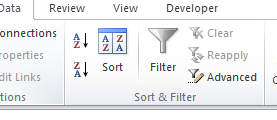
- Select the range of data to filter or select a cell within the range.
- Go to the Home tab -> Click on Sort and Filter -> Select Filter or Go to Data tab and Select the Filter tool from Sort & Filter group. Filter buttons that look like arrows appear in the first cell of each field header. डेटा की रेंज सेलेक्ट करें जिसे फ़िल्टर करना है। फिर होम टैब पर जाये सॉर्ट और फ़िल्टर बटन पर क्लिक करें या डेटा टैब में जाकर सॉर्ट और फ़िल्टर ग्रुप से फ़िल्टर टूल सेलेक्ट करें। फिर ऐरो की तरह दिखने वाला फ़िल्टर बटन प्रत्येक फील्ड हेडर के पहले सेल में दिखाई देता है।
- Below we see the Filter in the column header. Click the filter button for the column to filter and Click the check boxes of values (Krishna and Vaishnavi from the Name and MCA from Course) to display. नीचे हम कॉलम हेडर में फ़िल्टर देखते हैं। कॉलम को फ़िल्टर करने के लिए फ़िल्टर बटन पर क्लिक करें और प्रदर्शित करने के लिए वैल्यू के चेक बॉक्स (नाम से कृष्ण और वैष्णवी और पाठ्यक्रम से एमसीए) पर क्लिक करें।
Before Filtering After Filtering
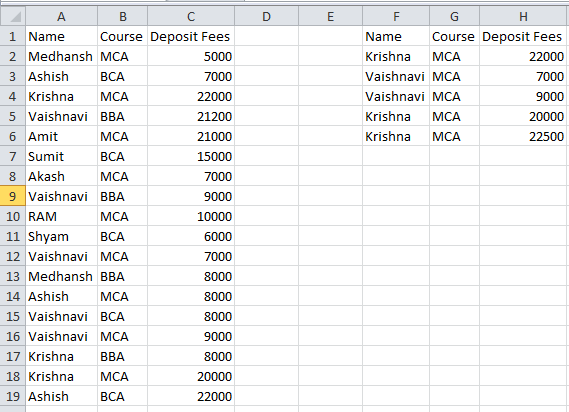
Note: After Filtering, you can easily know how much amount was paid by Krishna and Vaishnavi specifically in the MCA course. (फ़िल्टर लगाने के बाद पता करें कि कृष्णा और वैष्णवी ने कितनी राशि का भुगतान किया था।)


