- Introduction Of MS Excel – 2016
- 4.2 Elements of Spread Sheet (स्प्रेडशीट के तत्व)
- 4.3 Creating of Spread Sheet (स्प्रेडशीट तैयार करना)
- 4.4 Opening an Existing Workbook (मौजूदा वर्कबुक को खोलना)
- 4.6 Page Setup (पेज सेटअप)
- 4.7 Printing a Worksheet (वर्कशीट को प्रिन्ट करना)
- 4.9 Entering, Editing, and Formatting Data (इन्टरिंग, एडिटिंग और फॉर्मेटिंग डाटा)
- 4.9.2 Editing Data (एडिटिंग डाटा)
- 4.9.3 Formatting Data in an Excel spreadsheet (एक्सेल स्प्रेडशीट मे डाटा फॉर्मेट करना)
- 4.9.3.2 Changing Font, Size and Style (फ़ॉन्ट, साइज एवं स्टाईल में बदलाव)
- 4.9.3.3 Changing the Alignment of the data in the cell (सेल में डेटा का अलाइनमेंट बदलना)
- 4.9.3.5 Wrap text in a cell (सेल में टेक्स्ट रैप करें)
- 4.10 Modifying columns, Rows and cell (रो, कॉलम या सेल को बदलना)
- 4.11 Inserting, Deleting, Moving and Hiding Rows, Column(इंसर्टिंग, डिलीटिंग, मूविंग और हाइडिंग रो, कॉलम)
- 4.11.2 Moving rows and columns (रो एवं कॉलम को मूव करना)
- 4.11.3 Hiding/ UnHiding Rows and Column
- 4.12 AutoFill (ऑटोफिल)
- 4.13 Sorting & Filtering (शॉर्टिंग एवं फिल्टरिंग)
- 4.13.2 Filtering Data (फ़िल्टरिंग डेटा)
- 4.14 Pivot Tables and Pivot Chart (पॉयोट टेबिल्स और पॉयोट चार्ट)
- 4.15 Cell Reference (सेल रेफरेंस)
- 4.16.2 Absolute cell Reference (एब्सॉल्यूट सेल रेफरेंस)
- 4.17 Formulas, Functions and Charts (फॉर्मूला, फंक्शन एवं चार्ट्स)
- 4.17.2 Charts (चार्ट)
- 4.18 Data Validation (डेटा वैलिडेशन)
- 4.19 Freezing panes (फ़्रीज़िंग पेन्स)
- 4.20 Macros (मैक्रो)
- 4.21 Shortcut keys
When you have a lot of data to enter into your Excel 2013 spreadsheet, and that data consists of some type of repeatable pattern or sequence, you can save time by using AutoFill. To use AutoFill, you select the cell or cells that already contain an example of what you want to fill and then drag the fill handle. The fill handle is the little black square in the lower-right corner of the selected cell or range.
जब आपके पास अपने एक्सेल 2013 स्प्रेडशीट में एंट्री करने के लिए बहुत अधिक डेटा होता है, और उस डेटा में कुछ प्रकार के दोहराए जाने वाले पैटर्न या सिक्वेन्स होते हैं, तो आप ऑटोफिल का उपयोग करके अपना समय बचा सकते हैं। ऑटोफिल का उपयोग करने के लिए, आप उस सेल का चयन करते हैं जिसमें पहले से ही एक एंट्री हो जो आप पूरा भरना चाहते हों, और फिर फिल हैंडल खींचें। फिल हैंडल चयनित सेल या रेंज के निचले-दाएं कोने में थोड़ा काला वर्गाकार चिन्ह होता है।
Depending on how you use it, AutoFill can either fill the same value into every cell in the target area, or it can fill in a sequence (such as days of the month, days of the week, or a numeric sequence such as 2, 4, 6, 8).
इसका कार्य आप के उपयोग पर निर्भर करता है, इसके आधार पर, AutoFill या तो प्रत्येक सेल में एक ही वैल्यू भर सकता है, या यह एक क्रम की श्रेणी बना सकता है (जैसे महीने के दिन, सप्ताह के दिन, या एक संख्यात्मक सिक्वेन्स जैसे 2,4,6,8.)
Here are the general rules for how it works:
यह कैसे काम करता है इसके सामान्य नियम इस प्रकार हैं:
- When AutoFill recognizes the selected text as a member of one of its preset lists, such as days of the week or months of the year, it automatically increments those cell. For example, if the selected cell contains August, AutoFill places September in the next adjacent cell.जब ऑटोफिल चयनित टेक्स्ट को अपनी पूर्व निर्धारित सूची के मेम्बर के रूप में रिकग्नाइज करता है, जैसे कि सप्ताह या महीनों के दिनों के रूप में, यह अपने आप से उन सेल के वैल्यू को बढ़ाता है। उदाहरण के लिए, यदि चयनित सेल में अगस्त है, तो ऑटोफिल सितंबर को अगले ऐडजेसेन्ट सेल में रखता है।
- When AutoFill doesn’t recognize the selected text, it fills the chosen cell with a duplicate of the selected text.जब ऑटो फिल चयनित टेक्स्ट को नहीं रिकग्नाइज करता है, तो वह चुने हुए टेक्स्ट के डुप्लिकेट के साथ अगली सेल को भरता है।
- When AutoFill is used on a single cell containing a number, it fills with a duplicate of the number.जब ऑटोफिल का उपयोग किसी एक सेल पर किया जाता है जिसमें नंबर होता है, तो यह नंबर के डुप्लिकेट के साथ अगली सेल को भरता है।
- When Auto Fill is used on a range of two or more cells containing numbers, AutoFill attempts to determine the interval between them and continues filling using that same pattern. For example, if the two selected cells contain 2 and 4, the next adjacent cell would be filled with 6.जब ऑटो फिल का उपयोग दो या दो से अधिक सेलों के नंबरों में किया जाता है, तो ऑटो फिल उनके बीच के अंतराल को निर्धारित करने का प्रयास करता है और उसी पैटर्न का उपयोग करके अगली सेल को भरना जारी रखता है। उदाहरण के लिए, यदि दो चयनित सेलो में 2 और 4 होते हैं, तो अगला ऐडजेसेन्ट सेल 6 से भर जाएगा।
- For example
- In cell A10 type Date.
- In cell A11, type January 2015.
- (Note that Excel automatically changes it to Jan-15.)
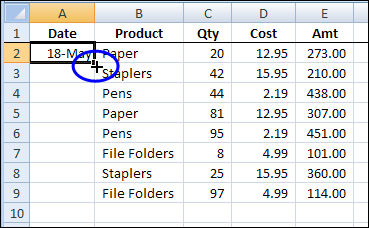
- Click cell A11 and move the mouse pointer over the fill handle. The mouse pointer becomes a black crosshair, as shown in this figure. Drag the fill handle down to cell A22. The first year of dates fill in the cells, as shown in above figure.
- सेल A11 पर क्लिक करें और फिल हैंडल पर माउस पॉइंटर को मूव करें। माउस पॉइंटर एक काला क्रॉसहेयर बन जाता है, जैसा कि इस चित्र में दिखाया गया है। इसके बाद सेल A22 के नीचे फिल हैंडल को खींचें। तारीखों का पहला वर्ष सेल में अपने आप भर जाता है, जैसा कि इस चित्र में दिखाया गया है।