
- Introduction Of MS Excel – 2016
- 4.2 Elements of Spread Sheet (स्प्रेडशीट के तत्व)
- 4.3 Creating of Spread Sheet (स्प्रेडशीट तैयार करना)
- 4.4 Opening an Existing Workbook (मौजूदा वर्कबुक को खोलना)
- 4.6 Page Setup (पेज सेटअप)
- 4.7 Printing a Worksheet (वर्कशीट को प्रिन्ट करना)
- 4.9 Entering, Editing, and Formatting Data (इन्टरिंग, एडिटिंग और फॉर्मेटिंग डाटा)
- 4.9.2 Editing Data (एडिटिंग डाटा)
- 4.9.3 Formatting Data in an Excel spreadsheet (एक्सेल स्प्रेडशीट मे डाटा फॉर्मेट करना)
- 4.9.3.2 Changing Font, Size and Style (फ़ॉन्ट, साइज एवं स्टाईल में बदलाव)
- 4.9.3.3 Changing the Alignment of the data in the cell (सेल में डेटा का अलाइनमेंट बदलना)
- 4.9.3.5 Wrap text in a cell (सेल में टेक्स्ट रैप करें)
- 4.10 Modifying columns, Rows and cell (रो, कॉलम या सेल को बदलना)
- 4.11 Inserting, Deleting, Moving and Hiding Rows, Column(इंसर्टिंग, डिलीटिंग, मूविंग और हाइडिंग रो, कॉलम)
- 4.11.2 Moving rows and columns (रो एवं कॉलम को मूव करना)
- 4.11.3 Hiding/ UnHiding Rows and Column
- 4.12 AutoFill (ऑटोफिल)
- 4.13 Sorting & Filtering (शॉर्टिंग एवं फिल्टरिंग)
- 4.13.2 Filtering Data (फ़िल्टरिंग डेटा)
- 4.14 Pivot Tables and Pivot Chart (पॉयोट टेबिल्स और पॉयोट चार्ट)
- 4.15 Cell Reference (सेल रेफरेंस)
- 4.16.2 Absolute cell Reference (एब्सॉल्यूट सेल रेफरेंस)
- 4.17 Formulas, Functions and Charts (फॉर्मूला, फंक्शन एवं चार्ट्स)
- 4.17.2 Charts (चार्ट)
- 4.18 Data Validation (डेटा वैलिडेशन)
- 4.19 Freezing panes (फ़्रीज़िंग पेन्स)
- 4.20 Macros (मैक्रो)
- 4.21 Shortcut keys
(रो और कॉलम को हाईड/अनहाईड करना)
At times, you may want to compare contents of certain rows or columns without changing the organization of your worksheet. Excel allows you to hide rows and columns as needed. In our example, we’ll hide columns B and C to make it easier to compare columns A, D, and E.
कभी कभी, आप अपनी वर्कशीट के आर्गेनाईजेशन को बदले बिना कुछ रो या कॉलमो में इन्टर किये गये कंटेंटस की तुलना करना चाह सकते हैं। एक्सेल आपको आवश्यकतानुसार रो और कॉलमो को छिपाने की अनुमति देता है। हमारे उदाहरण में, हम कॉलम A, D, और E की तुलना करना आसान बनाने के लिए कॉलम B और C छिपाएंगे।
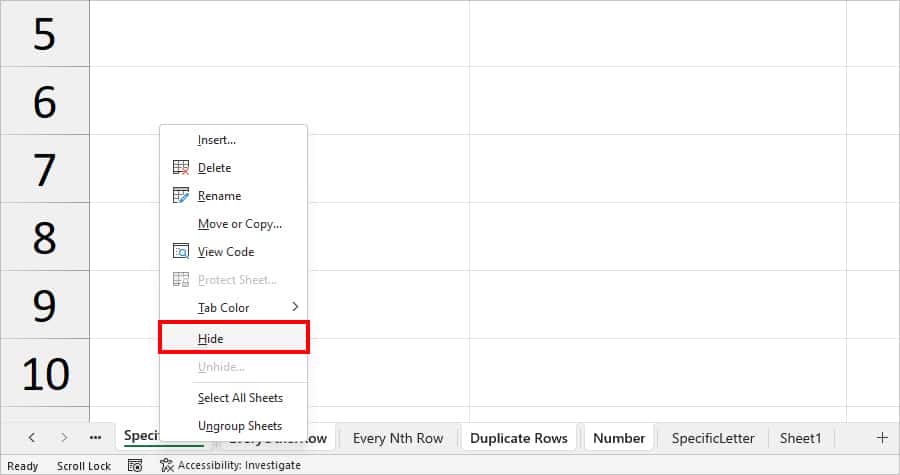
- Select the column(s) you want to hide, right-click the mouse, then select Hide from the menu. The columns will be hidden. (Image showing the right-click context menu with ‘Hide’ selected and a ‘before and after’ view of the spreadsheet)
- To unhide the columns, select the columns to the left and right of the hidden columns (in other words, the columns on both sides of the hidden columns). In our example, we’ll select columns A and D. Right-click the mouse, then select Unhide from the menu. The hidden columns will reappear.


