
- Introduction Of MS Excel – 2016
- 4.2 Elements of Spread Sheet (स्प्रेडशीट के तत्व)
- 4.3 Creating of Spread Sheet (स्प्रेडशीट तैयार करना)
- 4.4 Opening an Existing Workbook (मौजूदा वर्कबुक को खोलना)
- 4.6 Page Setup (पेज सेटअप)
- 4.7 Printing a Worksheet (वर्कशीट को प्रिन्ट करना)
- 4.9 Entering, Editing, and Formatting Data (इन्टरिंग, एडिटिंग और फॉर्मेटिंग डाटा)
- 4.9.2 Editing Data (एडिटिंग डाटा)
- 4.9.3 Formatting Data in an Excel spreadsheet (एक्सेल स्प्रेडशीट मे डाटा फॉर्मेट करना)
- 4.9.3.2 Changing Font, Size and Style (फ़ॉन्ट, साइज एवं स्टाईल में बदलाव)
- 4.9.3.3 Changing the Alignment of the data in the cell (सेल में डेटा का अलाइनमेंट बदलना)
- 4.9.3.5 Wrap text in a cell (सेल में टेक्स्ट रैप करें)
- 4.10 Modifying columns, Rows and cell (रो, कॉलम या सेल को बदलना)
- 4.11 Inserting, Deleting, Moving and Hiding Rows, Column(इंसर्टिंग, डिलीटिंग, मूविंग और हाइडिंग रो, कॉलम)
- 4.11.2 Moving rows and columns (रो एवं कॉलम को मूव करना)
- 4.11.3 Hiding/ UnHiding Rows and Column
- 4.12 AutoFill (ऑटोफिल)
- 4.13 Sorting & Filtering (शॉर्टिंग एवं फिल्टरिंग)
- 4.13.2 Filtering Data (फ़िल्टरिंग डेटा)
- 4.14 Pivot Tables and Pivot Chart (पॉयोट टेबिल्स और पॉयोट चार्ट)
- 4.15 Cell Reference (सेल रेफरेंस)
- 4.16.2 Absolute cell Reference (एब्सॉल्यूट सेल रेफरेंस)
- 4.17 Formulas, Functions and Charts (फॉर्मूला, फंक्शन एवं चार्ट्स)
- 4.17.2 Charts (चार्ट)
- 4.18 Data Validation (डेटा वैलिडेशन)
- 4.19 Freezing panes (फ़्रीज़िंग पेन्स)
- 4.20 Macros (मैक्रो)
- 4.21 Shortcut keys
4. Spreadsheet (स्प्रेडशीट)
4.0 Introduction (परिचय)
Excel is a spreadsheet application developed and published by Microsoft. It is part of the Microsoft Office suite of productivity software. It allows you to store, organize, and analyze information. Excel organizes data in columns and rows. Rows and columns intersect at a space called a cell. Each cell can contain a single piece of data, such as text, a numerical value, or a formula. Microsoft Excel was not the first spreadsheet program. Lotus 1-2-3 and VisiCalc were popular spreadsheet programs released before Excel.
एक्सेल माइक्रोसॉफ्ट द्वारा विकसित और पब्लिक एक स्प्रेडशीट एप्लिकेशन है। यह उत्पादकता सॉफ्टवेयर के माइक्रोसॉफ्ट ऑफिस सूट का हिस्सा है। यह आपको जानकारी को संग्रहीत, व्यवस्थित और विश्लेषण करने की अनुमति देता है। एक्सेल डेटा को कॉलम और रो में व्यवस्थित करता है। रो और कॉलम एक स्थान पर इंटरसेक्ट करते हैं जिसे सेल कहा जाता है। प्रत्येक सेल में एक एकल डेटा हो सकता है, जैसे टेक्स्ट, एक संख्यात्मक वैल्यू या एक फॉर्मूला। माइक्रोसॉफ्ट एक्सेल पहला स्प्रेडशीट प्रोग्राम नहीं था, लोटस 1-2-3 और VisiCalc, माइक्रोसॉफ्ट एक्सेल से पहले जारी किए गए लोकप्रिय स्प्रेडशीट प्रोग्राम थे।
Microsoft Excel 2010/2013/2016/2019
Excel 2019 is the latest version yet in Microsoft Office 2019 package. All the versions of Excel may be some slight differences, but for the most part these versions are similar. In Excel 2010/2013/2016/2019 version, the operational and functional commands are situated in tabs which let the user to perform tasks on the Spreadsheet. It is displayed in Gridlines means its working area is the collection of Rows & Columns and that is formally known as Sheet. Microsoft Excel 2010/2013/2016/2019 contains tabs of different kinds like Home, Insert, Page Layout, Formulas, Data, Review and View. In MS Excel, column value is identified by the column header which is label as A, B, C, …, AA, …, XFD. But Row value is identified by the row header which is label as 1, 2, 3, …, 10,48,576.
Excel 2019 Microsoft Office 2019 पैकेज में अभी तक का नवीनतम संस्करण है। एक्सेल के सभी वर्जनों में कुछ मामूली अंतर हो सकता है, लेकिन अधिकांश भाग के लिए ये वर्जन समान हैं। माइक्रोसॉफ्ट एक्सेल 2010/2013/2016/2019 के वर्जन में ऑपरेशनल और फंक्शनल कमांड टैब में स्थित होते हैं जिसके जरिये यूजर स्प्रेडशीट में कार्य परफॉर्म करता है। यह ग्रिडलाइन में दिखाई देता है इसका मतलब इसके वर्किंग एरिया रो है जो की कॉलमों का कलेक्शन है और इसे आमतौर पर शीट के रूप में जाना जाता है। माइक्रोसॉफ्ट एक्सेल 2010/2013/2016/2019 में होम, इन्सर्ट, पेज लेआउट, फार्मूला, डेटा, रिव्यु और व्यू जैसे विभिन्न प्रकार के टैब शामिल होते हैं। एम.एस. एक्सेल में, कॉलम वैल्यू को कॉलम हेडर द्वारा पहचाना जाता है, जो कि ए, बी, सी, …, एए, …, एक्सएफडी के रूप में लेबल किया जाता है। लेकिन रो वैल्यू को रो हेडर द्वारा पहचाना जाता है जो 1, 2, 3, …, 10,48,576 के रूप में लेबल है।
4.1 Opening MS Excel 2013 Package
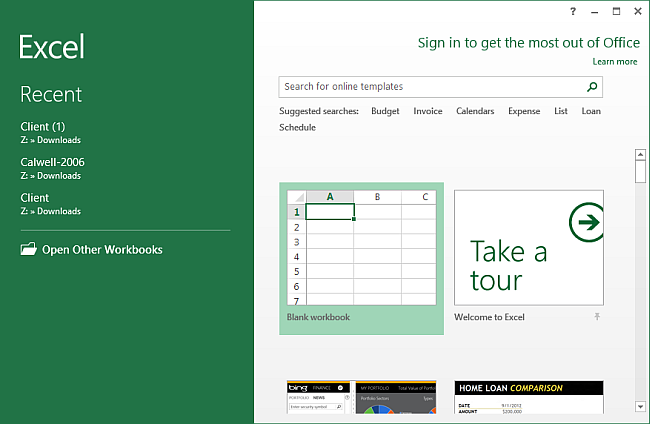
(एम.एस एक्सेल 2013 पैकेज को ओपन करना) To open MS Excel on your computer, follow the steps given below:
- Method 1: Click on Start -> Select All programs -> Microsoft Office 2013 -> Microsoft Excel 2013
- Method 2: Alternatively, you can also click on the Start button and type Microsoft Office Excel 2013 in the search option available.
After open the Ms Excel, If you don’t want to use any of the templates on display, click on the Blank Work Book.
A new blank Spreadsheet will open up ready for you.


