
- Introduction Of MS Excel – 2016
- 4.2 Elements of Spread Sheet (स्प्रेडशीट के तत्व)
- 4.3 Creating of Spread Sheet (स्प्रेडशीट तैयार करना)
- 4.4 Opening an Existing Workbook (मौजूदा वर्कबुक को खोलना)
- 4.6 Page Setup (पेज सेटअप)
- 4.7 Printing a Worksheet (वर्कशीट को प्रिन्ट करना)
- 4.9 Entering, Editing, and Formatting Data (इन्टरिंग, एडिटिंग और फॉर्मेटिंग डाटा)
- 4.9.2 Editing Data (एडिटिंग डाटा)
- 4.9.3 Formatting Data in an Excel spreadsheet (एक्सेल स्प्रेडशीट मे डाटा फॉर्मेट करना)
- 4.9.3.2 Changing Font, Size and Style (फ़ॉन्ट, साइज एवं स्टाईल में बदलाव)
- 4.9.3.3 Changing the Alignment of the data in the cell (सेल में डेटा का अलाइनमेंट बदलना)
- 4.9.3.5 Wrap text in a cell (सेल में टेक्स्ट रैप करें)
- 4.10 Modifying columns, Rows and cell (रो, कॉलम या सेल को बदलना)
- 4.11 Inserting, Deleting, Moving and Hiding Rows, Column(इंसर्टिंग, डिलीटिंग, मूविंग और हाइडिंग रो, कॉलम)
- 4.11.2 Moving rows and columns (रो एवं कॉलम को मूव करना)
- 4.11.3 Hiding/ UnHiding Rows and Column
- 4.12 AutoFill (ऑटोफिल)
- 4.13 Sorting & Filtering (शॉर्टिंग एवं फिल्टरिंग)
- 4.13.2 Filtering Data (फ़िल्टरिंग डेटा)
- 4.14 Pivot Tables and Pivot Chart (पॉयोट टेबिल्स और पॉयोट चार्ट)
- 4.15 Cell Reference (सेल रेफरेंस)
- 4.16.2 Absolute cell Reference (एब्सॉल्यूट सेल रेफरेंस)
- 4.17 Formulas, Functions and Charts (फॉर्मूला, फंक्शन एवं चार्ट्स)
- 4.17.2 Charts (चार्ट)
- 4.18 Data Validation (डेटा वैलिडेशन)
- 4.19 Freezing panes (फ़्रीज़िंग पेन्स)
- 4.20 Macros (मैक्रो)
- 4.21 Shortcut keys
4.11.1 Inserting & Deleting Rows & Columns
(रो एवं कॉलम को इन्सर्ट एवं डिलीट करना)
Inserting Row (रो इन्सर्ट करना)
- Select the row heading (1, 2, 3….) below where you want the new row to appear. For example, if you want to insert a row between rows 7 and 8, select row 8. (Image showing a spreadsheet snippet with rows 6, 7, 8, and 9)
- Click the Insert command on the Home tab. The new row will appear above the selected row. (Image showing the ‘Cells’ group in the Excel ribbon and the resulting blank row 8)
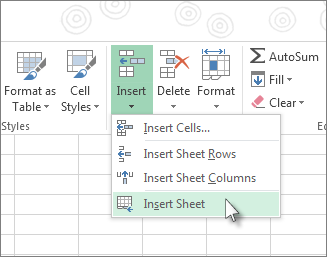
Inserting Column (कॉलम इन्सर्ट करना)
- Select the column heading to the right of where you want the new column to appear. For example, if you want to insert a column between columns D and E, select column E.
- Click the Insert command on the Home tab. The new column will appear to the left of the selected column.
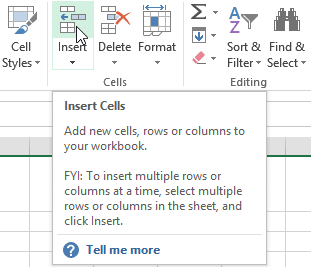
Note:- When inserting rows and columns, make sure you select the entire row or column by clicking the heading. If you select only a cell in the row or column, the Insert command will only insert a new cell.
Deleting Row (रो डिलीट करना)
- Select the row(s) you want to delete.
- Go to Home tab in the cell group and click on the Delete button.
- The selected row(s) will be deleted, and the rows below will shift up. A row will be deleted.
वह रो सेलेक्ट करें जिसे आप हटाना चाहते हैं, होम टैब पर सेल ग्रुप में जाएं और डिलीट बटन पर क्लिक करें। वह रो हट जाएगी।
Here is the text converted from the image, maintaining the original formatting and bilingual (English/Hindi) structure.
Deleting Column (कॉलम डिलीट करना)
- Select the column(s) you want to delete.
- Go to Home tab in the cell group and click on the Delete button.
- The selected column(s) will be deleted, and the columns to the right will shift left.
Deleting Cell (सेल डिलीट करना)
You can delete a cell from the worksheet by the following steps.
वर्कशीट से किसी सेल को डिलीट करने की निम्नलिखित विधि है—
- Select the cell you want to delete.
- Go to Home tab in the cell group and click on the Delete button.
- A cell will be delete.
वह सेल चुनें जिसे आप हटाना चाहते हैं सेल समूह में होम रिबन पर जाएं और डिलीट बटन पर क्लिक करें। वह एक सेल हट जाएगी।
Note:- If you want to remove the content of a row or column without causing others to shift, right-click a heading, then select Clear Contents from the drop-down menu.
यदि आप किसी रो या कॉलम के कन्टेन्ट को अन्य को स्थानांतरित किए बिना हटाना चाहते हैं तो, किसी हेडिंग पर राइट-क्लिक करें, फिर ड्रॉप-डाउन मेनू से Clear Contents चुनें।


