
- Introduction Of MS Excel – 2016
- 4.2 Elements of Spread Sheet (स्प्रेडशीट के तत्व)
- 4.3 Creating of Spread Sheet (स्प्रेडशीट तैयार करना)
- 4.4 Opening an Existing Workbook (मौजूदा वर्कबुक को खोलना)
- 4.6 Page Setup (पेज सेटअप)
- 4.7 Printing a Worksheet (वर्कशीट को प्रिन्ट करना)
- 4.9 Entering, Editing, and Formatting Data (इन्टरिंग, एडिटिंग और फॉर्मेटिंग डाटा)
- 4.9.2 Editing Data (एडिटिंग डाटा)
- 4.9.3 Formatting Data in an Excel spreadsheet (एक्सेल स्प्रेडशीट मे डाटा फॉर्मेट करना)
- 4.9.3.2 Changing Font, Size and Style (फ़ॉन्ट, साइज एवं स्टाईल में बदलाव)
- 4.9.3.3 Changing the Alignment of the data in the cell (सेल में डेटा का अलाइनमेंट बदलना)
- 4.9.3.5 Wrap text in a cell (सेल में टेक्स्ट रैप करें)
- 4.10 Modifying columns, Rows and cell (रो, कॉलम या सेल को बदलना)
- 4.11 Inserting, Deleting, Moving and Hiding Rows, Column(इंसर्टिंग, डिलीटिंग, मूविंग और हाइडिंग रो, कॉलम)
- 4.11.2 Moving rows and columns (रो एवं कॉलम को मूव करना)
- 4.11.3 Hiding/ UnHiding Rows and Column
- 4.12 AutoFill (ऑटोफिल)
- 4.13 Sorting & Filtering (शॉर्टिंग एवं फिल्टरिंग)
- 4.13.2 Filtering Data (फ़िल्टरिंग डेटा)
- 4.14 Pivot Tables and Pivot Chart (पॉयोट टेबिल्स और पॉयोट चार्ट)
- 4.15 Cell Reference (सेल रेफरेंस)
- 4.16.2 Absolute cell Reference (एब्सॉल्यूट सेल रेफरेंस)
- 4.17 Formulas, Functions and Charts (फॉर्मूला, फंक्शन एवं चार्ट्स)
- 4.17.2 Charts (चार्ट)
- 4.18 Data Validation (डेटा वैलिडेशन)
- 4.19 Freezing panes (फ़्रीज़िंग पेन्स)
- 4.20 Macros (मैक्रो)
- 4.21 Shortcut keys
A chart is a graphical representation of data in both columns and rows. Charts are usually used to analyse trends and patterns in data sets. एक चार्ट कॉलम और रो दोनों में डेटा का एक ग्राफिकल रिप्रेजेंटेशन होता है। चार्ट का उपयोग आमतौर पर डेटा सेट में रुझानों और पैटर्न का विश्लेषण करने के लिए किया जाता है।
Choosing the Right Chart (सही चार्ट का चयन)
Once results are determined that the chart is to display, choose the chart that best suits this purpose. The most popular charts are column, line, pie, and bar charts.
Column
Column charts are used to compare different values vertically side-by-side. Each value is represented in the chart by a vertical bar. If there are several series, each…
| Chart Type | Description |
| Line | Line charts are used to illustrate trends over time. Each value is plotted as a point on the chart and is connected to other values by a line. Multiple items are plotted using different lines. |
| Pie | Pie charts are useful for showing values as a percentage of a whole. The values for each item are represented by different colors. Limit pie charts to eight sections. |
| Bar | Bar charts are just like column charts, except they display information in horizontal bars rather than in vertical columns. |
| Area | Area charts are the same as line charts, except the area beneath the lines is filled with color. |
| XY (Scatter) | Scatter charts are used to plot clusters of values using single points. Multiple items can be plotted by using different colored points or different point symbols. |
| Stock | Stock charts are effective for reporting the fluctuation of stock prices, such as the high, low, and closing points for a certain day. |
| Surface | A surface chart is useful for finding optimum combinations between two sets of data. Colors and patterns indicate values that are in the same range. |
| Radar | Radar charts compare the aggregate values of a number of data series. |
| Combination | Combination charts show a grouping of a clustered column and line (secondary) to compare values. |
To insert chart in MS Excel sheet, do as follows… वर्कशीट में चार्ट इंसर्ट करने की निम्नलिखित विधि है—
- Select the cells you want to make a chart, including the column titles and row labels. These cells will be the source data for the chart. In our example, we’ll select cells A1:F6.
- From the Insert tab, click the desired Chart command.
Insert Column Chart
- Use this chart type to visually compare values across a few categories.
- Click the arrow to see the different types of column charts available and pause the pointer on the icons to see a preview in your document.
3. Choose the desired chart type from the chart group.
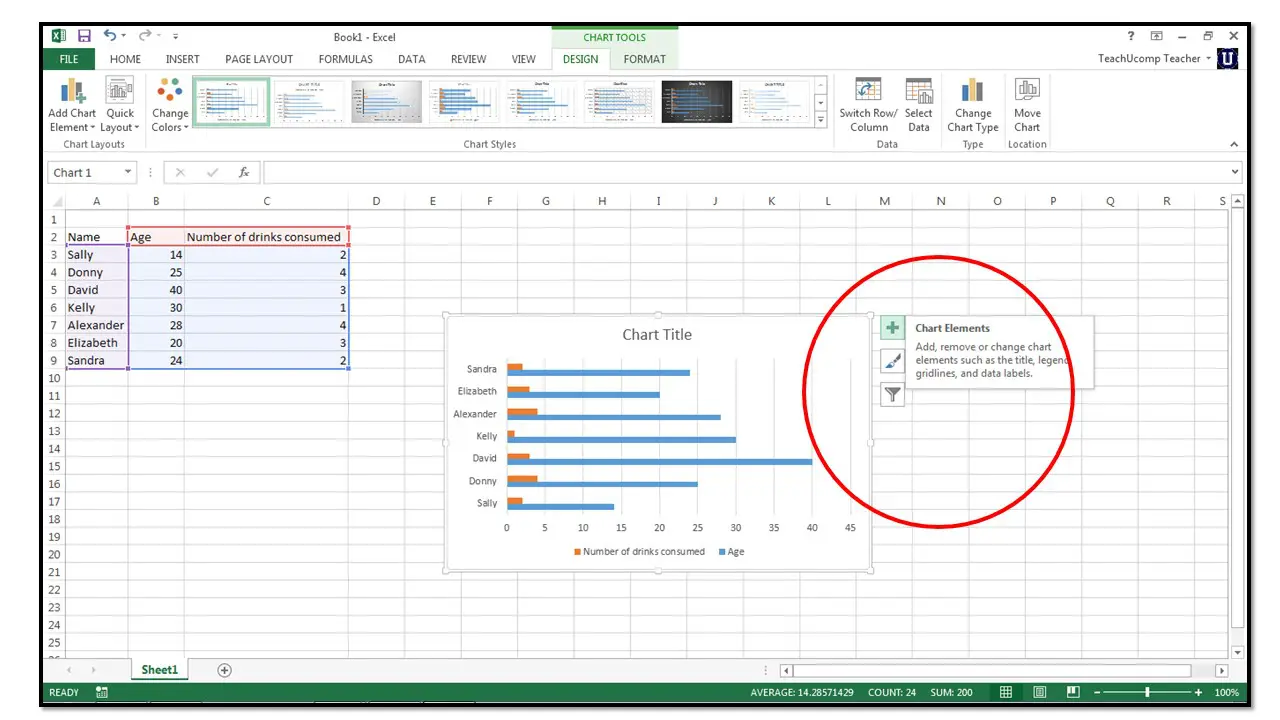
4. The selected chart will be inserted in the worksheet.
To change the chart type (चार्ट के प्रकार में बदलाव)
If you find that your data isn’t well suited to a certain chart, it’s easy to switch to a new chart type.
For example, we’ll change our chart from a Column chart to a Line chart.
From the Design tab, click the Change Chart Type command.


