Skip to content
- Introduction Of MS Excel – 2016
- 4.2 Elements of Spread Sheet (स्प्रेडशीट के तत्व)
- 4.3 Creating of Spread Sheet (स्प्रेडशीट तैयार करना)
- 4.4 Opening an Existing Workbook (मौजूदा वर्कबुक को खोलना)
- 4.6 Page Setup (पेज सेटअप)
- 4.7 Printing a Worksheet (वर्कशीट को प्रिन्ट करना)
- 4.9 Entering, Editing, and Formatting Data (इन्टरिंग, एडिटिंग और फॉर्मेटिंग डाटा)
- 4.9.2 Editing Data (एडिटिंग डाटा)
- 4.9.3 Formatting Data in an Excel spreadsheet (एक्सेल स्प्रेडशीट मे डाटा फॉर्मेट करना)
- 4.9.3.2 Changing Font, Size and Style (फ़ॉन्ट, साइज एवं स्टाईल में बदलाव)
- 4.9.3.3 Changing the Alignment of the data in the cell (सेल में डेटा का अलाइनमेंट बदलना)
- 4.9.3.5 Wrap text in a cell (सेल में टेक्स्ट रैप करें)
- 4.10 Modifying columns, Rows and cell (रो, कॉलम या सेल को बदलना)
- 4.11 Inserting, Deleting, Moving and Hiding Rows, Column(इंसर्टिंग, डिलीटिंग, मूविंग और हाइडिंग रो, कॉलम)
- 4.11.2 Moving rows and columns (रो एवं कॉलम को मूव करना)
- 4.11.3 Hiding/ UnHiding Rows and Column
- 4.12 AutoFill (ऑटोफिल)
- 4.13 Sorting & Filtering (शॉर्टिंग एवं फिल्टरिंग)
- 4.13.2 Filtering Data (फ़िल्टरिंग डेटा)
- 4.14 Pivot Tables and Pivot Chart (पॉयोट टेबिल्स और पॉयोट चार्ट)
- 4.15 Cell Reference (सेल रेफरेंस)
- 4.16.2 Absolute cell Reference (एब्सॉल्यूट सेल रेफरेंस)
- 4.17 Formulas, Functions and Charts (फॉर्मूला, फंक्शन एवं चार्ट्स)
- 4.17.2 Charts (चार्ट)
- 4.18 Data Validation (डेटा वैलिडेशन)
- 4.19 Freezing panes (फ़्रीज़िंग पेन्स)
- 4.20 Macros (मैक्रो)
- 4.21 Shortcut keys
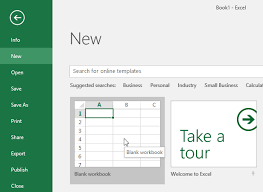
4.3.1 By using Blank workbook
- Select the File tab. Backstage view will appear .
- Select New, then click Blank workbook.
- A new blank workbook will appear.
- You may go ahead and start typing your Sheet.
4.3.2 By using predesigned Template (टेम्पलेट का इस्तेमाल करते हुए)
- In Excel 2013, there are many templates that can save you a lot of time. A template is a predesigned spreadsheet file you can use to create new spreadsheets with the same formatting and predefined formulas. It is saved with a different file extension (.xlsx) and serves as a basis for new files. The template file contains a variety of content and settings that are applied to the new files created from the template.
- ,एक्सेल 2013 में, कई टेम्पलेट्स होते हैं जो आपका बहुत समय बचा सकते हैं। एक टेम्पलेट एक पूर्वनिर्धारित स्प्रेडशीट फाइल है जिसका उपयोग आप उसी फार्मेटिंग और पूर्वनिर्धारित फार्मूले के साथ नई स्प्रेडशीट बनाने के लिए कर सकते हैं। यह एक अलग फाइल एक्सटेंशन से सेव की जाती है और नई फाइलों के आधार के रूप में कार्य करती है। टेम्पलेट फाइल में विभिन्न प्रकार के कंटेंट और सेटिंग्स शामिल हैं जो टेम्पलेट से बनाई गई नई फाइलों पर लागू होती हैं।
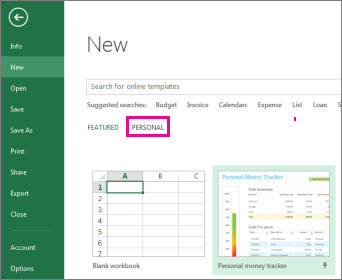
- Select the File tab. Backstage view will appear.
- Select New, then Several Templates will appear below the Blank Workbook option.
- Select a Template to review it. A preview of the template will appear, along with additional information on how the template can be used.
- Click Create to use the selected template. A new workbook will appear with the selected template.


