- Introduction Of MS Excel – 2016
- 4.2 Elements of Spread Sheet (स्प्रेडशीट के तत्व)
- 4.3 Creating of Spread Sheet (स्प्रेडशीट तैयार करना)
- 4.4 Opening an Existing Workbook (मौजूदा वर्कबुक को खोलना)
- 4.6 Page Setup (पेज सेटअप)
- 4.7 Printing a Worksheet (वर्कशीट को प्रिन्ट करना)
- 4.9 Entering, Editing, and Formatting Data (इन्टरिंग, एडिटिंग और फॉर्मेटिंग डाटा)
- 4.9.2 Editing Data (एडिटिंग डाटा)
- 4.9.3 Formatting Data in an Excel spreadsheet (एक्सेल स्प्रेडशीट मे डाटा फॉर्मेट करना)
- 4.9.3.2 Changing Font, Size and Style (फ़ॉन्ट, साइज एवं स्टाईल में बदलाव)
- 4.9.3.3 Changing the Alignment of the data in the cell (सेल में डेटा का अलाइनमेंट बदलना)
- 4.9.3.5 Wrap text in a cell (सेल में टेक्स्ट रैप करें)
- 4.10 Modifying columns, Rows and cell (रो, कॉलम या सेल को बदलना)
- 4.11 Inserting, Deleting, Moving and Hiding Rows, Column(इंसर्टिंग, डिलीटिंग, मूविंग और हाइडिंग रो, कॉलम)
- 4.11.2 Moving rows and columns (रो एवं कॉलम को मूव करना)
- 4.11.3 Hiding/ UnHiding Rows and Column
- 4.12 AutoFill (ऑटोफिल)
- 4.13 Sorting & Filtering (शॉर्टिंग एवं फिल्टरिंग)
- 4.13.2 Filtering Data (फ़िल्टरिंग डेटा)
- 4.14 Pivot Tables and Pivot Chart (पॉयोट टेबिल्स और पॉयोट चार्ट)
- 4.15 Cell Reference (सेल रेफरेंस)
- 4.16.2 Absolute cell Reference (एब्सॉल्यूट सेल रेफरेंस)
- 4.17 Formulas, Functions and Charts (फॉर्मूला, फंक्शन एवं चार्ट्स)
- 4.17.2 Charts (चार्ट)
- 4.18 Data Validation (डेटा वैलिडेशन)
- 4.19 Freezing panes (फ़्रीज़िंग पेन्स)
- 4.20 Macros (मैक्रो)
- 4.21 Shortcut keys
Data validation is used to restrict the cell entries within a specified range.
It defines the type of contents that can be entered in that cell.
It provides helpful messages that define the content rules you have set up for the cell and blocks invalid data.
डेटा वैलिडेशन का उपयोग उन प्रविष्टियों को एक सीमित रेंज के अंदर प्रतिबंधित करने के लिए किया जाता है।
यह उस सेल में डाले जाने वाले डेटा के प्रकार को परिभाषित करता है।
यह उपयोगी संदेश प्रदान करता है जो उस सेल के लिए बनाए गए नियमों को दर्शाते हैं और गलत डेटा को रोकता है।
- Select the column B i.e., Hindi Marks.
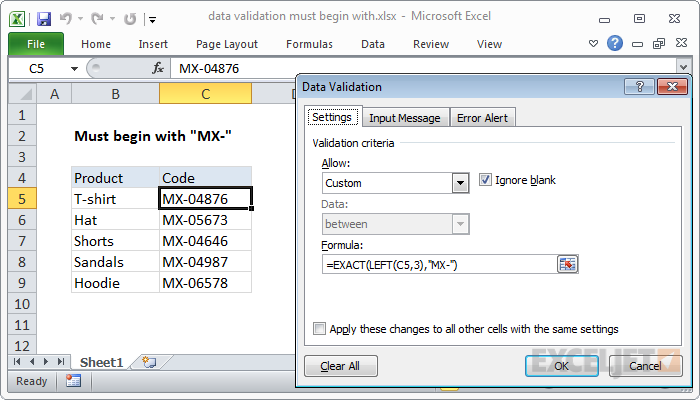
- Go to Data tab → Data Tools group → Data Validation.
- The Data Validation dialog box appears.
- By default, the Validation Criteria Allow tab is selected.
(Visible table example)
- Roll No: 101, 102, 103, 104, 105
- Column: Hindi Marks
- Select Whole Numbers option from the Arrow drop-down list. Whole numbers limit the cell data to numbers without fractional components.
- You will observe that the between option is selected by default in the Data drop-down list. You can also change by clicking the Spin arrows and select the valid range option from the displayed list.
- In Minimum text box type 33 and Maximum text box type 100.
- Click on the Input message tab, type Validation in the Title text box and type >=33 and <=100 in Input message text box.
- Select the Error Alert tab and type “Input is wrong” in Error message box and type “Error” in the Title box.
- Click OK to close the dialog box.
- If you try to enter data beyond the specified limit in the selected range, an error message will be displayed. Click on the OK button to enter another value in the cell.