- Introduction Of MS Excel – 2016
- 4.2 Elements of Spread Sheet (स्प्रेडशीट के तत्व)
- 4.3 Creating of Spread Sheet (स्प्रेडशीट तैयार करना)
- 4.4 Opening an Existing Workbook (मौजूदा वर्कबुक को खोलना)
- 4.6 Page Setup (पेज सेटअप)
- 4.7 Printing a Worksheet (वर्कशीट को प्रिन्ट करना)
- 4.9 Entering, Editing, and Formatting Data (इन्टरिंग, एडिटिंग और फॉर्मेटिंग डाटा)
- 4.9.2 Editing Data (एडिटिंग डाटा)
- 4.9.3 Formatting Data in an Excel spreadsheet (एक्सेल स्प्रेडशीट मे डाटा फॉर्मेट करना)
- 4.9.3.2 Changing Font, Size and Style (फ़ॉन्ट, साइज एवं स्टाईल में बदलाव)
- 4.9.3.3 Changing the Alignment of the data in the cell (सेल में डेटा का अलाइनमेंट बदलना)
- 4.9.3.5 Wrap text in a cell (सेल में टेक्स्ट रैप करें)
- 4.10 Modifying columns, Rows and cell (रो, कॉलम या सेल को बदलना)
- 4.11 Inserting, Deleting, Moving and Hiding Rows, Column(इंसर्टिंग, डिलीटिंग, मूविंग और हाइडिंग रो, कॉलम)
- 4.11.2 Moving rows and columns (रो एवं कॉलम को मूव करना)
- 4.11.3 Hiding/ UnHiding Rows and Column
- 4.12 AutoFill (ऑटोफिल)
- 4.13 Sorting & Filtering (शॉर्टिंग एवं फिल्टरिंग)
- 4.13.2 Filtering Data (फ़िल्टरिंग डेटा)
- 4.14 Pivot Tables and Pivot Chart (पॉयोट टेबिल्स और पॉयोट चार्ट)
- 4.15 Cell Reference (सेल रेफरेंस)
- 4.16.2 Absolute cell Reference (एब्सॉल्यूट सेल रेफरेंस)
- 4.17 Formulas, Functions and Charts (फॉर्मूला, फंक्शन एवं चार्ट्स)
- 4.17.2 Charts (चार्ट)
- 4.18 Data Validation (डेटा वैलिडेशन)
- 4.19 Freezing panes (फ़्रीज़िंग पेन्स)
- 4.20 Macros (मैक्रो)
- 4.21 Shortcut keys
We can do formatting to the cell according to our need. We can format the cell that what it is going to accept as input and its alignment, colour filling, Protection, Font changing and finally setting the height and width of the cell.
हम अपनी जरूरत के हिसाब से सेल मे फॉर्मेटिंग कर सकते हैं। हम सेल को इस फॉर्मेट में बदल सकते हैं, कि वह इनपुट के रूप में क्या स्वीकार करने जा रहा है और इसके साथ साथ वह इनपुट के एलाइनमेंट, रंग भरने, प्रोटेक्शन, फॉन्ट बदलना और अंत में सेल की ऊंचाई और चौड़ाई भी निर्धारित कर लेता हैं।
4.9.3.1 Changing the Format of cell (सेल का फॉर्मेट बदलना)
By default any cell has General type format to store value. In the Input format, General Data type is to accept all kind of values whether text or numbers and number data type is to accept only numerical values and the short date data type is to accept the date value in the cell.
They all have their own standard to put a value in the cell. A cell can be formatted in so many formats like General, Number, Short date, Long date, Time, Accounting, Percentage, Scientific, and Fractions and so on. Here are some simple formatting data types discussed below…
डिफ़ॉल्ट रूप से किसी भी सेल में वैल्यू स्टोर करने के लिए जनरल टाइप का फॉर्मेट होता है। जनरल डेटाटाइप सभी प्रकार की वैल्यू को स्वीकार कर लेता है, चाहे वह टेक्स्ट हो, नंबर हो परन्तु नंबर डेटाटाइप केवल न्यूमेरिक वैल्यू को स्वीकार करता है और शॉर्ट डेट डेटाटाइप सेल में केवल दिनांक वैल्यू ही स्वीकार करता है।
सेल में value इन्सर्ट करने के लिए इन सभी का अपना स्टैंडर्ड होता है। एक सेल को जनरल, नंबर, शॉर्ट डेट, लॉन्ग डेट, टाइम, अकाउंटिंग, परसेंटेज, साइंटिफिक और फ्रैक्शंस आदि जैसे कई फॉर्मेट में सेट किया जा सकता है। नीचे इसकी चर्चा की गई है, और कुछ सरल फॉर्मेटिंग डेटाटाइप्स दिए गए हैं।
- General- This formatting of the cell accepts text and numbers value both in the cell. जनरल-सेल का यह फॉर्मेट, टेक्स्ट और संख्याओं दोनों को सेल में स्वीकार करता है।
- Number- This formatting of the cell accepts only numerical values in the cell. नम्बर-सेल का यह फॉर्मेट, सेल में केवल संख्यात्मक वैल्यू को स्वीकार करता है।
- Long date- This formatting accepts only the values as in the format of date & time. लॉन्ग डेट-यह फॉर्मेट दिनांक और समय के वैल्यू को स्वीकार करता है
- Percentage- This kind of formatting accepts only numerical values and displays it with % symbol. परसेंटेज-इस तरह का फॉर्मेट केवल संख्यात्मक वैल्यू को स्वीकार करता है और इसे % सिम्बल के साथ प्रदर्शित करता है।
- Fraction- Fraction formatting accepts only fractional values like 2.500, 3.345 etc. फ़्रैक्शन-इस तरह का फॉर्मेट केवल फ़्रैक्शन जैसे 2.500, 3.345 आदि को स्वीकार करता है।
- Scientific- This formatting accepts scientific values or standard mathematical equation values. साइंटिफिक-यह फॉर्मेटिंग साइंटिफिक या स्टैंडर्ड मैथमेटिकल इक्वेशन वैल्यू को स्वीकार करता है।
- Custom- This formatting allows the user to make a custom formatting type to be used. कस्टम-यह फॉर्मेटिंग यूजर को एक कस्टम फॉर्मेट प्रकार का उपयोग करने की सुविधा देता है।
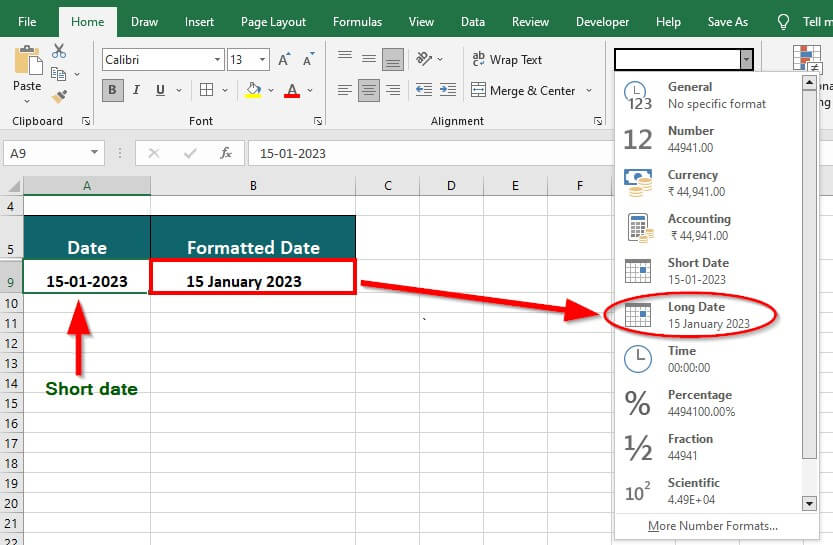
Here we see some simple steps to change the data type of the data entered in the cell
- Select the cell(s) you want to modify.
- Click the drop-down arrow next to the Number Format command on the Home tab. The Number Formatting drop-down menu will appear.
- Select the desired formatting option. In our example, we will change the formatting to Long Date.
- The selected cells will change to the new formatting style.
- Friday, March 01, 2013, Friday, March 08, 2013, etc.]