
- Introduction Of MS Excel – 2016
- 4.2 Elements of Spread Sheet (स्प्रेडशीट के तत्व)
- 4.3 Creating of Spread Sheet (स्प्रेडशीट तैयार करना)
- 4.4 Opening an Existing Workbook (मौजूदा वर्कबुक को खोलना)
- 4.6 Page Setup (पेज सेटअप)
- 4.7 Printing a Worksheet (वर्कशीट को प्रिन्ट करना)
- 4.9 Entering, Editing, and Formatting Data (इन्टरिंग, एडिटिंग और फॉर्मेटिंग डाटा)
- 4.9.2 Editing Data (एडिटिंग डाटा)
- 4.9.3 Formatting Data in an Excel spreadsheet (एक्सेल स्प्रेडशीट मे डाटा फॉर्मेट करना)
- 4.9.3.2 Changing Font, Size and Style (फ़ॉन्ट, साइज एवं स्टाईल में बदलाव)
- 4.9.3.3 Changing the Alignment of the data in the cell (सेल में डेटा का अलाइनमेंट बदलना)
- 4.9.3.5 Wrap text in a cell (सेल में टेक्स्ट रैप करें)
- 4.10 Modifying columns, Rows and cell (रो, कॉलम या सेल को बदलना)
- 4.11 Inserting, Deleting, Moving and Hiding Rows, Column(इंसर्टिंग, डिलीटिंग, मूविंग और हाइडिंग रो, कॉलम)
- 4.11.2 Moving rows and columns (रो एवं कॉलम को मूव करना)
- 4.11.3 Hiding/ UnHiding Rows and Column
- 4.12 AutoFill (ऑटोफिल)
- 4.13 Sorting & Filtering (शॉर्टिंग एवं फिल्टरिंग)
- 4.13.2 Filtering Data (फ़िल्टरिंग डेटा)
- 4.14 Pivot Tables and Pivot Chart (पॉयोट टेबिल्स और पॉयोट चार्ट)
- 4.15 Cell Reference (सेल रेफरेंस)
- 4.16.2 Absolute cell Reference (एब्सॉल्यूट सेल रेफरेंस)
- 4.17 Formulas, Functions and Charts (फॉर्मूला, फंक्शन एवं चार्ट्स)
- 4.17.2 Charts (चार्ट)
- 4.18 Data Validation (डेटा वैलिडेशन)
- 4.19 Freezing panes (फ़्रीज़िंग पेन्स)
- 4.20 Macros (मैक्रो)
- 4.21 Shortcut keys
Before printing if you want to know how a printed page will appear then you can use Page Setup feature. This page setup feature will appear in the page layout tab. In page setup, you can set the margins, orientation, paper size, header and footer etc.
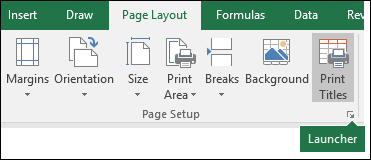
प्रिंट करने से पहले अगर आप जानना चाहते हैं कि प्रिंटेड पेज कैसा दिखेगा तो आप पेज सेटअप फीचर का इस्तेमाल कर सकते हैं। यह पेज सेटअप फीचर पेज लेआउट टैब में दिखाई देगा। पेज सेटअप में, आप मार्जिन, ओरिएंटेशन, पेपर साइज, हेडर और फुटर आदि सेट कर सकते हैं।
To change page orientation (पेज ओरिएंटेशन को चेंज करना)
- Go to Page Layout tab. Click the Orientation command in the Page Setup group.
- A drop-down menu will appear. Click either Portrait or Landscape to change the page orientation. The page orientation of the Excel workbook will be changed.
To set page margins (पेज मार्जिन सेट करने के लिए)
- Go to Page Layout tab, then click the Margins command.
- A drop-down menu will appear. Click the predefined margin size you want. The margins of the Excel workbook will be changed.
To change the page size:
Excel has a variety of predefined page sizes to choose from.
- Go to Page Layout tab, then click the Size command. A drop-down menu will appear. The current page size is highlighted. Click the desired predefined page size.
- The page size of the excel file will be changed.
To use a custom page size:
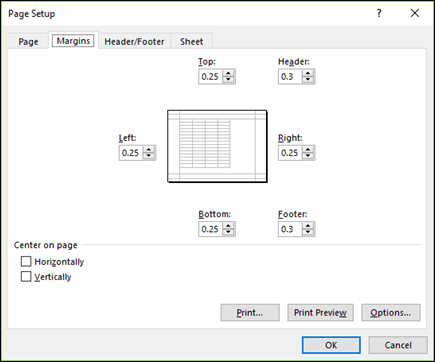
Excel also allows you to customize the page size in the Page Setup dialog box.
- Go to Page Layout tab, click Size. Select More Paper Sizes… from the drop-down menu.
- The Page Setup dialog box will appear. Adjust the values for Width and Height, then click OK. The page size of the Excel file will be changed.
Alternatively, you can open the Page Setup dialog box by navigating to the Page Layout tab and clicking the small arrow in the bottom-right corner of the Page Setup group.
रिबन में Page Layout टैब पर क्लिक करें। पेज सेटअप ग्रुप पर जाएं, और फिर वहां आपको सामान्य उपयोग के लिए सेटअप जैसे मार्जिन, बैकग्राउंड और साइज आदि मिलेंगे। फिर एक “पेज सेटअप डायलॉग” बॉक्स दिखाई देता है, और आप अपनी आवश्यकता के आधार पर सेटिंग्स चुन सकते हैं।


