- Introduction Of MS Excel – 2016
- 4.2 Elements of Spread Sheet (स्प्रेडशीट के तत्व)
- 4.3 Creating of Spread Sheet (स्प्रेडशीट तैयार करना)
- 4.4 Opening an Existing Workbook (मौजूदा वर्कबुक को खोलना)
- 4.6 Page Setup (पेज सेटअप)
- 4.7 Printing a Worksheet (वर्कशीट को प्रिन्ट करना)
- 4.9 Entering, Editing, and Formatting Data (इन्टरिंग, एडिटिंग और फॉर्मेटिंग डाटा)
- 4.9.2 Editing Data (एडिटिंग डाटा)
- 4.9.3 Formatting Data in an Excel spreadsheet (एक्सेल स्प्रेडशीट मे डाटा फॉर्मेट करना)
- 4.9.3.2 Changing Font, Size and Style (फ़ॉन्ट, साइज एवं स्टाईल में बदलाव)
- 4.9.3.3 Changing the Alignment of the data in the cell (सेल में डेटा का अलाइनमेंट बदलना)
- 4.9.3.5 Wrap text in a cell (सेल में टेक्स्ट रैप करें)
- 4.10 Modifying columns, Rows and cell (रो, कॉलम या सेल को बदलना)
- 4.11 Inserting, Deleting, Moving and Hiding Rows, Column(इंसर्टिंग, डिलीटिंग, मूविंग और हाइडिंग रो, कॉलम)
- 4.11.2 Moving rows and columns (रो एवं कॉलम को मूव करना)
- 4.11.3 Hiding/ UnHiding Rows and Column
- 4.12 AutoFill (ऑटोफिल)
- 4.13 Sorting & Filtering (शॉर्टिंग एवं फिल्टरिंग)
- 4.13.2 Filtering Data (फ़िल्टरिंग डेटा)
- 4.14 Pivot Tables and Pivot Chart (पॉयोट टेबिल्स और पॉयोट चार्ट)
- 4.15 Cell Reference (सेल रेफरेंस)
- 4.16.2 Absolute cell Reference (एब्सॉल्यूट सेल रेफरेंस)
- 4.17 Formulas, Functions and Charts (फॉर्मूला, फंक्शन एवं चार्ट्स)
- 4.17.2 Charts (चार्ट)
- 4.18 Data Validation (डेटा वैलिडेशन)
- 4.19 Freezing panes (फ़्रीज़िंग पेन्स)
- 4.20 Macros (मैक्रो)
- 4.21 Shortcut keys
Excel has a number of commands and tools available to change the font face, size and its style appearance. एक्सेल में फ़ॉन्ट फेस, साइज और उसकी स्टाइल उपस्थिति को बदलने के लिए कई कमांड और टूल्स उपलब्ध हैं।
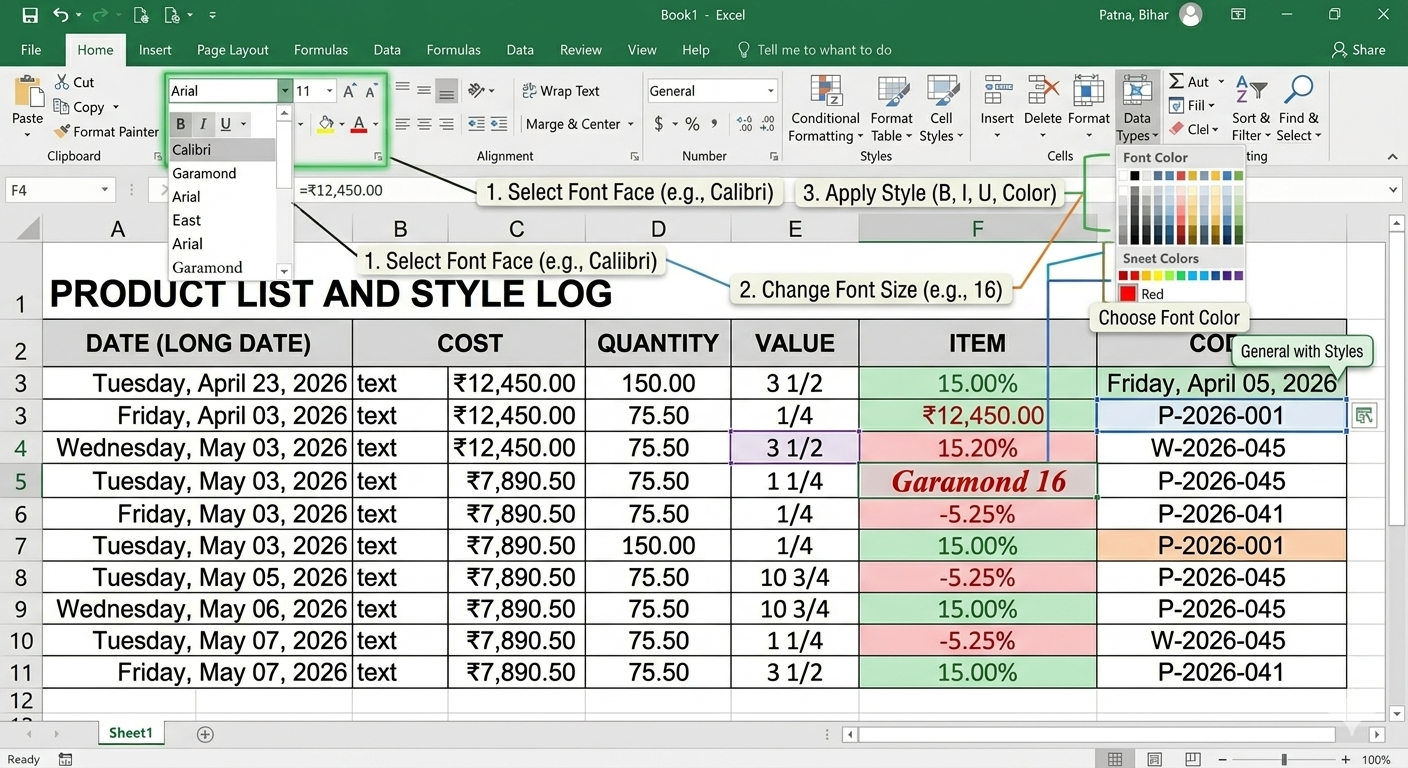
Changing Font/FontSize/Font color: By default, the font of each new workbook is set to Calibri and font size is 11. You can change font face or fontsize of the text or the data entered into the cell. फ़ॉन्ट में बदलाव—आप सेल मे टेक्स्ट या दर्ज किए गए डेटा का फ़ॉन्ट फेस बदल सकते हैं।
Here we see some simple steps to change the font/fontsize/font color of the text entered in the cell…
- Select the cell(s) you want to modify. Go to Home tab.
- To change the font: Click the drop-down arrow next to the Font command on the Home tab. The Font drop-down menu will appear. Select the desired font. The text will change to the selected font.
- To change the font size: Click the drop-down arrow next to the Font Size command on the Home tab. The Font Size drop-down menu will appear. Select the desired font size. The text will change to the selected font size.
Note: You can also use the Increase Font Size and Decrease Font Size commands or enter a custom font size using your keyboard.
- To change the font color: Click the drop-down arrow next to the Font color command on the Home tab. The color menu will appear. Select the desired font color. The text will change to the selected font color.
Note: Select More Colors at the bottom of the menu to access additional color options.
To use the Bold, Italic, and Underline commands:
Select the cell(s) you want to modify. Click the Bold (B), Italic (I), or Underline (U) command on the Home tab. In our example, we’ll make the selected cells bold. The selected style will be applied to the text.
Note: You can also press Ctrl+B on your keyboard to make selected text bold, Ctrl+I to apply italics, and Ctrl+U to apply an underline.
Format Cells Dialog Box
You can also apply formatting by using Format cell dialog box. To open Format cell dialog box, Click on Font dialog box launcher from the bottom of the font group or press Ctrl+1 key