- Introduction Of MS Excel – 2016
- 4.2 Elements of Spread Sheet (स्प्रेडशीट के तत्व)
- 4.3 Creating of Spread Sheet (स्प्रेडशीट तैयार करना)
- 4.4 Opening an Existing Workbook (मौजूदा वर्कबुक को खोलना)
- 4.6 Page Setup (पेज सेटअप)
- 4.7 Printing a Worksheet (वर्कशीट को प्रिन्ट करना)
- 4.9 Entering, Editing, and Formatting Data (इन्टरिंग, एडिटिंग और फॉर्मेटिंग डाटा)
- 4.9.2 Editing Data (एडिटिंग डाटा)
- 4.9.3 Formatting Data in an Excel spreadsheet (एक्सेल स्प्रेडशीट मे डाटा फॉर्मेट करना)
- 4.9.3.2 Changing Font, Size and Style (फ़ॉन्ट, साइज एवं स्टाईल में बदलाव)
- 4.9.3.3 Changing the Alignment of the data in the cell (सेल में डेटा का अलाइनमेंट बदलना)
- 4.9.3.5 Wrap text in a cell (सेल में टेक्स्ट रैप करें)
- 4.10 Modifying columns, Rows and cell (रो, कॉलम या सेल को बदलना)
- 4.11 Inserting, Deleting, Moving and Hiding Rows, Column(इंसर्टिंग, डिलीटिंग, मूविंग और हाइडिंग रो, कॉलम)
- 4.11.2 Moving rows and columns (रो एवं कॉलम को मूव करना)
- 4.11.3 Hiding/ UnHiding Rows and Column
- 4.12 AutoFill (ऑटोफिल)
- 4.13 Sorting & Filtering (शॉर्टिंग एवं फिल्टरिंग)
- 4.13.2 Filtering Data (फ़िल्टरिंग डेटा)
- 4.14 Pivot Tables and Pivot Chart (पॉयोट टेबिल्स और पॉयोट चार्ट)
- 4.15 Cell Reference (सेल रेफरेंस)
- 4.16.2 Absolute cell Reference (एब्सॉल्यूट सेल रेफरेंस)
- 4.17 Formulas, Functions and Charts (फॉर्मूला, फंक्शन एवं चार्ट्स)
- 4.17.2 Charts (चार्ट)
- 4.18 Data Validation (डेटा वैलिडेशन)
- 4.19 Freezing panes (फ़्रीज़िंग पेन्स)
- 4.20 Macros (मैक्रो)
- 4.21 Shortcut keys
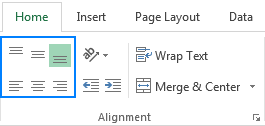
We can set the alignment of the text value in the cell to Left, Right, Center, Top align, Middle align or bottom align. By default, any text entered into your worksheet will be aligned to the bottom-left of a cell, while any numbers, Date & Time, Formula will be aligned to the bottom-right, and boolean entries will be aligned to the center.
हम सेल में टेक्स्ट वैल्यू के एलाइनमेंट को लेफ्ट, राइट, सेंटर, टॉप एलाइन, मिडिल एलाइन या बॉटम एलाइन पर सेट कर सकते हैं। डिफॉल्ट रूप से, आपकी वर्कशीट में दर्ज किया गया कोई भी टेक्स्ट सेल के bottom-left एलाइन हो जाएगा, जबकि कोई भी नंबर, दिनांक और समय, फॉर्मूला bottom-right साइड एलाइन हो जाएगा, और ब्रूलियन प्रविष्टियां bottom-center में एलाइन हो जाएगा।
Here we see some simple steps to align the value in the cell. यहां हम सेल में वैल्यू को एलाइन करने के लिए कुछ सरल चरण देखते हैं।
- Select the cell(s) you want to modify.
- Go to Home tab. and Click to any of the alignment tool (Top Align, Middle Align, Bottom Align, Left, Right, Center) from the Alignment Group you want to apply.
Note: You can even set your custom alignment, Cell orientation, text direction too from the Format cell dialog box.
4.9.3.4 Merge and center (मर्ज और सेन्टर)
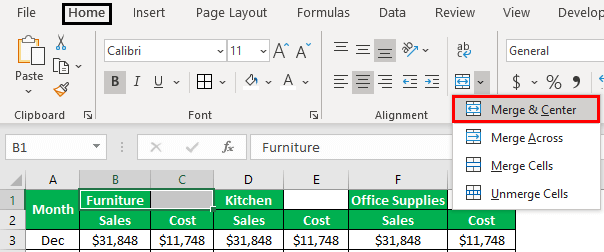
When you merge two or more adjacent horizontal or vertical cells, the cells become one large cell that is displayed across multiple columns or rows. The contents of one of the cells appear in the center of the merged cell. It is often used to create labels that span multiple columns.
जब आप दो या दो से अधिक एडजेसेंट हॉरीजैन्टल या वर्टिकल सेलो को मिलाते हैं, तो सेल एक बड़ी सेल बन जाती हैं जो कई कॉलमों या रो में प्रदर्शित होती हैं। किसी एक सेल का कन्टेन्ट मर्ज किए गये सेल के सेन्टर में दिखाई देता है। इसका उपयोग अक्सर ऐसे लेबल बनाने के लिए किया जाता है जो कई कॉलमों मे होता हैं।
- Step 1: Open your spreadsheet in Excel 2013.
- Step 2: Select the cells that you wish to merge.
- Step 3: Click on Home tab at the top of the window.
- Step 4: Click the arrow to the right of Merge & Center in the Alignment Group of the ribbon at the top of the window, then select the Merge Cells option.