- Introduction Of MS Excel – 2016
- 4.2 Elements of Spread Sheet (स्प्रेडशीट के तत्व)
- 4.3 Creating of Spread Sheet (स्प्रेडशीट तैयार करना)
- 4.4 Opening an Existing Workbook (मौजूदा वर्कबुक को खोलना)
- 4.6 Page Setup (पेज सेटअप)
- 4.7 Printing a Worksheet (वर्कशीट को प्रिन्ट करना)
- 4.9 Entering, Editing, and Formatting Data (इन्टरिंग, एडिटिंग और फॉर्मेटिंग डाटा)
- 4.9.2 Editing Data (एडिटिंग डाटा)
- 4.9.3 Formatting Data in an Excel spreadsheet (एक्सेल स्प्रेडशीट मे डाटा फॉर्मेट करना)
- 4.9.3.2 Changing Font, Size and Style (फ़ॉन्ट, साइज एवं स्टाईल में बदलाव)
- 4.9.3.3 Changing the Alignment of the data in the cell (सेल में डेटा का अलाइनमेंट बदलना)
- 4.9.3.5 Wrap text in a cell (सेल में टेक्स्ट रैप करें)
- 4.10 Modifying columns, Rows and cell (रो, कॉलम या सेल को बदलना)
- 4.11 Inserting, Deleting, Moving and Hiding Rows, Column(इंसर्टिंग, डिलीटिंग, मूविंग और हाइडिंग रो, कॉलम)
- 4.11.2 Moving rows and columns (रो एवं कॉलम को मूव करना)
- 4.11.3 Hiding/ UnHiding Rows and Column
- 4.12 AutoFill (ऑटोफिल)
- 4.13 Sorting & Filtering (शॉर्टिंग एवं फिल्टरिंग)
- 4.13.2 Filtering Data (फ़िल्टरिंग डेटा)
- 4.14 Pivot Tables and Pivot Chart (पॉयोट टेबिल्स और पॉयोट चार्ट)
- 4.15 Cell Reference (सेल रेफरेंस)
- 4.16.2 Absolute cell Reference (एब्सॉल्यूट सेल रेफरेंस)
- 4.17 Formulas, Functions and Charts (फॉर्मूला, फंक्शन एवं चार्ट्स)
- 4.17.2 Charts (चार्ट)
- 4.18 Data Validation (डेटा वैलिडेशन)
- 4.19 Freezing panes (फ़्रीज़िंग पेन्स)
- 4.20 Macros (मैक्रो)
- 4.21 Shortcut keys
If you want text to appear on multiple lines in a cell, you can format the cell so that the text wraps automatically, or you can enter a manual line break. Or we can say that it is used to make all the content visible within a cell by displaying it on multiple lines.
यदि आप चाहते हैं कि टेक्स्ट एक सेल में कई लाइनों पर दिखाई दे, तो आप सेल को फॉर्मेट कर सकते हैं ताकि टेक्स्ट अपने आप रैप हो जाए, या आप एक मैनुअल लाइन ब्रेक दर्ज कर सकते हैं। या हम कह सकते हैं कि इसका उपयोग एक ही सेल के भीतर सभी कन्टेन्ट को कई लाइनों में प्रदर्शित करने के लिए किया जाता है।
Text wraps automatically
- In a worksheet, select the cells that you want to format.
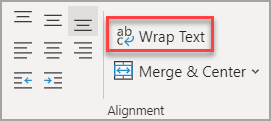
- On the Home tab, in the Alignment group, click Wrap Text.
Enter a line break:
To start a new line of text at a specific point in a cell, double-click the cell, click the location where you want to break the line in the cell, and then press ALT+ENTER.
सेल में किसी विशिष्ट बिंदु पर टेक्स्ट की एक नई लाइन शुरू करने के लिए, सेल पर डबल-क्लिक करें, उस स्थान पर क्लिक करें जहाँ आप सेल में लाइन को ब्रेक करना चाहते हैं, और फिर ALT+ENTER दबाएँ।
Notes:
- Data in the cell wraps to fit the column width, so if you change the column width, data wrapping adjusts automatically.सेल में डेटा, कॉलम की चौड़ाई में फिट होने के लिए रैप होता है, इसलिए यदि आप कॉलम की चौड़ाई बदलते हैं, डेटा रैपिंग अपने आप एडजस्ट हो जाती है।
- If all wrapped text is not visible, it may be because the row is set to a specific height or that the text is in a range of cells that has been merged.यदि सभी रैप हुआ टेक्स्ट दिखाई नहीं दे रहा है, तो ऐसा इसलिए हो सकता है क्योंकि रो एक विशिष्ट हाईट पर है या टेक्स्ट मर्ज किए गए सेलो की रेंज में है।
4.9.3.6 Conditional Formatting (कंडीशनल फॉर्मेटिंग)
Conditional formatting allows you to automatically apply formatting—such as colors, icons, and data bars—to one or more cells based on the cell value. To do this, you’ll need to create a conditional formatting rule. For example, a conditional formatting rule might be: If the value is less than $2000, color the cell red. By applying this rule, you’d be able to quickly see which cells contain values less than $2000.
कंडीशनल फॉर्मेटिंग आपको सेल वैल्यू के आधार पर एक या अधिक सेलो में फॉर्मेट जैसे कलर, आइकन और डेटा बार इत्यादि स्वचालित रूप से लागू करने की अनुमति देता है। ऐसा करने के लिए, आपको एक कंडीशनल फॉर्मेटिंग का रूल बनाना होगा। उदाहरण के लिए, एक कंडीशनल फॉर्मेटिंग का रूल हो सकता है: यदि वैल्यू $2000 से कम है, तो सेल को लाल रंग दें। इस रूल को लागू करके, आप जल्दी से देख पाएंगे कि किन सेल में $2000 से कम वैल्यू है।
To create a conditional formatting rule:
- Select the desired cells for the conditional formatting rule.
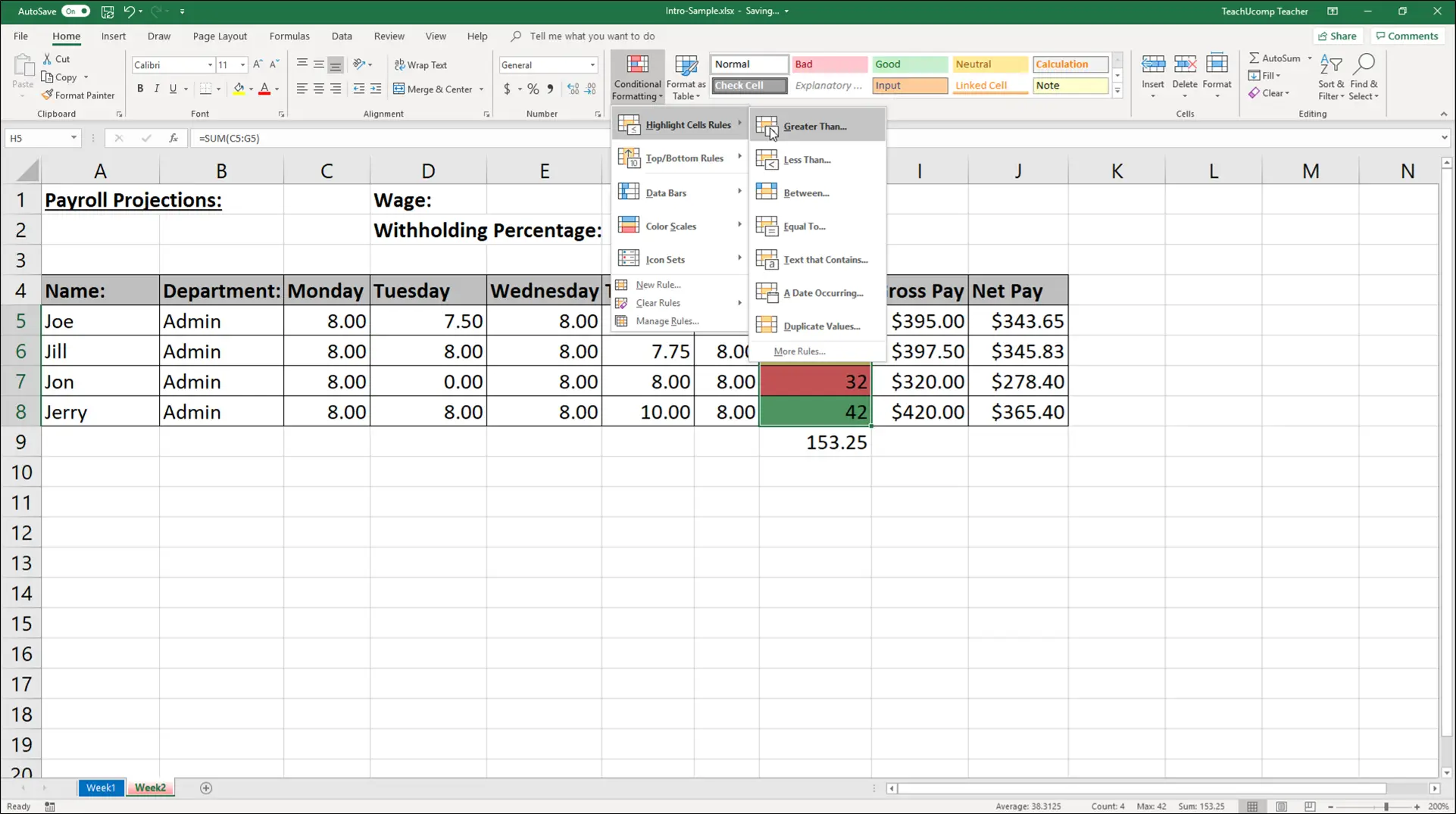
- Go to the Home tab, click the Conditional Formatting command. A drop-down menu will appear.
- Hover the mouse over the desired conditional formatting type, then select the desired rule from the menu that appears. In our example, we want to highlight cells that are greater than $4000.
- A dialog box will appear. Enter the desired value(s) into the blank field. In our example, we’ll enter 4000 as our value.
- Select a formatting style from the drop-down menu. In our example, we’ll choose Green Fill with Dark Green Text, then click OK.
The conditional formatting will be applied to the selected cells. In our example, it’s easy to see which salespeople reached the $4000 sales goal for each month.