- Introduction Of MS Excel – 2016
- 4.2 Elements of Spread Sheet (स्प्रेडशीट के तत्व)
- 4.3 Creating of Spread Sheet (स्प्रेडशीट तैयार करना)
- 4.4 Opening an Existing Workbook (मौजूदा वर्कबुक को खोलना)
- 4.6 Page Setup (पेज सेटअप)
- 4.7 Printing a Worksheet (वर्कशीट को प्रिन्ट करना)
- 4.9 Entering, Editing, and Formatting Data (इन्टरिंग, एडिटिंग और फॉर्मेटिंग डाटा)
- 4.9.2 Editing Data (एडिटिंग डाटा)
- 4.9.3 Formatting Data in an Excel spreadsheet (एक्सेल स्प्रेडशीट मे डाटा फॉर्मेट करना)
- 4.9.3.2 Changing Font, Size and Style (फ़ॉन्ट, साइज एवं स्टाईल में बदलाव)
- 4.9.3.3 Changing the Alignment of the data in the cell (सेल में डेटा का अलाइनमेंट बदलना)
- 4.9.3.5 Wrap text in a cell (सेल में टेक्स्ट रैप करें)
- 4.10 Modifying columns, Rows and cell (रो, कॉलम या सेल को बदलना)
- 4.11 Inserting, Deleting, Moving and Hiding Rows, Column(इंसर्टिंग, डिलीटिंग, मूविंग और हाइडिंग रो, कॉलम)
- 4.11.2 Moving rows and columns (रो एवं कॉलम को मूव करना)
- 4.11.3 Hiding/ UnHiding Rows and Column
- 4.12 AutoFill (ऑटोफिल)
- 4.13 Sorting & Filtering (शॉर्टिंग एवं फिल्टरिंग)
- 4.13.2 Filtering Data (फ़िल्टरिंग डेटा)
- 4.14 Pivot Tables and Pivot Chart (पॉयोट टेबिल्स और पॉयोट चार्ट)
- 4.15 Cell Reference (सेल रेफरेंस)
- 4.16.2 Absolute cell Reference (एब्सॉल्यूट सेल रेफरेंस)
- 4.17 Formulas, Functions and Charts (फॉर्मूला, फंक्शन एवं चार्ट्स)
- 4.17.2 Charts (चार्ट)
- 4.18 Data Validation (डेटा वैलिडेशन)
- 4.19 Freezing panes (फ़्रीज़िंग पेन्स)
- 4.20 Macros (मैक्रो)
- 4.21 Shortcut keys
4.13.1 Sorting Data (शॉर्टिंग डेटा)
It is used to arrange the record of excel either in Ascending or descending order. When sorting data in Microsoft Excel, it’s very important to decide whether you want just part of the data sorted or the whole dataset.
इसका उपयोग एक्सेल के रिकॉर्ड को आरोही या अवरोही क्रम में व्यवस्थित करने के लिए किया जाता है। माइक्रोसॉफ्ट एक्सेल में डेटा सॉर्ट करते समय, यह तय करना बहुत महत्वपूर्ण है कि आप डेटा का केवल एक भाग या संपूर्ण डेटासेट को शार्ट करना चाहते हैं।
Steps for using sorting feature
- Decide which column you want to sort on (eg. Column B) and click on any cell in that column.
- Click on the [Sort & Filter] button in the Editing group on the right of the HOME tab and choose Sort Smallest to Largest to sort the data into increasing values.
- Repeat step 2 but choose Sort Largest to Smallest to sort the data into decreasing values.
- Press (or click on the [Undo] button) twice to return the data to its original order…
यह निर्णय करें कि आप किस कॉलम को शार्ट करना चाहते हैं उस कॉलम में किसी भी सेल पर क्लिक करें। फिर होम टैब के राईट साइड के एडिटिंग ग्रुप में शार्ट और फिल्टर बटन पर क्लिक करें। अगर डाटा को बढ़ते से घटते क्रम में शार्ट करना चाहते हैं तो स्टेप 2 रिपीट करें और शार्ट करने के लिए Largest to Smallest सेलेक्ट करें। फिर डाटा को ओरिजिनल रूप में लाना है तो दो बार कन्ट्रोल के साथ Z प्रेस करें।
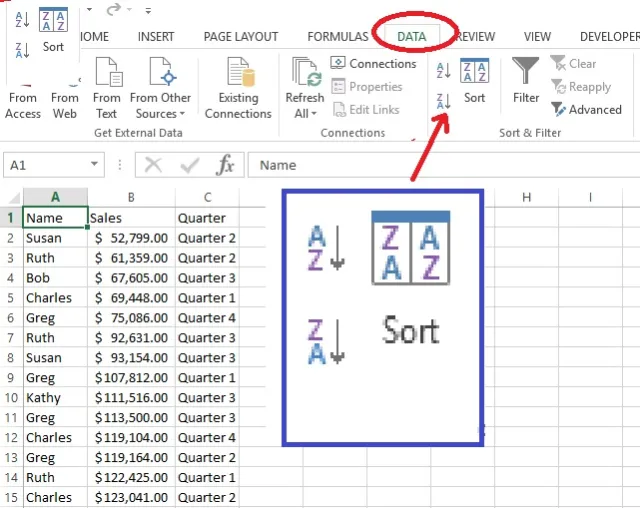
Sorting Selected Data (शॉर्टिंग सेलेक्टेड डेटा)
If you only want to sort part of the data, you have to select it first:
- Click on the column heading letter B to select that column.
- Click on [Sort & Filter] and choose Sort Smallest to Largest – a warning message appears.
- Select Continue with the current selection – press for [Sort].
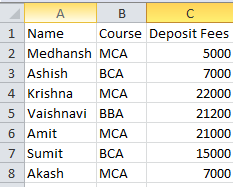
You will find column B is now sorted but the rest of the data hasn’t moved. This could be a disaster if the rows represented data records (as they do here – the data is now corrupted).
- Press (or click on [Undo]) to return the data to its original order.
यदि आप डेटा का केवल एक भाग शॉर्ट करना चाहते हैं, तो आपको पहले उसे चुनना होगा: उस कॉलम को चुनने के लिए कॉलम हेडिंग लेटर B पर क्लिक करें शॉर्ट और फिल्टर विकल्प पर क्लिक करें और Sort Smallest to Largest चुनें फिर आपको एक वार्निंग मैसेज दिखाई देता है: Continue with the current selection को सेलेक्ट करें – शार्ट करने के लिए इन्टर दबाएं आप पाएंगे कि कॉलम B अब शार्ट हो गया है लेकिन शेष डेटा स्थानांतरित नहीं हुआ है। यह एक समस्या हो सकती है यदि रो डेटा रिकॉर्ड को रिप्रेजेन्ट करती हैं (जैसा कि आप यहाँ करते हैं — डेटा अब करप्ट हो जाता है)। इसलिए डेटा को उसके ओरिजिनल आर्डर में वापस करने के लिए दबाएं (या अनडू करें) पर क्लिक करें।
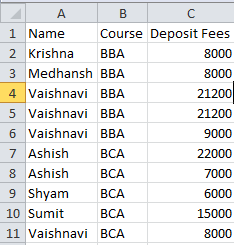
Before sorting After sorting
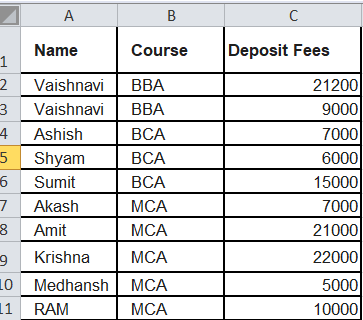
Custom Sorts (कस्टम शॉर्ट)
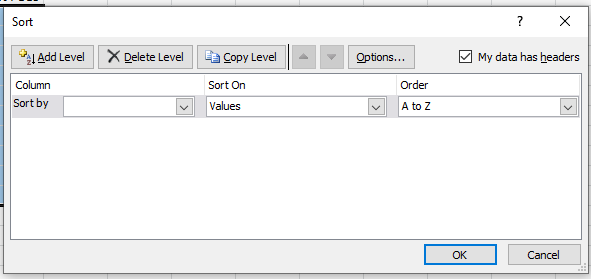
If you use Custom Sort then you have various additional options available. This command even allows you to carry out sorts within sorts:
यदि आप कस्टम सॉर्ट का उपयोग करते हैं तो आपके पास कई अतिरिक्त विकल्प उपलब्ध होते हैं। यह कमाण्ड आपको एक सॉर्ट के अन्दर सॉर्ट करने की अनुमति भी देता है:
- Click on any cell in column A then click on [Sort & Filter] and choose Custom Sort… The Sort dialog box appears (as shown in the figure).
- Using the list arrow attached to the Sort by box, set the column for the initial sort – eg Course.
- Leave Sort On as it is but decide whether you want the Order to be A to Z or Z to A.
- Next, click on the [Add Level] button to add another sorting level.
- Set the column and order for the second sort level – eg Name, A to Z.
- Click on [Add Level] for a further sorting level.
- Set the column and order for the third sort level – eg Deposit Fees (g), Largest to Smallest.
- The My data has header should already be set on, so press <Enter> for [OK] to carry out the sort.
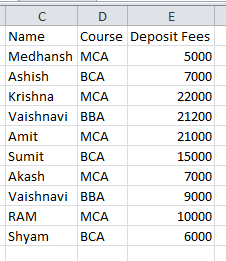
The MCA and BCA should now be separated out, with each sorted first by Course then Name. Next, try sorting on part of the data.
- Press <Ctrl + z> (or click on [Undo]) to return the data to its original order.
कॉलम A में किसी भी सेल पर क्लिक करें और फिर शार्ट और फिल्टर पर क्लिक करें और कस्टम शार्ट चुनें। शार्ट डायलॉग बॉक्स दिखाई देता है (जैसा ऊपर दिखाया गया है)।
- Sort by बॉक्स से अटैच लिस्ट एरो का उपयोग करके, प्रारंभिक क्रम के लिए कॉलम सेट करें – जैसे कोर्स।
- शार्ट ऑन को छोड़िये जैसा है रहने दें लेकिन तय करें कि आप किस आर्डर A से Z या Z से A में डेटा चाहते हैं।
- नेक्स्ट, एक और सॉर्टिंग लेवल जोड़ने के लिए Add Level बटन पर क्लिक करें। दूसरे शार्ट लेवल के लिए कॉलम और आर्डर सेट करें – जैसे Name, A to Z।
- तीसरे शार्ट लेवल के लिए कॉलम और ऑडर सेट करें – जैसे Deposit Fees, Z to A।
- इसलिए शार्ट करने के लिए इण्टर दबाएं या ओके बटन पर क्लिक करें।
एमसीए और बीसीए को अब अलग हो जाता है, प्रत्येक डाटा को पहले कोर्स और फिर नेम के आधार पर शार्ट किया गया है। इसके बाद, डेटा के पार्ट को शार्ट करने का प्रयास करें। डेटा को उसके ओरिजनल क्रम में वापस करने के लिए <Ctrl + z> दबाएं (या Undo पर क्लिक करे
Before sorting After sorting