- Introduction Of MS Excel – 2016
- 4.2 Elements of Spread Sheet (स्प्रेडशीट के तत्व)
- 4.3 Creating of Spread Sheet (स्प्रेडशीट तैयार करना)
- 4.4 Opening an Existing Workbook (मौजूदा वर्कबुक को खोलना)
- 4.6 Page Setup (पेज सेटअप)
- 4.7 Printing a Worksheet (वर्कशीट को प्रिन्ट करना)
- 4.9 Entering, Editing, and Formatting Data (इन्टरिंग, एडिटिंग और फॉर्मेटिंग डाटा)
- 4.9.2 Editing Data (एडिटिंग डाटा)
- 4.9.3 Formatting Data in an Excel spreadsheet (एक्सेल स्प्रेडशीट मे डाटा फॉर्मेट करना)
- 4.9.3.2 Changing Font, Size and Style (फ़ॉन्ट, साइज एवं स्टाईल में बदलाव)
- 4.9.3.3 Changing the Alignment of the data in the cell (सेल में डेटा का अलाइनमेंट बदलना)
- 4.9.3.5 Wrap text in a cell (सेल में टेक्स्ट रैप करें)
- 4.10 Modifying columns, Rows and cell (रो, कॉलम या सेल को बदलना)
- 4.11 Inserting, Deleting, Moving and Hiding Rows, Column(इंसर्टिंग, डिलीटिंग, मूविंग और हाइडिंग रो, कॉलम)
- 4.11.2 Moving rows and columns (रो एवं कॉलम को मूव करना)
- 4.11.3 Hiding/ UnHiding Rows and Column
- 4.12 AutoFill (ऑटोफिल)
- 4.13 Sorting & Filtering (शॉर्टिंग एवं फिल्टरिंग)
- 4.13.2 Filtering Data (फ़िल्टरिंग डेटा)
- 4.14 Pivot Tables and Pivot Chart (पॉयोट टेबिल्स और पॉयोट चार्ट)
- 4.15 Cell Reference (सेल रेफरेंस)
- 4.16.2 Absolute cell Reference (एब्सॉल्यूट सेल रेफरेंस)
- 4.17 Formulas, Functions and Charts (फॉर्मूला, फंक्शन एवं चार्ट्स)
- 4.17.2 Charts (चार्ट)
- 4.18 Data Validation (डेटा वैलिडेशन)
- 4.19 Freezing panes (फ़्रीज़िंग पेन्स)
- 4.20 Macros (मैक्रो)
- 4.21 Shortcut keys
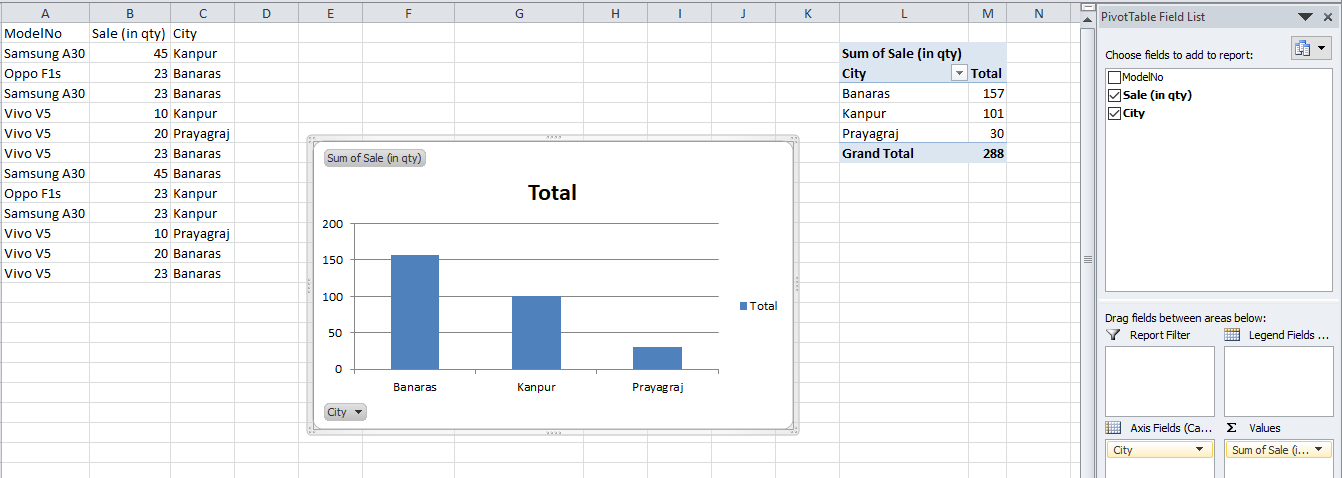
PivotTable report is an interactive way to quickly summarize large amounts of data. This Report is also used to analyze numerical data in depth and to answer unanticipated questions about your data.
PivotChart report is used to visualize this summary data in a PivotTable report, and to easily see comparisons, patterns, and trends. Both a PivotTable report and a PivotChart report enable you to make informed decisions about critical data in your enterprise.
PivotTable रिपोर्ट बड़ी मात्रा में डेटा को शीघ्रता से समराइज करने का एक इंटरैक्टिव तरीका है। इस रिपोर्ट का उपयोग संख्यात्मक डेटा का गहराई से विश्लेषण करने और आपके डेटा के बारे में अप्रत्याशित प्रश्नों के उत्तर देने के लिए भी किया जाता है।
PivotChart रिपोर्ट का उपयोग PivotTable रिपोर्ट में उपलब्ध समरी डेटा को विज़ुअलाइज़ करने और तुलना करने, पैटर्नों और ट्रेन्ड को आसानी से देखने के लिए किया जाता है। PivotTable रिपोर्ट और PivotChart रिपोर्ट दोनों आपको अपने उद्यम में महत्वपूर्ण डेटा के बारे में उचित निर्णय लेने में सक्षम बनाती हैं।
Steps for creating Pivot table and Pivot chart report
(PivotTable रिपोर्ट और PivotChart रिपोर्ट बनाने के लिए स्टेप्स)
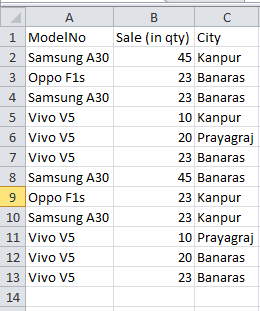
- Select a cell in a range of cells; Make sure that the range of cells has column headings.
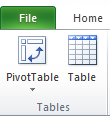
- Go to Insert tab -> Select Pivot table from the tables group -> again select Pivot table or pivot chart from the drop down menu.
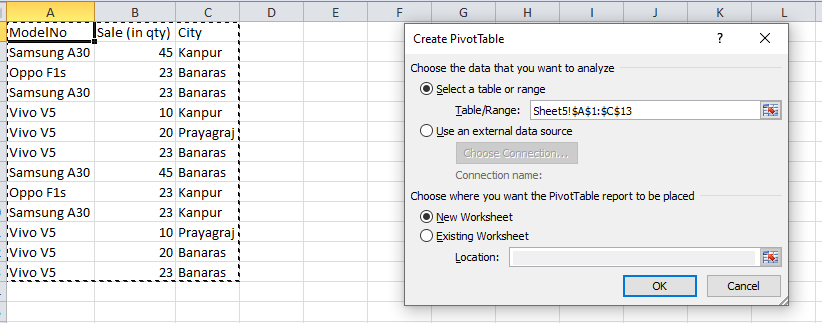
3.The Create PivotTable dialog box is displayed.
4. If we want to display the report/pivot chart in a new worksheet then select New worksheet in the dialog box (otherwise select existing worksheet & provide the location) and click on ok button.
5. Then we can see the msg “To build a report, choose field from the pivot table field List”. This field list appears at the right side of the excel worksheet. Checked the field which you want in a pivot table report.
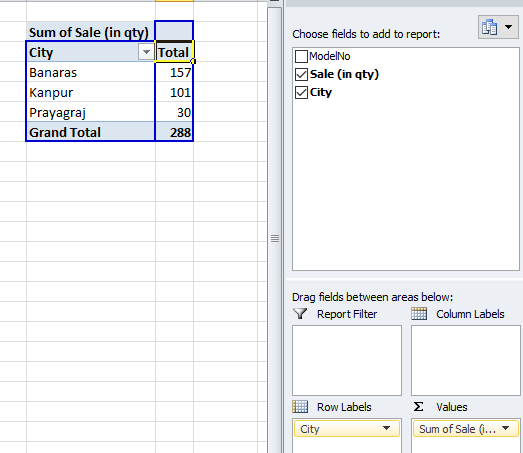
- If you select pivot chart in the tables group from Insert tab then following pivot chart report appear on your screen like this….