
- Introduction Of MS Excel – 2016
- 4.2 Elements of Spread Sheet (स्प्रेडशीट के तत्व)
- 4.3 Creating of Spread Sheet (स्प्रेडशीट तैयार करना)
- 4.4 Opening an Existing Workbook (मौजूदा वर्कबुक को खोलना)
- 4.6 Page Setup (पेज सेटअप)
- 4.7 Printing a Worksheet (वर्कशीट को प्रिन्ट करना)
- 4.9 Entering, Editing, and Formatting Data (इन्टरिंग, एडिटिंग और फॉर्मेटिंग डाटा)
- 4.9.2 Editing Data (एडिटिंग डाटा)
- 4.9.3 Formatting Data in an Excel spreadsheet (एक्सेल स्प्रेडशीट मे डाटा फॉर्मेट करना)
- 4.9.3.2 Changing Font, Size and Style (फ़ॉन्ट, साइज एवं स्टाईल में बदलाव)
- 4.9.3.3 Changing the Alignment of the data in the cell (सेल में डेटा का अलाइनमेंट बदलना)
- 4.9.3.5 Wrap text in a cell (सेल में टेक्स्ट रैप करें)
- 4.10 Modifying columns, Rows and cell (रो, कॉलम या सेल को बदलना)
- 4.11 Inserting, Deleting, Moving and Hiding Rows, Column(इंसर्टिंग, डिलीटिंग, मूविंग और हाइडिंग रो, कॉलम)
- 4.11.2 Moving rows and columns (रो एवं कॉलम को मूव करना)
- 4.11.3 Hiding/ UnHiding Rows and Column
- 4.12 AutoFill (ऑटोफिल)
- 4.13 Sorting & Filtering (शॉर्टिंग एवं फिल्टरिंग)
- 4.13.2 Filtering Data (फ़िल्टरिंग डेटा)
- 4.14 Pivot Tables and Pivot Chart (पॉयोट टेबिल्स और पॉयोट चार्ट)
- 4.15 Cell Reference (सेल रेफरेंस)
- 4.16.2 Absolute cell Reference (एब्सॉल्यूट सेल रेफरेंस)
- 4.17 Formulas, Functions and Charts (फॉर्मूला, फंक्शन एवं चार्ट्स)
- 4.17.2 Charts (चार्ट)
- 4.18 Data Validation (डेटा वैलिडेशन)
- 4.19 Freezing panes (फ़्रीज़िंग पेन्स)
- 4.20 Macros (मैक्रो)
- 4.21 Shortcut keys
Whenever you’re working with a lot of data, it can be difficult to compare information in your workbook. Fortunately, Excel includes several tools that make it easier to view content from different parts of your workbook at the same time, such as the ability to freeze panes and split your worksheet.
जब भी आप एक्सेल में बहुत अधिक डेटा के साथ काम कर रहे हों, तो आपकी वर्कबुक में जानकारी की तुलना करना मुश्किल हो सकता है। सौभाग्य से, एक्सेल में कई उपकरण शामिल हैं जो एक ही समय में आपकी वर्कबुक के विभिन्न हिस्सों से कंटेंट को देखना आसान बनाते हैं, जैसे कि पैन को फ्रीज करने और अपनी वर्कशीट को विभाजित करने की क्षमता आदि।
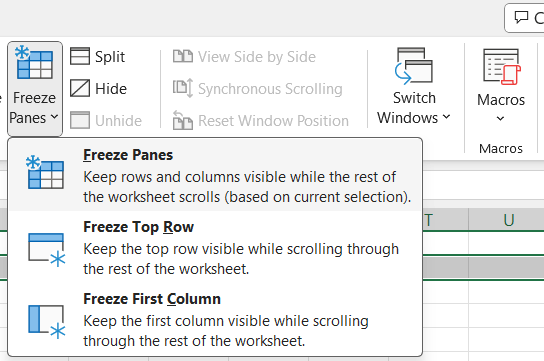
Freeze Top Row: To freeze the top row, execute the following steps.
Step 1: On the View tab, in the Window group, click Freeze Panes. Click Freeze Top Row. Step 2: Scroll down to the rest of the worksheet. Result: The top row remains visible while scrolling through the rest of the worksheet.
Unfreeze Panes: To unlock all rows and columns, execute the following steps.
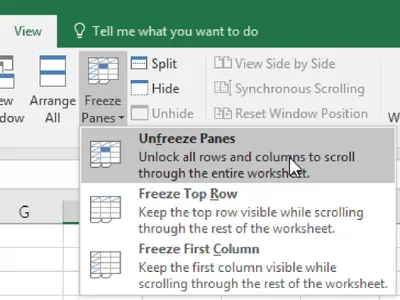
Step 1: On the View tab, in the Window group, click Freeze Panes.
Step 2: Click Unfreeze Panes. Result: Unlock all rows and columns to scroll through the entire worksheet.
Freeze Panes: To freeze panes, execute the following steps.
Step 1: Select row 3. On the View tab, in the Window group, click Freeze Panes.
Step 2: On the View tab, in the Window group, click Freeze Panes -> Freeze Panes.
Step 4: Scroll down to the rest of the worksheet. Result: All rows above row 3 are frozen.
Note: To keep columns visible while scrolling to the right of the worksheet, select a column and click Freeze panes.
Step 5: Select cell C3 (unfreeze panes first).
Step 6: On the View tab, in the Window group, click Freeze Panes -> Freeze Panes.
Result: The region above row 3 and to the left of column C is frozen.


